
Recording archive manager
Wants to store and find sessions, as well as organise a separate copy that the group can restore. The Digital Trust Center describes a backup as a copy of the original data.


Choose an SSD to suit the size of your current and future recording archive, as well as the ports on the computers members will use to access files. If you’re using the drive to store important recordings, arrange a separate, recoverable copy too: one SSD on its own is not a backup. Higher quoted speeds are only useful if the connected computer supports them.
Wants to store and find sessions, as well as organise a separate copy that the group can restore. The Digital Trust Center describes a backup as a copy of the original data.
Takes the SSD to rehearsals or performances and considers its connection, size and protection in transit.
Wants to make files accessible on different computers and agree who can view or share recordings.
First, work out how much space your archive needs and whether the SSD will be used for working storage, transferring files or keeping an extra copy. Then check that the drive and any security features work with the group’s computers.
| Priority | What to look for when buying | Who is this important for? |
|---|---|---|
| Keeping and restoring recordings | Decide where the separate copy will be stored and how the group will check that it can be restored. | If I want to be able to restore recordings when the working copy is lost or files are overwritten, recoverability comes first. Around 36% of consumers put keeping and restoring data top of their list. |
| Space for a growing archive | Allow for current projects, future sessions and the versions the group wants to keep. | If I want to keep sessions and project versions for a long time, capacity needs to keep pace with the archive’s growth. Around 29% of consumers prioritise having enough room to grow. |
| Access from different computers | Check the ports and cables, and make sure the computers in question can read and write the chosen file system. Make a copy before formatting. | If members need to open and transfer recordings on different computers, suitable connections and a workable file system are essential. Around 21% of consumers prioritise sharing files between computers. |
| Access to identifiable recordings | Check that encryption works on the group’s computers and agree how access and recovery details will be managed. | If recordings clearly identify people in picture or sound, I want to control who can access and manage the files. Around 14% of consumers prioritise restricting access to this kind of recording. |
If the SSD contains the only copy, the archive still depends on that one drive. A backup is a separate copy that the group can check they’re able to restore.
Before buying, agree where the copy will be stored, who is responsible for it and how often restoration will be tested.
A separate storage location takes extra space and time to check that files can be restored.
Your computer’s connection can limit transfer speeds, so you may not always be able to make use of a higher quoted speed.
First check the USB ports on the group’s computers, then compare the speed ratings.
Formatting can erase existing recordings from the SSD.
Check that the file system works with the group’s computers and make a separate copy before making any changes.
Protection against dust, water or drops won’t stop files being deleted, the SSD being lost or unauthorised people accessing recordings.
Consider physical protection, backups and access arrangements as separate parts of your decision.
The T7 Shield is worth comparing if you’ll be taking your SSD with you often. The T9 is a separate USB option; check that your computer supports its connection.
The XS1000 is a compact range to consider for transferring files between members.
The X9 Pro is worth considering if portability, casing protection and encryption are important to you.
The Ultra Compact SSD is worth considering if you’re looking for a very small drive with a direct USB-C connection.
This selection includes portable external SSDs for taking group recordings with you, storing them and sharing them. For each model, check that its capacity, connection and any security features are right for the group’s computers.
 Image unavailable
A portable option for taking recordings with you and storing them.
1 TB storage; transfer speeds of up to 800 MB/s; drop protection from heights of up to 2 m and an integrated rubber hook.
 Image unavailable
A portable option if you also want to consider the stated casing protection and hardware encryption.
1 TB storage, USB-C, IP65, drop protection from heights of up to 3 m and 256-bit AES hardware encryption. The stated read speed of up to 2.000 MB/s requires a compatible USB 3.2 Gen 2x2 host; write speeds are lower.
 Image unavailable
A compact option for transferring files between members and computers.
1 TB storage, USB 3.2 Gen 2, read speeds of up to 1.000 MB/s, drop protection from heights of up to 2 m, an integrated USB-C cable and a USB-A adapter. Formatting may be required the first time you use it with Windows; back up your files first.
 Image unavailable
A portable option for a larger archive shared between USB-C and USB-A computers.
2 TB storage, speeds of up to 1.050 MB/s read and 1.000 MB/s write, AES 256-bit encryption, and USB-C-to-C and USB-C-to-A cables. The product description lists compatibility with Windows and macOS; the connected computer needs to support USB 3.2 Gen 2 for optimal performance.
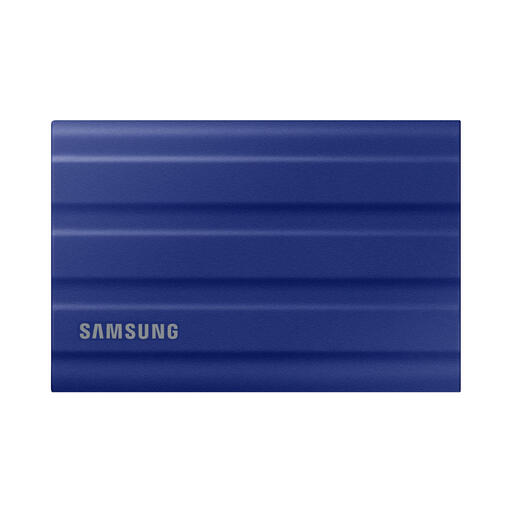 Image unavailable
A portable option to compare if you’ll often take the SSD to rehearsals or performances.
1 TB storage, USB Type-C, USB 3.2 Gen 2, read speeds of up to 1.050 MB/s, IP65 and drop resistance from heights of up to 3 m. The product description lists protection against dust and water jets; submersion is not recommended.
Not if that same drive contains the only copy. The Digital Trust Center describes a backup as a copy of the original data, so agree where a separate copy will be stored and how the group will restore files from it.
Check that the ports and cables are compatible and that the computers in question can read and write the file system. Secure existing files elsewhere before reformatting the SSD.
No. Check the warranty terms for the exact version, but also arrange a separate copy and test that the group can restore files from it.
That depends, among other things, on what the recordings contain. According to the Dutch Data Protection Authority, audio recordings that make someone identifiable may be personal data. Organisations that process personal data must decide on appropriate security measures; an SSD won’t do this automatically.
No. Having a copy does not in itself give you permission to share music or recordings. The Government of the Netherlands states that the private-copy exception is for personal use and does not allow distribution or publication. Check rights and permissions before sharing files.