
Photographer building a growing home archive
You regularly add photos and want a local copy that won’t fill up straight away. Compare your existing photo folders and expected growth with the capacity of the exact drive variant.


For a growing photo collection that is mainly kept at home, a portable HDD is a good choice if storage capacity is your priority; an SSD may suit you better if you often move files or work directly from the drive. Choose based on the capacity you need, the connection and your recovery routine: one external drive is not a complete backup. The Consumentenbond describes HDDs as more vulnerable to shocks than SSDs.
You regularly add photos and want a local copy that won’t fill up straight away. Compare your existing photo folders and expected growth with the capacity of the exact drive variant.
You want to be able to retrieve photos after they are lost, an error occurs or a drive fails. Keeping a separate copy and testing recovery periodically are just as important as having enough storage.
You regularly move the drive or open large photo files directly from it. In that case, portability, your computer’s connection and the way you work all matter.
A good fit if: you mainly need space for a growing photo collection that you keep at home. Compare the capacity of the exact variant with your current files and expected additions.
Keep in mind: HDDs have moving parts and, according to the Consumentenbond, are more vulnerable to shocks than SSDs.
A good fit if: you often transfer photos or work from the connected drive, and your computer has the right USB connection.
Keep in mind: check that the capacity you choose is right for your archive; stated speeds are no guarantee of the speed of your full backup.
| What to consider | What to look for | Who is it for? |
|---|---|---|
| Room to grow | Add up your existing photo folders, any other backups and expected additions, then compare the total with the capacity of the exact variant. | I want to keep my current photos and have room for new ones. Around 36% of consumers say capacity for a growing collection is their main consideration. |
| Recoverable copy | Check which folders are included, set up a recurring backup and try restoring a file. | I want to be able to retrieve my photos after a loss or error, not just have extra storage. Around 29% of consumers give recoverability top priority. |
| Speed and portability | Consider whether you work directly from the drive, check your USB port and compare stated speeds under the conditions specified. | I often take the drive with me or regularly work with photos while it is connected. Mobile photo work is the top priority for around 21% of consumers. |
| Connection and setup | Check the cable, file system and requirements of your backup software before putting existing files on the drive. | I want the drive to work with my device and backup feature without any unexpected steps. Around 14% of consumers say connection and setup are their main considerations. |
A backup is a separate copy that lets you retrieve files. If the external drive is the only place where your photos are stored, you have no extra copy to fall back on.
Check where your originals and copies are stored, and regularly try restoring a photo from your backup.
Toshiba lists approximately 5.0 Gbit/s as the interface speed for the Canvio Basics; this is not the HDD’s measured write speed. Samsung gives sequential maximum speeds for the T7, not a guarantee of how fast your complete backup will be.
Check which USB connection your computer has and treat stated speeds as specifications under certain conditions, not as real-world test results.
Apple Support warns that reformatting a drive for use with Time Machine may permanently delete existing data.
Check the file system and first make a separate copy of any files already on the drive.
Expansion Portable is a range of portable HDDs; Seagate lists, among others, a 5 TB variant.
Canvio Basics is a range of portable HDDs; Toshiba lists, among others, a black 4 TB variant, HDTB540EK3CA.
The Portable SSD T7 is a compact range of portable SSDs; the Dutch Samsung page lists a grey 2 TB variant, MU-PC2T0T/WW.
This selection includes external drives for a growing photo archive that is mainly kept at home, as well as a portable SSD for anyone who moves photos more often or works directly from the drive.
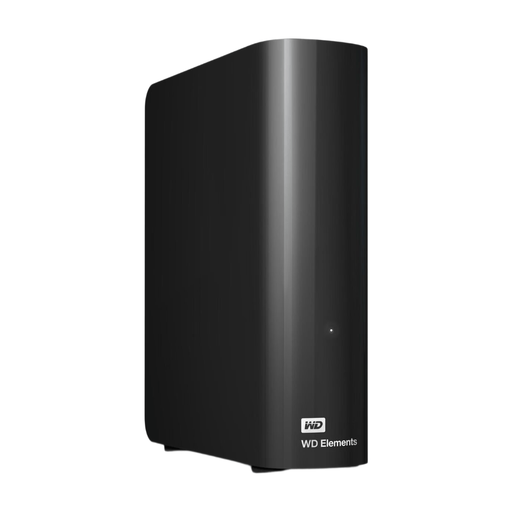 No image available
Suitable for a growing photo archive that is mainly kept at home; the product information lists 6 TB of storage.
USB 3.0 and Acronis backup software are listed. The drive requires a mains socket and the external AC adapter to operate.
 No image available
Suitable for a growing photo collection if you want a portable drive and scheduled backups; the product information lists 6 TB.
USB 3.0, hardware encryption and backup software are listed. The description mentions software that can schedule automatic backups.
 No image available
Suitable for expanding a local photo archive; the product information lists 4 TB of storage.
2.5-inch drive with USB Type-A and Micro-USB-B connections. According to the product information, it is pre-formatted for Windows and needs to be reformatted for macOS.
 No image available
Suitable for local photo storage if 2 TB meets the size and expected growth of your collection.
The product information lists a Micro-USB-B connection, USB 3.2 Gen 1 and USB power, with no separate power adapter required.
 No image available
Suitable for a portable photo collection and frequent file transfers; the product information lists 2 TB of storage.
USB Type-C 3.2 Gen 2x2. The product information lists maximum speeds of up to 2.000 MB/s read and 1.950 MB/s write; these are stated figures, not a guarantee of your backup speed.
No. A backup is a copy that lets you retrieve files if the original device or files are lost. So don’t keep your photos only on the external drive, and regularly check that you can restore a file from the copy.
On Windows, File History can copy libraries, including Pictures, to an external drive; add photo folders outside those libraries if needed. On a Mac, Time Machine can include photos. Apple Support recommends using a drive with at least twice the Mac’s storage capacity for a full Mac backup, ideally. This advice applies to that use, not as a general minimum requirement for every photo copy.
Not without preparing it first. Apple Support says that reformatting to a suitable Mac format may be necessary; this permanently deletes existing data on the drive. Make sure those files are safely stored elsewhere first.
No. According to the Dutch government, there is no fixed statutory warranty period in the Netherlands; if a product is faulty, the retailer is your point of contact. A manufacturer’s warranty is in addition to your statutory rights. A warranty on the drive does not guarantee that lost photos will be recovered.