
A growing home archive
You’re saving more and more photos and want a local copy with room for new files. Capacity and a routine you can stick to matter more to you than maximum transfer speed.


Choose a portable HDD if you mainly copy a growing photo archive at home and need plenty of storage. An SSD is a better fit if you regularly transfer large folders or often take the drive with you. When your photos come in different file formats, the formatting and your backup method matter most: a drive formatted for Windows isn’t automatically suitable for writing to from a Mac or for Time Machine. Disconnect the drive after backing up, and keep a separate copy too if needed.
You’re saving more and more photos and want a local copy with room for new files. Capacity and a routine you can stick to matter more to you than maximum transfer speed.
You want to copy files between computers or back up a Mac with Time Machine. Apple Support explains that formatting affects whether a Mac can write to a drive and which drives are suitable for Time Machine.
You take your photo archive with you or regularly transfer large folders. That makes the connection, transfer speed and protection during travel important factors in your choice.
A good fit if: you mainly back up a growing photo archive at home from time to time, and plenty of storage matters more than frequent transfers.
Bear in mind: the connection and factory formatting; don’t assume a fixed copy speed based on the USB specification alone.
A good fit if: you regularly transfer large folders or often take the drive with you.
Bear in mind: stated maximum speeds aren’t guaranteed with every computer, cable or collection of files.
A good fit if: you use the drive on the go and protection against dust or water is a specific need.
Bear in mind: check which protection applies to the exact model; even a protected drive isn’t an extra backup.
| What to consider | What to look for | Who should consider it? |
|---|---|---|
| Room for your archive | Add up the folders and photo files you want to copy, then compare the total with the capacity of the exact model. Allow for the growth you expect. | If your archive keeps growing, you won’t want the drive to fill up quickly; around 30% of consumers put capacity first. |
| Read and write compatibility | Decide whether you’ll share files between Windows and Mac or use Time Machine. Apple Support lists exFAT as Windows-compatible, warns that a Mac may not be able to write to NTFS, and recommends APFS or APFS Encrypted for Time Machine. | If you use multiple computers or Time Machine, you’ll want to know which format suits your needs before copying files; around 30% of consumers put compatibility first. |
| An unplugged copy | Plan a routine for checking your files and disconnecting the drive after copying. The Dutch Consumers’ Association warns that ransomware can also affect connected external drives. | If you want to reduce the risk of a connected drive being affected along with your computer, disconnecting it after backing up is an important step; around 20% of consumers prioritise keeping the two separate. |
| Transferring and taking it with you | Check that the port and cables are suitable for your devices. Assess any extra casing protection based on how you’ll use the drive; a stated speed isn’t necessarily the speed you’ll get when transferring your own files. | If you regularly transfer large folders or often take the drive with you, the connection and portability matter; around 20% of consumers put these needs first. |
The Dutch Consumers’ Association warns that ransomware can affect a connected external drive as well as your computer.
Copy your photos regularly, check that you can access important files, then disconnect the drive. Keep a separate copy too if needed.
If both the original and the connected copy are affected, you could lose them both.
Apple Support says a Mac may not be able to write to NTFS. Toshiba lists NTFS as the factory format for the Canvio Basics.
Check the format before copying files, and decide whether you’ll share files or use Time Machine. First make a copy of any existing files elsewhere: reformatting can erase them.
Changing the setup takes time, and reformatting can erase data on the drive if you haven’t saved it elsewhere first.
The maximum sequential read and write speeds Samsung quotes for the T7 aren’t a measure of the speed you’ll get with your computer, cable and photo files.
Check the connections on your devices and choose an SSD mainly if faster transfers are genuinely important to you.
The Canvio Basics is a portable HDD range for local storage, including photos. Toshiba lists models with capacities of 1 TB, 2 TB and 4 TB.
Expansion Portable is a portable HDD range for storing and carrying files. Seagate lists, among others, a 5 TB model.
The portable T7 SSD is worth considering if you regularly transfer files. According to Samsung, the T7 Shield adds extra casing protection to the model examined.
These Joybuy products include portable HDDs for local storage and SSDs for storing and transferring photos.
 No image available
A portable HDD for a local copy of your photos and Mac backups.
2 TB storage; USB 3.0; includes a USB-A cable and USB-C adapter.
The product description lists Mac formatting and compatibility with Time Machine.
 No image available
A portable HDD for a local photo archive requiring 6 TB of storage.
The product description lists USB 3.0, password protection and automatic backups using the included software.
The stated weight is 210 grams.
 No image available
A portable HDD for storing photos and other files locally.
2 TB; 2.5-inch model; Micro-USB B connection; USB 3.2 Gen 1; USB-powered.
The product description lists plug-and-play setup and transferring files by dragging and dropping.
 No image available
A portable SSD for storing photos and regularly transferring large files.
2 TB; USB-C; USB 3.2 Gen 2; includes USB-C-to-C and USB-C-to-A cables.
Samsung lists maximum sequential read and write speeds of up to 1.050/1.000 MB/s; transfer speeds also depend on the equipment and files used.
 No image available
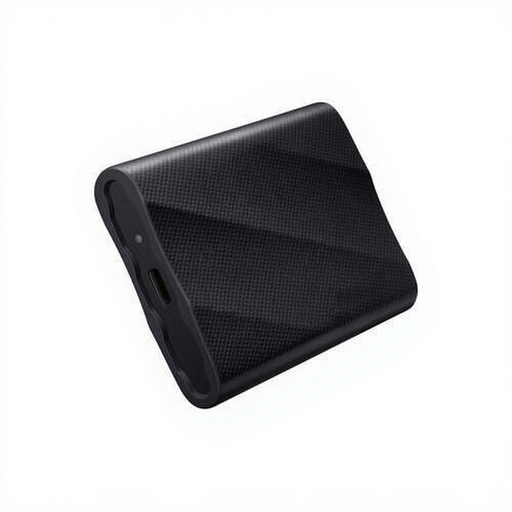
A portable SSD for a local copy of your photos and transferring large files.
1 TB; USB 3.2 Gen 2x2; includes USB-C-to-C and USB-C-to-A cables.
The product description lists maximum read and write speeds of up to 2.000 MB/s and drop resistance of up to 3 metres. These specifications don’t guarantee a particular transfer speed or protect against data loss.
No, not just because they have different file names. First add up the files you want to copy and choose a capacity that suits them. If you want to write to the drive from a Mac or use backup software, the format is what matters most; Apple Support discusses exFAT, NTFS and formats for Time Machine, among others.
Not without checking the format and how you plan to use it first. Apple Support lists exFAT as Windows-compatible, but says Time Machine won’t save backups to a drive with a Windows file system and recommends APFS or APFS Encrypted for Time Machine. Before reformatting, make a copy elsewhere of any files already on the drive.
A portable HDD is a good fit for periodically backing up a growing archive at home; an SSD is an option if you often transfer large folders or take the drive with you. Also consider capacity, connectivity and the format that suits your computer and backup method.
Copy your files regularly, check that you can access important photos, then disconnect the drive. The Dutch Consumers’ Association warns that ransomware can also affect a connected external drive. Keeping a second, separate copy can be part of your backup routine.
Keep important photos in another copy too, as a warranty doesn’t guarantee that your files can be recovered. According to the Dutch government, there’s no fixed statutory warranty period in the Netherlands; what you can expect from a product depends on factors including the product and how it’s used. Contact the retailer if something goes wrong.