
Student with a growing media archive
You’re accumulating more and more project files and want room for new versions as well as a backup. Consumentenbond discusses external drives as storage for photos, films and other files, among other things.


A portable HDD is a good choice for a growing collection that you mainly want to store; an SSD is worth considering if you regularly move large files or often take the drive with you. Before buying, check the connection, file format and compatibility with your backup software. Keep important files elsewhere too: an external drive can fail or go missing.
You’re accumulating more and more project files and want room for new versions as well as a backup. Consumentenbond discusses external drives as storage for photos, films and other files, among other things.
You often switch between workspaces or devices and want a practical way to transfer large files. In that case, the connection and protection during transport are important considerations.
You want to be able to retrieve automatic copies or earlier versions. Microsoft Support recommends checking whether folders outside the default libraries have been added to File History.
First decide which folders you want to copy and how much room you’ll need for future growth. Then consider whether you mainly want to archive files, transfer them frequently or create automatic backups.
| What to consider | What should you check? | Who will find this important? |
|---|---|---|
| Room for a growing collection | Count the folders you want to back up, and allow for expected growth and different versions. For a full Time Machine backup, Apple recommends a drive with at least twice the Mac’s storage capacity. | If I want to keep both my current files and future project versions, capacity comes first. Around 36% of consumers say room to grow is their top priority. |
| Being able to restore an extra copy | Keep the original, store an extra copy elsewhere and check that you can retrieve an important file. Also check which folders your backup software includes. | I want to avoid losing my portfolio because a single drive fails or goes missing. Around 29% of consumers prioritise recovery after data loss. |
| Taking files with you regularly | Check your computer’s connection and the capacity of the model you’ve chosen. An SSD is a good choice for regularly transferring large files; a stated maximum speed doesn’t guarantee the same speed on every device. | When I regularly move large files between workspaces, transfer speed and portability both matter. Around 21% of consumers put these first. |
| Connection and file format | Check the ports and cables on your devices, and decide whether you want to share files or use Time Machine. Formatting a drive for a backup method can erase existing data. | I want to use the drive with the devices I have and know in advance whether reformatting is needed. Around 14% of consumers put compatibility first. |
If the external drive is then the only place where your files are stored, the drive failing or going missing could still mean losing your collection.
Keep the original, make an extra copy and check that you can restore a file.
A drive that can transfer files between devices isn’t automatically ready for Time Machine. Formatting it can erase data.
Choose your backup method first, and safely store any existing files elsewhere before setting up the drive.
According to Crucial, the stated maximum speed of the Crucial X9 was measured on a high-performance test computer. Performance can vary between devices and connections.
Check the connection on your own computer. If you only make backups occasionally, don’t base your choice solely on a stated peak speed.
The Expansion Portable range is designed for portable HDD storage and backing up larger collections.
Canvio Basics is designed for straightforward portable HDD storage, while Canvio Flex is intended for use with different types of device.
The Portable SSD T7 is a compact SSD range for taking files with you and transferring them.
The X9 is a portable SSD with USB-C for transferring and backing up files.
This selection includes portable SSDs and HDDs for storing, backing up or taking project files with you, as well as a desktop HDD for keeping in one place.
 No image available
A portable 1 TB SSD for backing up project files that you regularly take with you.
The product description lists read speeds of up to 800 MB/s and drop protection from heights of up to 2 metres.
 No image available
A portable 1 TB SSD for taking portfolio and media files with you and transferring them.
The product description lists IP65 protection and drop protection from heights of up to 3 metres. The stated read speed of up to 2.000 MB/s requires a compatible USB 3.2 Gen 2x2 device; write speeds are lower.
 No image available
A portable 2 TB HDD for Mac, described as Time Machine-ready in the product title.
The product description lists password protection, hardware encryption and a weight of 120 grams. For a full Time Machine backup, Apple recommends at least twice the Mac’s storage capacity.
 No image available
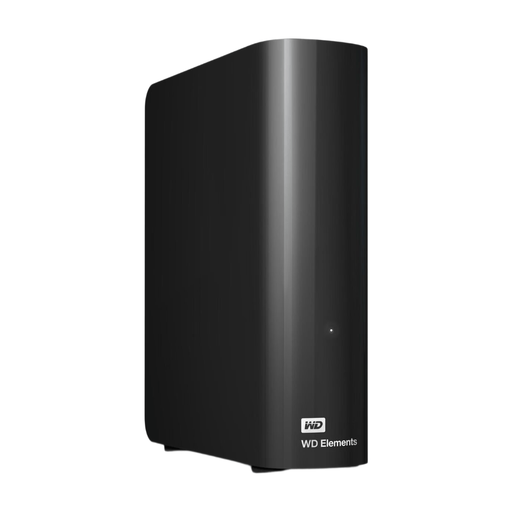
An external 6 TB desktop HDD for a large collection that you keep in one place.
The product description lists USB 3.0, NTFS formatting and an included power adapter. You may need to reformat it for use with a Mac, which can erase existing data.
 No image available
A portable 2 TB HDD for backing up documents, photos and videos.
The product title lists USB-C, while the product description says it works with Windows and Mac computers. Check that the connection is compatible with your device.
Count the portfolio and project folders you want to keep, and allow for expected growth and different versions. For a full Mac backup with Time Machine, Apple recommends at least twice the Mac’s storage capacity; this advice applies to that use.
Not always. Apple recommends APFS or APFS Encrypted. Setting up a drive with a different format may mean erasing and reformatting it first. Safely store any files you want to keep elsewhere before you start.
Microsoft Support describes automatic copies of libraries and earlier file versions. If needed, add portfolio folders outside the default libraries to a library, and check that you can restore a file.
No. Don’t keep your collection on just one external drive. Netwerk Digitaal Erfgoed points out that a drive can wear out or go missing, so keep the original and an additional copy elsewhere.
Don’t count on it: a product warranty doesn’t promise that lost files will be recovered. The Dutch government describes statutory guarantees in relation to a product being fit for purpose, so keep a separate copy of your portfolio.