
Anyone managing a growing scan archive
You want to keep documents safe while leaving room for new scans. Capacity and a second copy may matter more than the fastest transfer speeds (Consumentenbond; VeiligInternetten).


An external HDD is a good fit for a scan archive where capacity is the priority. A portable SSD is an option if you regularly transfer scans or take them with you. Check that the file system works with your computers, and keep important scans on a separate backup too.
You want to keep documents safe while leaving room for new scans. Capacity and a second copy may matter more than the fastest transfer speeds (Consumentenbond; VeiligInternetten).
You want to save and open scans on both systems. To do so, check the drive’s file system as well as the software you use to view the scans (Apple Support; Western Digital Support).
You take documents with you or want to protect sensitive files. Consider how you’ll carry the drive, access protection and a separate backup; password protection is no substitute for a backup (VeiligInternetten; Samsung Nederland).
Start by deciding whether you need capacity for an archive or a drive you can take with you regularly. Also check that your devices can write and open files in the way you need.
| What to consider | What should you check? | Who should prioritise this? |
|---|---|---|
| Capacity and archive | Compare the space you need for your current archive and new scans. Check that you’ll also have room for a separate backup. | As my scan archive grows, I want space for new documents and a backup. Around 33% of consumers put capacity and archive space first. |
| Compatibility | Check the formatting and whether you can write to the drive on every device. A file system is different from the format of a scan file. | I want to add and open scans on both Windows and Mac without the drive getting in the way. Around 25% of consumers give device compatibility top priority. |
| Protection and recovery | Check whether any password protection is enabled and where you keep a separate, up-to-date copy. | For sensitive or irreplaceable scans, I want to protect access and be able to recover files if the drive fails. Around 25% of consumers put protection and recoverability first. |
| Taking it with you and transferring files | Check your devices’ ports and whether the necessary cables are included. Manufacturer speeds don’t guarantee the speed you’ll get on your device. | If I connect or carry the drive often, size and ease of connection matter more to me. Around 17% of consumers give portability top priority. |
An external drive can get damaged or lost. Password protection controls access, but it doesn’t create a backup.
Keep a separate, up-to-date copy and check from time to time that you can recover your files. VeiligInternetten recommends keeping a recent backup.
Formatting can determine whether you can only read files on a Mac or write to the drive as well. Toshiba says the Canvio Basics comes pre-formatted as NTFS and needs to be reformatted for Mac use; Western Digital describes NTFS on macOS as read-only.
Check the file system of the specific drive. Copy your files before reformatting, as formatting can erase existing data.
Reformatting takes time and can erase existing files if you haven’t made a copy.
A manufacturer’s speed rating doesn’t tell you what transfer speed you’ll get with your device, port and cable. And speed doesn’t make a backup any less important.
First check your USB port and how often you actually transfer files. Choose the capacity and backup plan to suit your archive needs.
Canvio Basics is a portable HDD range for anyone looking to store a scan archive and prioritising capacity.
Expansion Portable is a portable HDD range for storage and file transfers.
The Portable SSD T7 is a portable SSD range for anyone who regularly transfers files or takes a drive with them.
This selection includes portable SSDs for regular transfers or taking with you, and external HDDs for storing a scan archive.
 Image unavailable
A good fit if you want to store scans on a portable drive and take them with you.
Capacity: 1 TB. Type: portable SSD.
 Image unavailable
An option if you want to take scans with you on a portable drive and password protection matters to you.
Capacity: 1 TB. The product name lists 2000 MB/s; according to the product information, the quoted read speed requires a compatible USB 3.2 Gen 2x2 host device. The write speed is lower.
 Image unavailable
A good fit if you want to store an external scan archive. Check the formatting if you use the drive with different computers.
Capacity: 2 TB. Connection listed in the product name: USB-C.
 Image unavailable
A portable storage option if you want to keep scans externally and transfer files.
Capacity: 1 TB. The product name lists 1000 MB/s; check that your devices’ connections suit the way you plan to use it.
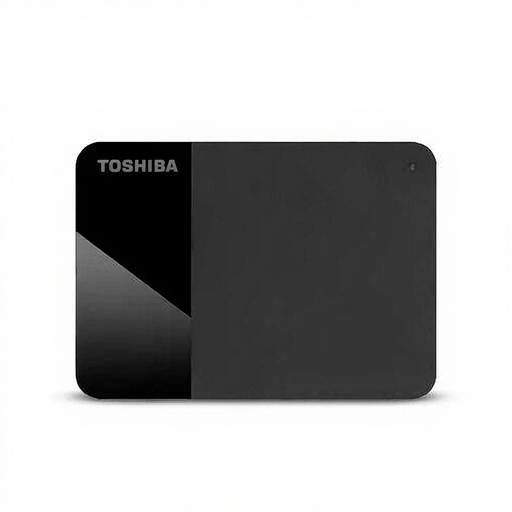 Image unavailable
A good fit if you want to store scans on an external HDD. Check the connection and formatting for your devices.
Capacity: 1 TB. Size: 2.5 inch. Connection: Micro-USB B. USB 3.2 Gen 1 (3.1 Gen 1).
No. Choose a drive based on the space you need, its connection and its formatting. Separately check that the software on your devices can open the original scan files; changing the file system won’t convert them.
That depends, among other things, on the file system. Apple describes exFAT as a file system compatible with Windows; Western Digital describes NTFS on macOS as read-only. Make a copy before reformatting, as formatting can erase the contents.
Not necessarily. Apple says Time Machine won’t back up to a drive formatted for Windows and recommends APFS or APFS Encrypted. Make a separate copy first, as reformatting can erase existing data.
No, don’t rely on it as your only copy. VeiligInternetten recommends keeping a recent backup; an external drive can get damaged or lost.
No. Password protection and a backup serve different purposes. Password protection can restrict access to a drive; for recovery, also keep a separate, up-to-date copy.