A portable HDD is a good fit for archive copies that usually stay with one workstation. An SSD is an option if you often take the drive with you or regularly transfer large files. You should also make a separate backup: the National Cyber Security Centre recommends keeping multiple versions of important data. If the notes contain personal data, consider which access and security measures are appropriate; the Dutch Data Protection Authority lists access controls and encryption among the possible measures.
Who is this guide for?
Manager of a shared notes archive
You want authorised users to be able to read and update the archive on the workstation. Check which file system and operating systems the drive needs to work with; Toshiba supplies the Canvio Basics model reviewed with NTFS for Windows as standard.
Researcher with irreplaceable notes
You want to be able to recover your notes if they’re lost or a drive fails, so you don’t use the external drive as your only place to store them. The National Cyber Security Centre recommends keeping multiple versions of important data.
Manager of potentially sensitive notes
You want to decide who can access the notes and, if they contain personal data, which security measures are appropriate for processing them. The Dutch Data Protection Authority lists measures such as access controls and encryption as options to consider for each situation.
What should you consider when choosing?
| What to consider |
What to look for |
Who should pay particular attention? |
| Compatibility |
Check which computers need to write to the drive and which file systems they support. Apple describes exFAT as an option for drives larger than 32 GB that need to work with both Windows and Mac. |
If I want to update the archive on different computers, I’m particularly concerned about being able to read and write files without unexpected reformatting. Around 36% of consumers prioritise compatibility. |
| Recoverable copies |
Decide where a separate copy will be stored and how you can restore your files. The National Cyber Security Centre recommends keeping multiple versions of important data. |
If my research notes are irreplaceable, I want to know which separate copy is available if the drive fails or goes missing. Around 29% of consumers give restoring data after data loss their top priority. |
| Access controls |
Consider who can open the notes and how access is managed on the workstation. The Dutch Data Protection Authority lists measures such as access controls and encryption; what’s appropriate depends on the risks involved in processing the data. |
If the notes may contain personal data, I want to restrict access to authorised users and assess what security measures are appropriate. Around 21% of consumers prioritise restricting access. |
| Portability and transfers |
Check the workstation’s USB port and cable. A stated sequential speed doesn’t guarantee the same transfer speed on every computer. |
If I often take the drive between workstations or regularly copy large files, I pay attention to the connection and transfer speeds. Around 14% of consumers prioritise transferring files on the go. |
Common pitfalls
-
Using the external drive as your only archive copy
If the drive goes missing or fails, you could lose the only copy of your notes.
Before buying, decide where a separate copy will be stored and how you’ll restore your files.
An extra copy requires additional storage space and management.
-
Assuming you can write to the drive on any computer straight away
The file system can determine whether you can add files on another computer. Toshiba supplies the Canvio Basics model reviewed with NTFS for Windows; Seagate warns that the Expansion drives reviewed need to be reformatted before you can write to them on a Mac.
Check the file system of the exact model and set up the drive if necessary before saving your archive to it. First make a copy of any existing files: formatting erases data.
Reformatting takes preparation and erases existing files on the drive.
-
Assuming an SSD’s stated speed is guaranteed
Actual transfer speeds also depend on the connection and workstation; a product specification isn’t a measurement of your shared computer.
Check the USB port and consider how often you’ll actually transfer large files before making speed the deciding factor.
Brands to consider
Toshiba
The Canvio Basics range is a portable HDD option for a Windows workstation.
- Toshiba says the Canvio Basics model reviewed is formatted with NTFS as standard.
- According to Toshiba, the drive needs to be reformatted before you can write to it on macOS. Check the exact model and make a copy of any existing data first.
Samsung
The T7 Shield range is a portable SSD option for anyone who regularly moves larger files.
- For the 1 TB variant MU-PE1T0S/EU, Samsung lists USB 3.2 Gen 2 and sequential speeds of up to 1.050 MB/s read and 1.000 MB/s write.
- These are Samsung’s specifications for that variant, not measurements taken on the shared workstation. Check that the computer’s connection is compatible.
Crucial
The X9 range is a portable SSD option; CT1000X9SSD9 is one example for a USB-C workstation.
- For this model, Crucial lists a maximum sequential read speed of 1.050 MB/s and exFAT as the pre-installed file system.
- Crucial says that performance depends on the connected equipment and that reformatting erases data.
Seagate
The Expansion Portable range is a portable HDD option for copying files.
- Seagate describes the range reviewed as powered via USB.
- According to Seagate’s instructions, Expansion drives need to be reformatted before you can write to them on a Mac. Check the exact model.
Western Digital
The My Passport range is a portable HDD option if you also want to consider model-specific password features.
- Western Digital says WD Security enables password protection on supported drives with 256-bit AES hardware encryption.
- Check support for the exact model and how authorised users will gain access. This feature doesn’t automatically manage access on a shared workstation.
Joybuy products
This selection from Joybuy includes portable HDDs for archive storage and portable SSDs for anyone who moves files more often. Check the file system, connection and access settings for each workstation.
 No image available
WD Elements Portable 5 TB USB-C
A portable HDD option for an archive with lots of files.
The product description lists 5 TB, USB-C, a 2.5-inch form factor and a weight of 240 g. Windows and Mac computers are mentioned; check the connection and file system for the shared workstation.
View at Joybuy
 No image available
My Passport 4 TB Black Portable Hard Drive
A portable HDD option if you also want to consider password protection for a large archive.
The product information lists 4 TB, password protection, 256-bit AES hardware encryption and automatic backup software. Check support and access controls for the exact model and the computers you’ll use.
View at Joybuy
 No image available
Portable SSD 1 TB, 1.000 MB/s
A portable SSD option for anyone looking for 1 TB of storage and a stated speed of 1.000 MB/s.
The product description lists USB-C and drop protection from heights of up to 2 metres. Actual transfer speeds also depend on the connection and workstation.
View at Joybuy
 No image available
Toshiba Canvio Ready 2 TB 2.5-inch
A portable HDD option for an archive copy on a workstation with a compatible USB connection.
The product name lists 2 TB, 2.5 inches and Micro-USB B; the product description mentions USB 3.2 Gen 1 and USB bus power. Check that the cable and port are compatible with the workstation.
View at Joybuy
 No image available
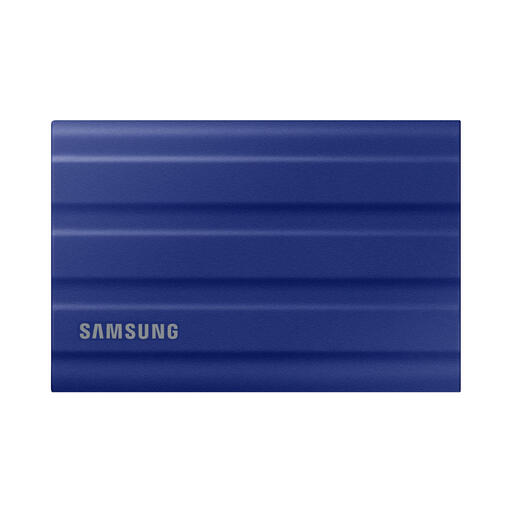
Samsung MU-PE1T0R 1 TB USB Type-C, blue
A portable SSD option if you regularly transfer larger files and it’s compatible with the workstation.
The product name lists 1 TB and USB Type-C; the product description mentions USB 3.2 Gen 2 and stated sequential read and write speeds of up to 1.050 and 1.000 MB/s. Transfers on your workstation may be slower.
View at Joybuy
Frequently asked questions
Can I use one external drive as both my complete archive and my only backup?
An external drive can store a copy, but the National Cyber Security Centre recommends keeping multiple versions of important data, using different media and storing a copy in another location. So decide where a separate copy will be stored and how you can restore it.
How do I make a drive work with both a Windows workstation and a Mac?
First, check the current file system and make a copy before changing anything. Apple describes exFAT for a drive larger than 32 GB that needs to work with Windows and Mac; formatting erases the files on the drive.
What should I do before disconnecting the archive drive?
Finish copying your files and use the Safely Remove Hardware feature in Windows. Microsoft warns that disconnecting the drive directly could result in data loss.
What are my warranty rights when buying as a consumer in the Netherlands?
For consumer purchases in the Netherlands, ACM ConsuWijzer says the seller must offer a solution if a product breaks during normal use sooner than you could reasonably expect. There isn’t one fixed statutory warranty period for every drive.


