
Researcher with a growing archive
You want to keep notes and attachments locally, while making room for separate backup copies. The National Cyber Security Centre advises keeping multiple versions of important data.


An external HDD is a good choice for an archive that will usually stay in one place. A portable SSD is more suitable if you regularly carry your notes between workspaces or transfer larger files. Don’t keep your notes on just one drive: plan a separate copy and test that you can restore your files. Also check that the connection, file system and any access protection are suitable for your devices and how you plan to use the drive.
You want to keep notes and attachments locally, while making room for separate backup copies. The National Cyber Security Centre advises keeping multiple versions of important data.
You take the risk of loss or unauthorised access into account when choosing your drive, access protection and storage location. For personal data, the appropriate level of protection depends on the risks, as explained by the Dutch Data Protection Authority.
You regularly take your drive with you and want to make sure its connection, file system and any physical protection are suited to your devices and how you use it.
First decide how you’ll create a copy that you can restore from. Then choose a type of drive and check that its connection, file system and security features suit your devices and files.
| Priority | What to look for when buying | Relevant to consumers who |
|---|---|---|
| Restorable copies | Allow space for a separate copy and test that you can actually restore a note. The National Cyber Security Centre advises keeping multiple versions of important data. | If I want to recover my notes if the archive drive is lost, I’ll plan a separate copy and test that I can restore it; around 29% of consumers prioritise recoverability. |
| Confidentiality | Check how access is protected on the exact model, and set up the feature correctly. For personal data, consider what level of protection is appropriate for the content and risks. | If my notes contain confidential information, I want to prevent someone from accessing them if the drive is lost; around 22% of consumers prioritise confidentiality. |
| Room to grow | Compare the capacity with the size of your files, attachments and saved versions. Work out how much extra space you’ll need for copies, too. | If my archive grows with attachments and versions, I want enough room for all those files; around 21% of consumers prioritise archive capacity. |
| Portability | Compare HDDs and SSDs based on how often you move the drive. Check the physical protection claims for the exact model; they don’t replace a backup copy. | If I regularly take the drive between workspaces, I’ll consider its portability and the protection offered by the specific model; around 14% of consumers prioritise portability. |
| Connection and file system | Check that the connection and cable work with your computer and intended use. Also check whether the current file system is suitable for your backup function; formatting can erase existing files. | If I want to use the drive with my devices and local backup function, I’ll check the connection and file system first; around 14% of consumers prioritise compatibility. |
A drive can fail or go missing, and connected backups can also be affected by ransomware.
Keep a separate copy and check periodically that you can restore your files. The National Cyber Security Centre points out that backups can also be affected by ransomware.
Western Digital distinguishes between hardware encryption and password protection. Setting or removing a password does not automatically switch hardware encryption on or off.
Check the features and settings of the exact model. For personal data, also consider the risks involved in processing it, as advised by the Dutch Data Protection Authority.
Apple says that reformatting can erase existing files on the drive.
Check the required file system first and, if necessary, copy any files already on the drive. Apple recommends APFS or APFS Encrypted for a Time Machine drive.
Crucial gives a maximum read speed for the X9 under test conditions. The host device and connection also affect the speed you’ll get with your own setup.
Check your computer’s port and cable before choosing a drive based on its advertised maximum speed.
The My Passport 2TB we looked at is a portable HDD for local archiving when capacity and access protection matter.
The Expansion Portable 2TB we looked at is a USB-powered portable HDD for a local archive.
The Portable SSD T7 1TB we looked at is suited to regular transfers. The T7 Shield 1TB is a separate model with its own physical protection claims.
The X9 1TB we looked at is a compact USB-C SSD for moving notes between devices.
These portable HDDs and SSDs are designed for local storage of research notes and files.
 Image unavailable
A portable SSD for taking your research notes between workspaces.
Capacity: 1 TB.
 Image unavailable
A portable HDD for storing notes and files locally, with plenty of room for an archive.
Capacity: 5 TB. Connection: USB-C.
 Image unavailable
A portable HDD for a local archive on a Mac; the product name says this model is suitable for Time Machine.
Capacity: 2 TB. The product name mentions password protection; check the settings before use.
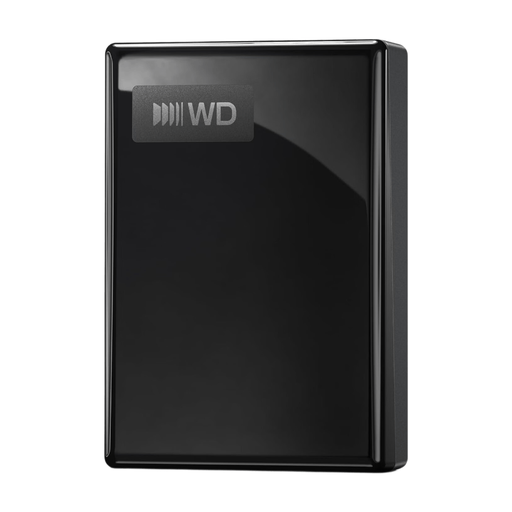 Image unavailable
A portable HDD for a local archive of notes and files.
Capacity: 2 TB. Connection: USB-C.
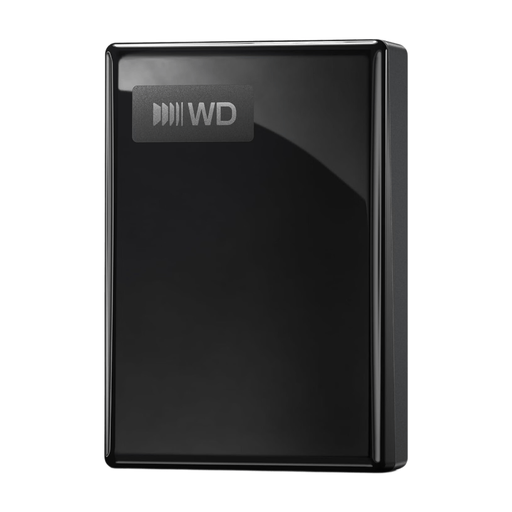 Image unavailable
A portable HDD for keeping your notes and documents locally.
Capacity: 1 TB. Connection: USB-C.
Yes, an external drive can be used as a local backup destination. Don’t keep your only copy on that drive, and test that you can actually restore your files. The National Cyber Security Centre’s advice about keeping multiple copies is security guidance, not a legal product requirement.
Apple recommends APFS or APFS Encrypted for a Time Machine drive. A drive with a different file system may need to be reformatted for this use, which can erase existing files. This advice applies to Time Machine, not to every use of a drive with a Mac.
Not necessarily. Microsoft explains that folders in other locations can be added to an existing or new library. So check where your notes are stored and test that you can restore them from the backup.
For consumer purchases in the Netherlands, you can contact the seller if a product is faulty. The Dutch government says there is no fixed statutory guarantee period in the Netherlands; your statutory rights apply alongside any manufacturer’s warranty. A warranty doesn’t replace a separate copy of your files.
An external drive is not, in itself, a prohibited form of storage. If an organisation processes personal data, the GDPR requires appropriate technical and organisational security measures, tailored to the risks, according to the Dutch Data Protection Authority. The right measures depend on the data and how it is processed; not using the cloud does not, by itself, show that these obligations have been met.