
Creator with lots of project versions
You regularly edit recordings or project files and want to be able to restore an earlier version. So, consider not just the drive but also your backup method and which folders it includes.


A portable HDD is a good fit for periodic copies of a growing archive. A portable SSD is a more suitable choice if you often take projects with you, copy them or edit them directly from the drive. Neither type of drive automatically saves previous versions: you need to set this up and include those versions in your backup system, as Microsoft explains for File History. Work out how much space you need based on your recordings and how long you want to keep them, and check your computer’s connection and settings before buying.
You regularly edit recordings or project files and want to be able to restore an earlier version. So, consider not just the drive but also your backup method and which folders it includes.
You mainly keep completed recordings and project copies, and need plenty of space. First, take stock of your current archive and how long you want to keep it. Maximum speed may not need to be your first priority.
You move projects between workstations or work directly from the external drive. If so, check your computer’s connection, the cable and whether the transfer speed suits the way you work.
A good fit if: you mainly make periodic copies of a growing archive and don’t work from the drive all the time.
Trade-off: according to the Consumentenbond, a mechanical HDD is more susceptible to knocks than an SSD. Handle it with care, especially when it’s connected.
A good fit if: you regularly take your projects with you, often copy large files or work directly from the external drive.
Trade-off: the stated speed depends on your computer’s connection. An SSD also won’t create version backups for you.
| What to consider | What to look for | Who should consider this most? |
|---|---|---|
| Restoring earlier versions | Check which project folders are included in the backup and test whether you can restore an older version. Microsoft File History and Apple Time Machine are separate backup options. | If I need an earlier edit, I want to know in advance that my project folder is being saved. Around 38% of consumers give restoring versions their highest priority. |
| Space for recordings and copies | Compare the current size of your files with the number of versions and how long you want to keep them. | For a growing archive, I want to plan space for both recordings and project copies. Around 31% of consumers put storage space first. |
| Copying and taking files with you | Check the connection on both the drive and the computer. Your computer’s port can limit transfer speeds, even with a fast SSD. | If I move projects between workstations or edit them from the drive, I want the connection to suit the way I work. Around 23% of consumers give working and copying on the go their highest priority. |
| Access to recordings | Consider whether recordings could identify individuals, and check which access controls or encryption suit the way you manage them. Store recovery details securely. | If recordings can be linked to individuals, I want to restrict access if the drive is lost or used without permission. Around 8% of consumers put protecting these recordings first. |
The percentages show which need matters most when making this choice; they are not market shares. If a recording contains personal data and an organisation processes it, the Dutch Data Protection Authority calls for appropriate security based on the risks.
A drive on its own doesn’t create a version history. If the same file is overwritten, the earlier content may not be included in the copy.
Set up version backups, check that the right project folders are included and test restoring a file you can safely change.
Allow time to set up and test the backup.
The connections on both the drive and computer affect transfer speeds. A stated maximum doesn’t guarantee the same speed on every computer.
Check which port your computer has, and pay extra for speed only if it will benefit your copying or editing work. StorageReview also distinguishes between stated and measured transfer speeds for external SSDs.
Apple Support warns that a drive with a Windows format may need to be reformatted for Time Machine. This can permanently erase any existing data.
Check the format before setting it up and first move any files you want to keep to another safe location.
The WD Elements SE is a range of portable HDDs for copying and archiving files.
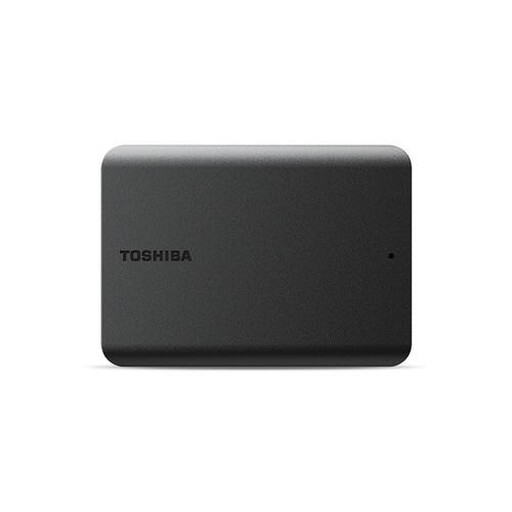
Canvio Basics is a range of portable HDDs for files you copy yourself.
The portable SSD models T7 Shield and T9 are options for projects you take with you or transfer frequently.
The X9 Pro is a range of portable SSDs for people who take projects with them.
These portable HDDs and SSDs are designed for storing and taking language recordings and project copies with you.
 No image available
A portable SSD for storing and taking recordings and project files with you.
Capacity: 1 TB. Read speeds of up to 800 MB/s.
Set up version backups separately; the drive doesn’t automatically save earlier project versions.
 No image available
A portable SSD for projects you take with you or transfer regularly.
Capacity: 1 TB. Stated speed of up to 2.000 MB/s.
Check that your computer’s connection can support the transfer speed you want. You’ll need to set up a backup method to save earlier versions.
 No image available
A portable SSD for taking project files with you and copying them.
Capacity: 1 TB. Stated speed of up to 1.000 MB/s.
Actual transfer speeds also depend on your computer’s connection. Set up version backups separately.
 No image available
A portable HDD for periodic copies of recordings and project files.
Capacity: 1 TB. The product description lists USB 3.2 Gen 1.
According to the product description, the drive is formatted for Windows. Check whether you need to reformat it before using it with a Mac. Set up version backups separately.
 No image available
A portable HDD for a recordings archive with multiple project copies.
Capacity: 4 TB. The product description lists USB 3.2 Gen 1.
You may need to reformat it for macOS. Apple warns that formatting can erase existing data, so save those files elsewhere first. Set up version backups separately.
No, the drive won’t do this automatically. Use a backup method that saves earlier versions and check that your project folder is included. Microsoft File History can restore earlier versions of files.
Not always without preparing it first. Apple Support says that a drive with a Windows format may need to be reformatted for Time Machine, which erases any existing data. Apple recommends using a Time Machine drive with at least twice the storage capacity of your Mac. This is guidance for that use, not a general minimum requirement for every external drive.
Use the external drive as a backup and test that you can restore the files and versions you need. VeiligInternetten lists external storage and cloud storage as possible backup destinations, so keeping a second copy elsewhere could also be part of your approach.
Consider who has access and what security is appropriate for the content and the risks. The Dutch Data Protection Authority says organisations processing personal data must protect it appropriately. It does not prescribe one particular type of external drive or a fixed encryption specification. Whether this requirement applies to you depends on the processing and your role.