
Photo editors with lots of versions
If you want to restore an earlier edit, you need more than just a drive: set up File History or Time Machine to include the right project folders.


First, choose a backup method that saves earlier file versions, then work out how much space your photo archive and those versions will need. An external HDD is best suited to a growing archive kept at home; a portable SSD is worth considering if you often take projects with you or work directly from the drive. Keep a separate copy as well: a single external drive won’t protect you against every risk of data loss.
If you want to restore an earlier edit, you need more than just a drive: set up File History or Time Machine to include the right project folders.
If you keep both originals and edited photos, you can work out the capacity you need based on your current collection, future photos and the number of versions you want to keep. Keep a separate copy too.
If you move or edit files in different places, weigh up portability and connectivity against the archive space you need and the speed your computer supports.
First, decide how you want to restore older versions and how much space you’ll need. Then choose between a drive for archiving and one you can take with you regularly.
Best suited to: keeping a growing photo archive and multiple versions mainly at home.
Bear in mind: check the formatting and backup software for your computer; capacity alone won’t back up different versions.
Best suited to: regularly taking project files with you, transferring them or editing them directly from the external drive.
Bear in mind: quoted maximum speeds depend on factors including your computer and cable; a rugged casing is no substitute for keeping a second copy.
| What to consider | What to look for | Who is this important for? |
|---|---|---|
| Restoring earlier versions | Check that the backup programme includes the right project folders, then try restoring an older version. | If I want to restore an edit, I need to know that my project folder is included. Around 30% of consumers prioritise version recovery. |
| Space for your archive and future growth | Compare the capacity with the size of your collection and the number of versions you want to keep. | I want enough room for originals, edits and future photos. Around 30% of consumers prioritise archive space. |
| Loss and privacy | Keep a separate copy; if you have sensitive files, check whether the model you choose offers password protection. | I don’t want to rely on a single drive, and I may want to keep private photos secure. Around 20% of consumers prioritise keeping a separate copy and privacy. |
| Taking files with you and transferring them | Check that the connection and cable are compatible with your devices; don’t assume a quoted maximum speed is what you’ll get in practice. | When I use projects in different places, a suitable connection and quick transfers matter. Around 20% of consumers prioritise portability and file transfer. |
Microsoft Support explains how to restore versions with File History, while Apple Support explains how to back up with Time Machine. Both require you to set up a backup; extra storage space alone isn’t enough.
A drive won’t automatically keep earlier project files. The backup process you set up determines which versions you can restore.
Check which photo folders are included and try restoring a test file after your first backup.
Allow time to set up your backups and check regularly that they can be restored.
If the drive is damaged, the photos on it could be lost too.
Keep important files in a separate location as well, and check that both copies can be restored.
Actual speeds also depend on the connected equipment. Some backup setups require you to reformat a drive.
Check the port, cable, file system and backup software before formatting a drive that already contains files.
The My Passport range includes portable HDDs for photo archives; the model mentioned here has a capacity of 4 TB.
The Expansion Portable is a range of USB-powered HDDs; model STKM4000400 is the 4 TB version.
The T7 Shield 2 TB, model MU-PE2T0S/EU, is a portable SSD for taking projects with you or working directly from the drive.
The X9 Portable SSD 2 TB, CT2000X9SSD9, is a USB-C option for taking photo files with you and transferring them.
This selection includes external HDDs for photo archives and a portable SSD for projects you regularly take with you or transfer.
 No image available
An option for a Mac photo archive if you want to use Time Machine; you’ll need to set up the backup to keep earlier versions.
2 TB; Time Machine Ready; password protection.
 No image available
An option for storing a large or growing photo archive on a portable HDD; keep a separate copy as well.
6 TB; password protection; automatic backup software.
 No image available
An option for a growing photo archive on a portable HDD; the drive alone won’t automatically keep earlier versions.
4 TB; password protection; automatic backup software.
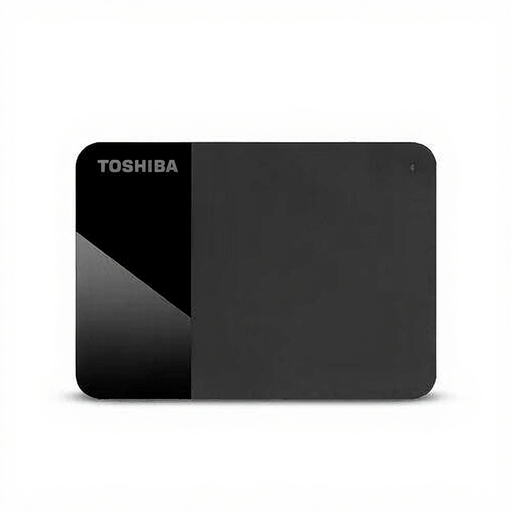 No image available
A portable HDD option for storing or transferring files; check that the connection is compatible with your equipment before you buy.
4 TB; 2.5 inch; Micro-USB B; USB 2.0/3.2 Gen 1 (3.1 Gen 1).
 No image available
A portable SSD option for projects you regularly take with you or transfer; check that your computer and cable are compatible with the connection.
2 TB; USB Type-C 3.2 Gen 2.
The stated IP65 rating doesn’t mean the SSD can be submerged in water.
No. On Windows, for example, set up File History and check that your project folder is included; on a Mac, you can configure a suitable external drive for Time Machine. Then try restoring an older version to make sure it works.
Apple recommends a storage device with at least twice the storage capacity of your Mac. For a 1 TB Mac, that means at least 2 TB, according to Apple. Apple recommends using the Time Machine drive only for Time Machine backups; this isn’t a general minimum requirement for all photo backups.
Not as your only storage location: an external drive can also be damaged. VeiligInternetten advises against relying on a single storage location for important files. So keep a separate copy too, and check that you can restore your files from it.
Erase your personal data first. The Consumentenbond recommends thoroughly erasing a hard drive before selling or disposing of it; then check which recycling option is available to you.