
Families with a growing photo archive
You want space for regular copies and previous file versions. Microsoft Support and the Digital Trust Center explain why it helps to decide in advance which files to include and test that they can be restored.


Choose the capacity based on the files and backup history you want to keep. An HDD may suit you if the drive will mostly stay in one place, while an SSD is worth considering if you often take it with you or copy large files. In a shared studio, securing access, keeping a separate copy and testing that you can restore files are at least as important as the quoted speed. In its July 2022 Digitaalgids, Consumentenbond described HDDs as more susceptible to shocks than SSDs. Microsoft Support and Apple Support also outline backup requirements that vary by system.
You want space for regular copies and previous file versions. Microsoft Support and the Digital Trust Center explain why it helps to decide in advance which files to include and test that they can be restored.
You want to stop others accessing a drive that has been left behind, and be able to restore files if one copy is lost. Apple Support and VeiligInternetten cover encryption as a way to protect access to backups.
You move the drive between workspaces and factor in the connection, how you handle the drive and copying time when making your choice.
First choose your backup method and the capacity you need. Then compare an HDD and an SSD based on how often you’ll move the drive.
Suitable for: anyone who copies family files periodically and usually keeps the drive in one safe place.
Consider: according to Consumentenbond’s July 2022 Digitaalgids, HDDs are more susceptible to shocks than SSDs. Also check whether your operating system requires the drive to be formatted.
Suitable for: anyone who regularly takes the drive with them or often copies large files.
Consider: quoted maximum speeds don’t guarantee the speed of every backup. Your computer, cable and connection all play a part.
| What to consider | What to look for when buying | Who should pay extra attention? |
|---|---|---|
| Restorable backups | Decide which files and versions you need, then check the connection, backup method and available capacity. | If I want to restore files after a problem, I need to know that the right folders are being copied and that a test restore works. Around 40% of consumers prioritise being able to restore their files. |
| Privacy in a shared space | Check how encryption is enabled on the drive and in the backup method, and who manages the recovery details. | If I leave my family’s drive in a shared studio, I want to stop others opening private files. Around 30% of consumers prioritise keeping their data private. |
| Space for files and versions | Work out how much data you want to copy and compare it with the capacity of the exact model. | As my photos and videos grow, I want to choose a capacity that suits the backup history I want to keep. Around 20% of consumers prioritise having enough storage. |
| Portability and connection | Check your computer’s ports, the cables included and whether the quoted speeds are relevant to your computer. | If I move the drive between workspaces, I want to connect it without any hassle. Around 10% of consumers prioritise portability. |
A connected drive doesn’t prove that the right folders have been copied or that the files can be restored and used.
Check which folders have been selected and restore a test file after setting everything up.
If your computer and backup are in the same place, a single incident could affect both. The Digital Trust Center recommends keeping backups in different locations; this advice is aimed at organisations.
Keep a separate copy as well as the local drive, and agree who will be responsible for it.
Time Machine may require you to reformat a drive that has a different format. This can erase its existing contents.
Check the file system first and keep existing data safe somewhere else before formatting the drive.
Without another copy, those files could be lost permanently.
WD Elements Portable is a range of portable HDDs for anyone comparing capacity and connectivity.
Canvio Basics is a range of portable HDDs that includes a specified 2 TB model.
Expansion Portable is a range of portable HDDs that includes a specified 2 TB model for file storage and backups.
The portable T7 Shield SSD is available in the Dutch model reviewed, MU-PE2T0S/EU, with 2 TB of storage.
The Crucial X9 specification reviewed is for model CT2000X9SSD9, with 2 TB of storage.
This selection features portable external HDDs and SSDs for anyone looking for a drive to back up family files.
 No image available
A portable SSD for anyone looking for a solid-state drive for backups.
Capacity: 1 TB.
 No image available
A portable external HDD for anyone looking for a higher quoted capacity. Check that the connection is compatible with your computer.
Capacity: 5 TB. Connection: USB-C.
 No image available
A portable HDD for anyone considering a drive for Mac backups. Check the Time Machine requirements before use, and avoid erasing existing files when formatting.
Capacity: 2 TB. The product name specifies password protection and preparation for Time Machine.
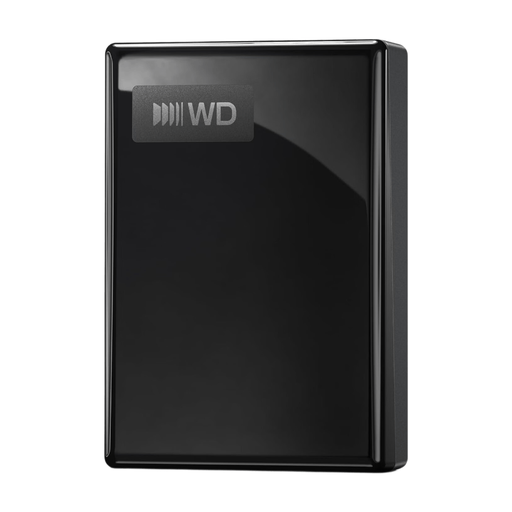 No image available
A portable external HDD for anyone looking for a backup drive with a USB-C connection. Check that your computer has the right port.
Capacity: 2 TB.
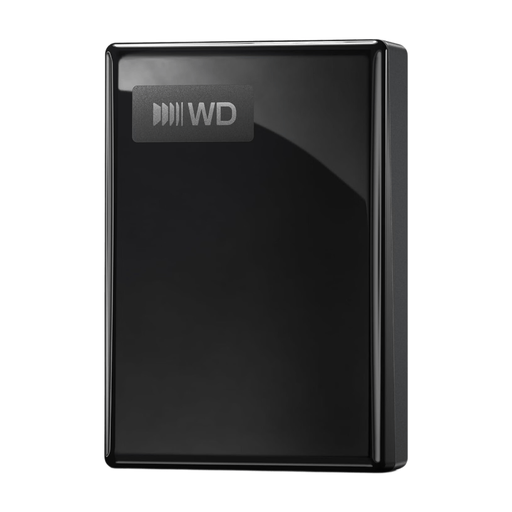 No image available
A portable external HDD for anyone looking for a backup drive with a USB-C connection. Compare the capacity with the files and versions you want to keep.
Capacity: 1 TB.
In Windows File History, select a connected external drive as the backup destination. Microsoft Support says that standard libraries such as Documents, Pictures, Videos and Music are included. Check whether other important folders need to be added to a library. File History is not the same as a full system image.
No. Apple Support says Time Machine won’t use a Windows-formatted drive as a backup drive. Reformatting can erase existing files, so save them somewhere else first. Apple ideally recommends a backup drive with at least twice the storage capacity of your Mac, and offers an option to encrypt the backup.
Check when the last copy was made and regularly restore a file to test that recovery works. It’s also sensible to keep a separate copy somewhere else if you’re using a shared space. The Digital Trust Center’s advice on storing backups in different locations is aimed at organisations, not a legal requirement for families.
Not automatically. In the Netherlands, products must meet the statutory guarantee of satisfactory quality; if a product is faulty, the seller must provide an appropriate solution. The Dutch government says there is no fixed statutory guarantee period. A manufacturer’s guarantee or additional recovery service doesn’t replace your statutory rights. Check the terms of any recovery service, and don’t treat it as a substitute for a second backup.
Not just because it’s a family backup: Article 2 of the GDPR excludes processing by a natural person in the course of purely personal or household activities. If the same drive also contains personal data for professional or commercial purposes, that exemption doesn’t necessarily apply to that use. Regardless of this legal distinction, encryption can help protect private files in a shared space.