
Creators with a growing design archive
You keep lots of completed projects and want room for new concepts and earlier versions, usually in the same workspace. The Digital Trust Center recommends keeping a separate copy of your original data.


For a growing design archive that usually stays in one home workspace, a desktop HDD is a good fit if storage space matters more than portability. Choose a portable HDD if you want to move your copy around, or an SSD if you regularly open or transfer large files. As well as choosing a drive, consider its connection and file system, and keep a separate, tested copy: one external drive is not automatically a backup.
You keep lots of completed projects and want room for new concepts and earlier versions, usually in the same workspace. The Digital Trust Center recommends keeping a separate copy of your original data.
You want to be able to retrieve an earlier design version after a mistake or accidental deletion, so you keep a separate, tested copy alongside the original. Microsoft Support explains how File History can restore earlier versions.
You take concepts with you or regularly open large files on another computer. In that case, the connection, file system and transfer speed all matter; Toshiba and Samsung describe different portable drives for these kinds of use.
Best for an archive that stays in one home workspace, when storage space matters more than portability. Seagate lists an 8 TB capacity for the Expansion Desktop STKP8000400.
Keep in mind you’ll need a permanent spot and a mains socket; Seagate specifies a separate power adapter. Keep a separate copy as well.
Best for anyone who wants to take an archive copy between locations without a separate power adapter. Toshiba lists a capacity of 4 TB and USB power for the Canvio Basics HDTB540EK3CA.
Keep in mind the file system: Toshiba lists NTFS for Windows and says the drive needs reformatting for macOS. Reformatting can erase existing files.
Best for anyone who regularly moves large files or opens them in different locations, provided their computer has a compatible USB port. For the T7 Shield MU-PE2T0S/EU, Samsung lists maximum sequential read and write speeds of 1.050 and 1.000 MB/s respectively.
Keep in mind these are maximum manufacturer figures, not guaranteed speeds on your computer. Samsung also lists an IP65 rating; this is no substitute for keeping a separate copy of your files.
| What to consider | What should you check? | Who should pay particular attention? |
|---|---|---|
| Space for your archive and versions | Check the size of your project folders, decide which versions you want to keep and compare this with the capacity of the exact model. | If I keep lots of projects and old versions, having enough space comes first; around 29% of consumers share this priority. |
| Restoring earlier versions | Choose a backup method with the version history you need, and test that you can restore a file. | If you might need an earlier version after a mistake or accidental deletion, you’ll want to keep more than just a final file; around 29% of consumers put the ability to restore files first. |
| Connection and file system | Check your computer’s port, cable, pre-set file system and backup software requirements before saving files. | If I want the drive and backup method to work with my workstation, I check the connection and file system in advance; around 18% of consumers make this their top priority. |
| Transfer and portability | Compare the USB capabilities of your computer, drive and cable, and decide whether the drive will stay on your desk or needs to travel with you. | If you often move files or need to use the drive without a mains socket, transfer speed and portability are key; around 12% of consumers put these needs first. |
| Access to confidential concepts | Decide whether your files contain personal data or confidential client information, which encryption you use and how you’ll store the recovery key. | If I don’t want others to access confidential concepts, I also look at access security; around 12% of consumers start with this concern. |
A backup is a copy of your original data. If your only archive drive is lost or stops working, you could lose your archive too.
Keep the original and a separate copy, decide how long you want to keep versions, and try restoring a file regularly.
Keeping a separate copy means you’ll need another storage location or backup medium.
A manufacturer’s maximum figure doesn’t guarantee how quickly files will copy on your workstation. Copy times depend on factors including the computer and connection you use.
Check the drive, cable and computer port together, and don’t treat maximum speeds as guaranteed performance.
Toshiba says the Canvio Basics needs to be reformatted for macOS. Setting up a Time Machine drive may also prompt you to erase it.
Check which file system you need and secure any existing files before formatting.
The Expansion Desktop is a desktop HDD range. Seagate lists the STKP8000400 as an 8 TB model for a permanent workspace.
Canvio Basics is a portable HDD range. Toshiba lists the HDTB540EK3CA as a black 4 TB model.
The Portable SSD T7 Shield MU-PE2T0S/EU is a 2 TB portable SSD for anyone who regularly takes files with them or transfers them.
The X9 Pro CT2000X9PROSSD9 is a 2 TB portable SSD for a workflow involving regular file transfers.
This selection includes portable HDDs and SSDs for taking files with you, as well as desktop drives for a permanent home archive.
 Image unavailable
For a portable archive and regularly moving large files. Joybuy lists read speeds of up to 2.000 MB/s; this requires a compatible USB 3.2 Gen 2x2 host, and write speeds are lower.
 Image unavailable
A portable HDD for anyone looking to combine archive space with portability. Joybuy lists this model as having 5 TB of storage and USB-C; check that the cable and port are compatible with your workstation.
 Image unavailable
For a portable Mac archive: Joybuy lists 2 TB of storage, formatting for Mac and compatibility with Time Machine. Before setting it up, check whether there are any files on the drive; formatting may erase them.
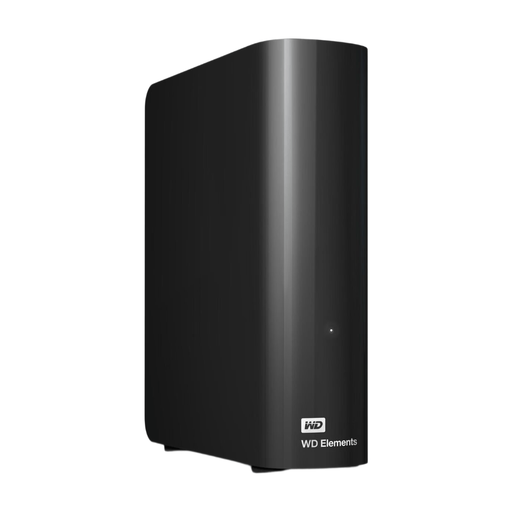 Image unavailable
A desktop drive for an archive that stays in one place. Joybuy lists 6 TB of storage and a mains adapter; reformatting may be needed for Mac, which will erase existing files.
 Image unavailable
A portable HDD for a large archive you can take with you. Joybuy lists 6 TB of storage, password protection and backup software; decide which version history you need and test that you can restore files.
File History lets you restore earlier versions. Check that your design folder is in a library or add it, select the external drive and test restoring a file.
Apple recommends using a backup drive with at least twice the storage capacity of your Mac, and using it only for Time Machine. Setup may prompt you to erase the drive, so check first whether it contains any files.
Don’t assume that lost files will be recovered under the warranty. The Dutch Government says that the seller must provide a solution if a product is faulty; Seagate describes Rescue as a separate service that includes one recovery attempt. Check whether the service applies to the drive you bought.
Not simply because the drive is at home. According to the Dutch Data Protection Authority, GDPR does not apply to the processing of personal data for purely personal or household use. If an organisation processes personal data in client designs, it must protect it appropriately; what applies to you depends on the content and purpose of the processing.