An external HDD is a good fit for a growing collection that usually stays in one place. A portable SSD may be more suitable if volunteers regularly move scans between locations. Whichever drive you choose, don’t rely on it as your only copy: the National Cyber Security Centre recommends keeping backups in different locations. You should also plan how copies are managed and who can access any personal data.
Who is this choice relevant to?
People managing a growing community archive
As scans accumulate, you need to plan not only for storage space, but also for keeping files readable and managing separate copies. The National Archives points out that digital archiving involves more than storage space.
Volunteers working at multiple scanning locations
If you move files between computers, consider portability and whether the connection is compatible with the computers you use. The National Cyber Security Centre also recommends keeping backups in different locations, so a drive you take with you is not automatically your only archive copy.
People managing scans containing personal data
If scans contain personal data, your organisation needs to consider security, access and how long the data is needed. The Information Commissioner's Office explains these obligations for organisations that process personal data.
What should you look for?
First, decide how the archive will be stored and managed. Then choose capacity and connectivity to suit the collection and the computers volunteers use. The National Cyber Security Centre recommends keeping backups in different locations.
External HDD
A good fit when: scans mostly stay in one place and the collection is growing. Compare the space you need with the capacity of the exact model.
Keep in mind: check that the connection is compatible with your computer and keep a separate copy. An HDD on its own is not a complete archiving solution.
Portable SSD
A good fit when: volunteers regularly move scans between workstations and want to compare compact drives.
Keep in mind: quoted maximum speeds apply under specific connection conditions and don’t tell you how quickly individual files will transfer on every computer. Portability is no substitute for a separate backup.
| What to consider |
What to look for when buying |
Who should pay particular attention? |
| Keeping a recoverable copy |
Decide where working and separate copies will be kept, who will update them and how you’ll check that recovery works. |
If I want to avoid a failed drive taking the only copy of the scans with it, keeping a separate copy is my first priority. Around 36% of consumers put keeping a recoverable copy first. |
| Space for new scans |
Compare the current folder size and expected growth with the stated capacity of the exact model. |
If I expect the collection to keep growing, I want the chosen drive to have enough space for it. Around 29% of consumers put room to grow first. |
| Taking files between computers |
Check whether you need USB-A or USB-C, what cable or adapter is included, and what the computers you use support. |
If I move scans between scanning and archive-management computers, I focus on having a suitable connection and cable. Around 21% of consumers put mobile scanning work first. |
| Restricting access to sensitive scans |
Identify which scans contain personal data, who is allowed to view them and whether your security and recovery procedures are practical. |
If scans may contain personal data, I want to know in advance who will have access and how it will be managed. Around 14% of consumers put access security first. |
Common pitfalls
-
Assuming the largest or fastest drive is a complete archiving solution
Storage space alone won’t manage how copies are updated or how you’ll read your files later. The National Archives points out that digital archiving also involves processes; the National Cyber Security Centre recommends keeping backups in different locations.
Choose a capacity only after deciding where copies will be kept and how you’ll check that they can be restored.
-
Expecting an advertised SSD speed on every computer
Manufacturers quote maximum speeds for use with compatible hosts, cables and connections. You can’t assume the stated speed will be achievable on every volunteer’s computer.
Compare the port and cable on each computer you use with the requirements for the exact drive model.
-
Sharing a portable drive without agreeing who can access it
If scans contain personal data, an organisation must protect that data appropriately. The Information Commissioner's Office also warns that shared documents may still contain personal data that isn’t immediately visible.
Before sharing, agree who can view the files and which documents need to be checked first.
Brands to consider
Seagate
The Expansion Portable is a range of external storage HDDs. Seagate lists the STKM4000400 model, which has a capacity of 4 TB.
- Seagate specifies USB 3.0 and compatibility with Windows, macOS and ChromeOS for the range. Check that the connection works with the archive’s computers.
- Manufacturer claims about speed or durability aren’t tests of how long stored archive files will last.
Western Digital
WD Elements Portable is a range of HDDs for portable storage. Western Digital offers models with different capacities, including 4 TB.
- The manufacturer lists capacities of up to 6 TB for the range.
- Check the exact model and connection: a WD Elements with USB-C isn’t automatically the same variant as one with USB 3.0.
Samsung
The Portable SSD T7 is a range of portable SSDs to consider if you regularly transfer scans.
- According to Samsung, the grey 2 TB T7 offers sequential read speeds of up to 1.050 MB/s and write speeds of up to 1.000 MB/s. The manufacturer says these speeds require a compatible host and cable, with UASP enabled.
- The quoted speeds don’t guarantee transfer performance on every computer or how long archive files will last.
Kingston
The XS1000 is a compact range of external SSDs. Kingston lists a model with 2 TB capacity.
- Kingston includes a cable and adapter for USB-A and USB-C.
- The manufacturer offers a limited five-year warranty. This warranty period doesn’t guarantee that archive files will be preserved for five years.
Crucial
The X9 is a range of portable SSDs for file transfers and backups. Crucial lists model CT2000X9SSD9.
- Crucial lists read speeds of up to 1.050 MB/s and says the drive is supplied in exFAT format.
- The manufacturer says the highest speeds require a compatible USB-C connection. Reformatting can erase data on the drive.
Joybuy products
This selection includes portable SSDs for taking scans with you and external HDDs that offer storage space for a growing community archive. Check that the connection and capacity of the model suit the archive’s workflow.
 No image available
SanDisk Portable SSD 1TB
A portable SSD with 1 TB of storage for taking scans between locations.
The product description lists read speeds of up to 800 MB/s and drop protection from heights of up to 2 metres. These are product specifications, not a test of long-term archive durability.
View at Joybuy
 No image available
My Passport 6TB White
A portable hard drive with 6 TB of storage for a growing collection of scans.
The product specifications list USB 3.0, AES-256 hardware encryption and password protection. Backup software is also listed as included.
View at Joybuy
 No image available
Western Digital My Passport USB-C 4TB Black
A portable 4 TB HDD for scans. The product information lists support for Windows and macOS.
The title specifies USB-C. The product description lists AES-256 hardware encryption and password protection.
View at Joybuy
 No image available
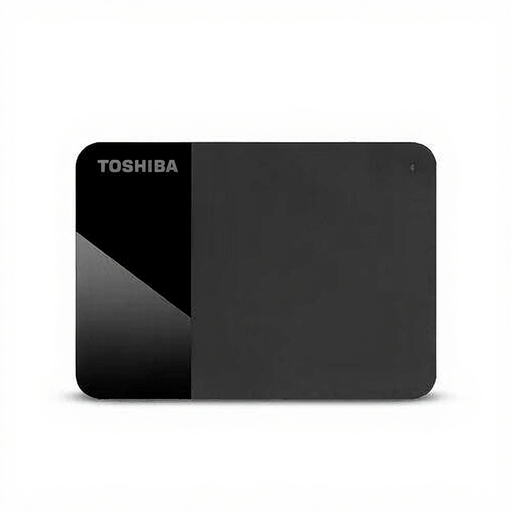
Toshiba Canvio Ready 4TB
A portable external 4 TB HDD for storing scans.
The title specifies Micro-USB B and USB 3.2 Gen 1. Check that the connection is compatible with the computer you’ll use the drive with.
View at Joybuy
 No image available
Samsung MU-PE2T0R 2TB USB Type-C 3.2 Gen 2 Blue
A portable 2 TB SSD for taking scans between workstations.
The title specifies USB-C and USB 3.2 Gen 2. The product description lists IP65 protection and drop resistance from heights of up to 3 metres; IP65 does not mean the drive is protected against immersion.
View at Joybuy
Frequently asked questions
Can one external drive hold the entire community archive?
Don’t use a drive as your only copy. The National Cyber Security Centre recommends keeping backups in different locations, while the National Archives points out that digital archiving involves more than storage space. You should also agree how copies will be updated and check that files can be read back.
What should I check before formatting a new drive?
Check which computers need to be able to read the drive, and save any existing files elsewhere before formatting it. Crucial warns that reformatting the X9 erases data on the drive. Choose a format that suits the computers and the archive’s workflow.
What costs and warranties should the archive consider beyond the first drive?
Remember to budget for separate copies and their ongoing management, too. According to ACM ConsuWijzer, when you buy as a consumer, statutory rights apply alongside any manufacturer’s warranty if a product doesn’t meet reasonable expectations under normal use. Check which terms apply if the purchase is made on behalf of an organisation.
Can a community archive keep scans containing personal data indefinitely or share them publicly?
No. Scanning documents for an archive doesn’t in itself give you permission to keep them indefinitely or share them publicly. The Information Commissioner's Office says organisations must not keep personal data for longer than necessary, and that the UK GDPR doesn’t set a general, specific retention period. Before sharing documents, check for personal data that may not be immediately visible. The appropriate legal basis, retention period and access arrangements depend on the content and who manages the archive.
Does the Archives Act apply to this community archive in the same way as it does to a government archive?
Keeping scans for a community archive doesn’t automatically mean that it does. The Dutch government sets out archive rules for public authorities; don’t assume they apply to a private initiative. According to the Dutch government, the announced new Archives Act will come into force on 1 January 2027.


