Don’t use an external drive as your only backup: the National Cyber Security Centre recommends keeping multiple versions and a copy in a separate location. An HDD may be suitable if storage space is your priority and the drive will usually stay in one place. An SSD or a drive with hardware encryption may be a better fit if you’ll be transporting it frequently or there’s a greater risk of unauthorised access. Work out the capacity you need based on your files, check the connections and security settings, and test that you can restore your data.
Who is this choice relevant to?
Committee member managing membership records
You store information that can be linked to members and want to prevent data loss, unauthorised access and failed recovery attempts. The Dutch Data Protection Authority considers membership records to involve the processing of personal data.
Club archivist
You manage a growing document or media archive and need to weigh the storage required against keeping more than one backup. The National Cyber Security Centre recommends keeping multiple versions of important data.
Secretary who takes the backup with them
You work in different places or on different computers, so portability, suitable connections and protection if the drive is lost all matter. The Dutch Data Protection Authority highlights the importance of properly securing personal data.
What should you consider when buying?
For a backup without cloud storage, your choice will largely depend on how you manage recovery, the protection of members’ data, archive space and portability.
| What to consider |
What to look for when buying |
Who is this for? |
| Recoverability |
Decide where to keep a separate copy and test that you can restore your files. |
If I need to retrieve files after an error or hardware failure, I want to know that my copies are usable. Around 36% of consumers prioritise recoverability. |
| Protection of members’ data |
Check that the security features of the exact model suit your risks and are actually enabled. |
When I store members’ data on a drive, I want to prevent unauthorised access if it’s lost and make sure access is properly managed. Around 29% of consumers prioritise confidentiality. |
| Capacity and cost |
Take stock of your files and how much history you want to keep; allow for the space needed for multiple copies. |
As our document or media archive grows, I want enough storage for our files and recovery versions. Around 21% of consumers prioritise capacity and the total cost. |
| Portability and connections |
Check the USB ports, included cable, operating systems and required file format. |
If I often take the drive with me or use it on different computers, I want connecting it and copying files to work with our setup. Around 14% of consumers prioritise portability and ease of connection. |
Common mistakes
-
Assuming one large drive is a complete backup strategy
If a fault or incident makes your only backup unusable, you won’t be able to retrieve your data. The National Cyber Security Centre recommends keeping multiple versions and a copy in a separate location.
Before buying, decide how you’ll keep a separate, recoverable copy in addition to the drive.
This may require an additional storage device or a secure physical storage location.
-
Assuming encryption is enabled automatically
A drive that supports encryption won’t protect your files automatically if the feature hasn’t been set up. If the drive is lost, an unprotected device containing personal data could give unauthorised people access.
Check the security features of the exact model, enable them where appropriate, and agree who will manage access and recovery.
-
Confusing synchronisation with an earlier recovery version
Seagate’s Toolkit guide explains that changes and deletions are carried over to the other folder. This means a synchronised folder doesn’t automatically keep a version from before those changes.
Check whether the software you choose keeps versions, and test that you can restore them.
Keeping earlier versions may require additional storage space.
-
Relying only on the maximum SSD speed or the connection shown on the packaging
Manufacturer speed figures depend on factors including the computer and cable. An unsuitable connection or file format can also make copying or restoring files more difficult.
Compare the connections and operating systems of the computers you’ll use with the drive.
Depending on your existing equipment, you may need a suitable cable or adapter.
Brands to consider for this choice
Toshiba
Canvio Basics is a range of USB-powered HDDs for anyone looking for local storage. Toshiba lists the 2TB model HDTB520EK3AA, among others.
- Toshiba says it connects directly to Windows and comes with a USB-A to Micro-B cable.
- The model mentioned is formatted as NTFS; Toshiba says it needs reformatting for Mac. Check the file format before transferring any existing data.
Samsung
The Portable SSD T7 Shield may be suitable for a club considering a drive that will be transported frequently and used for regular file transfers.
- For the black 2TB model, Samsung lists USB 3.2 Gen 2 and maximum sequential read and write speeds of 1.050 and 1.000 MB/s respectively.
- These are manufacturer figures; actual performance also depends on the computer and cable. Speed is no substitute for a separate backup.
Kingston
The IronKey Vault Privacy 80ES is a range of external SSDs for organisations considering standalone hardware encryption and access management.
- Kingston lists touchscreen unlocking, administrator and user passwords, and XTS-AES 256-bit hardware encryption.
- According to Kingston, the default security setting cryptographically erases data after 15 consecutive incorrect attempts using both passwords. Agree management and recovery procedures in advance.
Seagate
The Backup Plus Ultra Touch HDD is worth considering if scheduled Windows backups and Toolkit features are important to you. Seagate lists the 2TB model STHH2000400.
- The guide describes a Windows backup plan, synchronisation and optional AES-256 hardware encryption.
- Synchronisation carries over changes and deletions. For the exact model, check that its features meet your needs for keeping and restoring earlier versions.
Western Digital
My Passport is a range of portable HDDs to consider if password protection through WD Security is relevant to the computers you use.
- Western Digital lists My Passport among the drives that support WD Security; this feature isn’t available on every WD drive.
- Western Digital warns that you’ll lose your data if you forget your password. Check that your model is supported and agree how passwords will be managed securely.
Joybuy products for local backups
These products are external HDDs and SSDs for local storage and backups. Choose based on your files, computer ports and security settings.
 No image available
SanDisk Portable SSD 1TB
A portable SSD to consider for a local copy; decide whether 1 TB is enough for your current files and the versions you want to keep.
View at Joybuy
 No image available
WD My Passport for Mac 2TB Blue
Could suit backups from a Mac; the product name mentions Time Machine compatibility and password protection. Check that the drive is suitable for your computer and configure its security features carefully.
View at Joybuy
 No image available
WD Elements Portable 6TB USB-C Graphite Black
An HDD option for an archive that needs 6 TB of storage and a USB-C connection; check the ports on the computers you plan to use with the drive.
View at Joybuy
 No image available
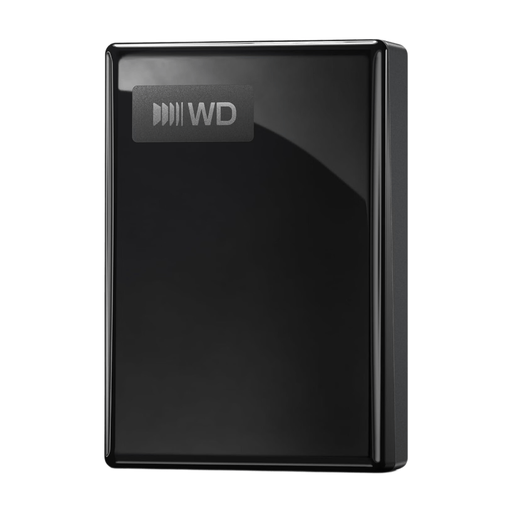
WD My Passport USB-C 5TB Black
A portable HDD to consider for local storage with password protection. According to the product information, you need to enable hardware encryption with WD software and install backup software.
View at Joybuy
 No image available
Samsung Portable SSD T7 2TB USB Type-C 3.2 Gen 2 Blue
A portable SSD option for local storage and file transfers; the product name lists 2 TB and USB Type-C 3.2 Gen 2. Check that the connection is compatible with your club’s computers.
View at Joybuy
Frequently asked questions
Is an external drive without cloud storage enough for a backup?
Not as your only copy alongside the original. The National Cyber Security Centre recommends keeping multiple versions and a copy in a separate location; without cloud storage, you can arrange this by keeping copies in different physical locations. Also test that you can actually restore your files.
Does a Dutch club have to encrypt its backup under the GDPR?
Security measures should be appropriate for the data and the risks; there isn’t one fixed encryption specification for every club. The Dutch Data Protection Authority emphasises the need for appropriate security measures for personal data. Consider encryption, for example to prevent access if a storage device is lost, and manage access and recovery carefully.
Can an external HDD formatted for Windows be used straight away on a Mac?
Check the file format of the exact drive. Toshiba says Canvio Basics drives are formatted as NTFS for Windows and need reformatting for Mac. Reformatting can erase data, so make sure you’ve safely stored any files on the drive first.
How can you tell if your backup really works?
Restore some files and open them; a message saying the copy was successful isn’t enough. The National Cyber Security Centre recommends testing the recovery process.
How long can a club keep members’ data in backups?
The Dutch Data Protection Authority says the GDPR doesn’t set a specific general retention period for personal data. Decide how long you need the data for each purpose and take any other applicable legal retention periods into account. Include older backup versions in your decision too.


