
Families with a growing photo and video archive
You need enough room for existing files and future backups, and don’t need to take the drive with you often.


An external HDD is a practical choice if your backup drive will mostly stay at home and you need room for a growing family archive. An SSD is better suited to frequent travel or regular transfers of large files. First, work out how much storage space and version history you need, check your computer’s connection and backup settings, and don’t keep important files on just one drive.
You need enough room for existing files and future backups, and don’t need to take the drive with you often.
You want to be sure the backup feature you choose includes the documents and photos you need, and that you can restore earlier versions.
You want a practical local backup, while also avoiding the risk of one incident affecting both your computer and its only copy.
Start by considering how many files you have and your computer’s backup feature. Then choose an HDD for home storage or an SSD if you’ll often take the drive with you or transfer large files. Keeping another copy elsewhere is a separate decision, not a replacement for a local backup.
| What to consider | What should you check? | Who is this important for? |
|---|---|---|
| Enough storage space | Take stock of your current files, and allow for future backups and any previous versions. For Time Machine, Apple recommends at least twice the Mac’s storage capacity. | If I want to keep saving photos and videos, I don’t want the drive to fill up quickly. Around 33% of consumers put sufficient capacity first. |
| Backup feature and format | Check whether you use File History or Time Machine, which folders are included, and whether the format is compatible with the feature you’ve chosen. Back up any existing data before formatting. | If I want my computer to automatically include the right folders, I also check that I can restore a file. Around 27% of consumers prioritise a suitable automatic backup. |
| Protection and recovery | Test restoring a file and consider keeping a second copy of important files elsewhere. Store any encryption password somewhere safe so you can still recover your data. | If our family files are irreplaceable, I don’t want to rely on a single copy in one place. Around 20% of consumers prioritise protection and recovery. |
| Portability and file transfers | Compare HDDs and SSDs for the way you’ll use the drive, and check that the USB port and supplied cable are compatible. A manufacturer’s maximum speed is no guarantee of how quickly a full backup will run. | If I often take the drive with me or transfer large files, I look at portability and the connection. Around 20% of consumers prioritise these features. |
In 2022, the Dutch Consumers’ Association noted that an HDD is more susceptible to wear and shocks than an SSD. This general comparison doesn’t tell you which drive is the best choice for every family.
Windows File History works with selected libraries and folders. Restoring a file helps you check whether the data you want has actually been included.
Check which folders are selected, then try restoring a test file after your first backup.
If a folder is missing, its files may not be in the backup; testing a restore takes time.
A drive’s file format can determine whether it works with the backup feature you’ve chosen. Apple says the drive may be erased when you set up Time Machine.
Choose your backup feature first, and back up any existing data before formatting the drive.
Formatting can erase existing data on the drive.
Manufacturers quote maximum speeds, but your USB port and the rest of your backup setup also matter.
Check your computer’s connection, and don’t choose a drive based solely on its stated maximum speed in MB/s.
If the port doesn’t match the stated connection, your computer may not be able to reach that maximum speed.
A local drive can help if you lose files on your computer, but the same incident could affect both devices. The NCSC recommends keeping copies in different locations in its backup guidance.
For important files, keep a separate copy elsewhere too, and test that you can restore it.
An extra drive or off-site storage requires additional management.
The My Passport range includes portable HDDs for photos, videos and documents. Western Digital lists a black 2 TB version with model number WDBYVG0020BBK-WESN.
Expansion Portable is a range of portable HDDs for storage. Seagate lists a black 2 TB version with model number STKM2000400.
Canvio Basics is a straightforward range of portable HDDs. Toshiba lists the part number HDTB520EK3AA for the 2 TB version.
The Portable SSD T7 is an SSD alternative if you often take a drive with you or regularly transfer large files. The grey 2 TB version described by Samsung for the Netherlands is MU-PC2T0T/WW.
The X9 Pro is a compact range of portable SSDs. The 2 TB version described has model number CT2000X9PROSSD9.
This selection includes portable external HDDs for local storage and portable SSDs for those who regularly transfer large files.
 Image unavailable
An HDD option for keeping a growing photo and video archive stored locally.
6 TB storage; the product name mentions password protection and automatic backup software.
The Dutch Consumers’ Association says an HDD is more susceptible to shocks than an SSD; bear this in mind if you often take the drive with you.
 Image unavailable
A portable HDD for storing files such as photos and videos locally.
4 TB; 2.5-inch; USB Type-A and Micro-USB B; USB 2.0/3.2 Gen 1.
Check whether you need to reformat it for macOS, and back up any existing data before doing so.
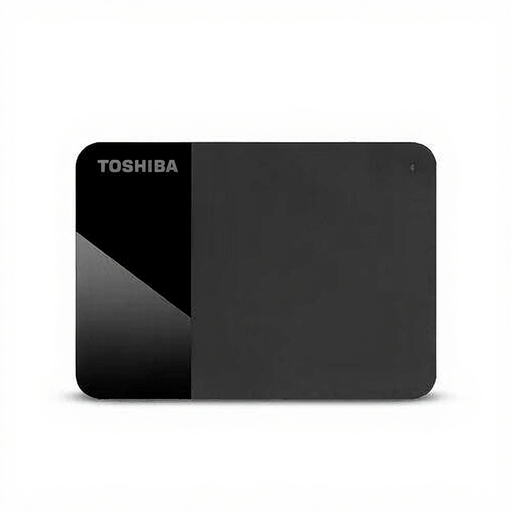 Image unavailable
A portable HDD option for keeping computer files stored locally.
4 TB; 2.5-inch; Micro-USB B; USB 2.0/3.2 Gen 1.
The Dutch Consumers’ Association says an HDD is more susceptible to shocks than an SSD; bear this in mind if you often take your backup drive with you.
 Image unavailable
A portable SSD option if you regularly take your backup drive with you or transfer large files.
2 TB; USB Type-C; USB 3.2 Gen 2.
Check that your computer has a compatible connection. A stated maximum speed doesn’t guarantee the speed of a full backup.
 Image unavailable
A portable SSD option if you want to store files on an external drive and take them with you.
2 TB; USB Type-C; USB 3.2 Gen 2x2.
Check that your computer has a compatible connection before choosing this drive.
Not just because of the file types. Focus on your total storage needs, which folders your backup feature includes, and which drive format it requires. Windows File History includes libraries by default, and you can add other folders. If you need the drive to work with both Windows and Mac, check that it’s compatible with both.
On Windows, you can select an external drive for File History and check which libraries and added folders are included. On a Mac, you can set up a connected drive for Time Machine; Apple warns that the drive may be erased in the process. Then try restoring a file.
A local copy helps if you lose files on your computer, but it doesn’t protect against every risk. Consider keeping a separate copy elsewhere too, and check that you can restore it. The NCSC describes the 3-2-1 approach for business data; for a family, it’s a way to think about risk, not a legal requirement.
No. According to ACM ConsuWijzer, statutory guarantees in the Netherlands don’t have a fixed two-year term: with normal use, what you’re entitled to depends on what you can reasonably expect from the product. Contact the seller to make a claim under your statutory rights.