Who is this choice relevant to?

A family with a growing photo and video archive

Wants to keep edited files and future backup versions. Choose a capacity based on what you actually want to protect; Apple Support recommends using a storage device with at least twice the capacity of your Mac for Time Machine.

Someone who regularly edits photos or videos

Wants to copy large project files after a long editing session, and pays attention to drive speed, computer port and cable. Manufacturers’ stated speeds are product specifications, not a promise of how long your backup will take.

A family that wants to restore files easily

Wants the drive to work with its Windows or Mac backup method, and previous files to be easy to find. Microsoft Support explains how File History can restore previous versions of files.

What should you consider when choosing?

External HDD

Choose this when: you mainly need space for a growing family archive and usually back up in one place.

What to consider: check that the capacity suits your files, and that the connection and formatting are compatible with your computer and backup software.

External SSD

Choose this when: you often copy large files or take the backup drive with you.

What to consider: check that your computer port and cable support the stated speed, and that enough space will remain for future backups.

What to consider What should you check? Who is this important for?
Restoring files Check that your backup method includes the folders you want and keeps previous versions. If I want to be sure I can restore the latest files after a long editing session, I check that the backup has completed and that I can find a file. Around 29% of consumers put recoverability first.
Space for archives and versions Compare the drive’s capacity with your current files and the version history you want. For Time Machine, Apple Support recommends at least twice the storage capacity of your Mac. Anyone keeping photos, videos and project files won’t want future backups to fill the available space straight away. Around 29% of consumers prioritise archive capacity.
Copying large files Check the USB specifications of the drive, cable and computer; maximum product speeds don’t guarantee a particular backup speed. If I regularly transfer large files after editing, I pay attention to both the connection and the speed of the entire setup. Around 24% of consumers prioritise transfer time.
Connection and operating system Compare the connector type and cable with your computer’s port, and check that the file system is compatible with your backup method. If you want to use a drive without needing extra connection steps, check the port and Mac or Windows configuration in advance. Around 18% of consumers prioritise compatibility.

Common backup mistakes

  • Mistaking extra storage for a verified backup

    Connecting a drive or copying files manually doesn’t prove that you can restore the folders and previous versions you need.

    Set up your backup method, check that the backup has completed after the session, and try to find a file.

  • Leaving your only extra copy connected all the time

    According to the Consumers’ Association, ransomware can also affect a connected external drive.

    After a backup has completed, keep a copy separate from the computer and decide how often to update it.

  • Treating an SSD’s maximum speed as a promise of how long a backup will take

    The stated MB/s figures are product specifications; the port, cable and files also affect transfer speeds.

    Compare the USB specifications of the drive and computer, and don’t take the stated speed as a guarantee of how long your backup will take.

  • Formatting without first protecting existing files

    For the Canvio Basics model reviewed, Toshiba says that reformatting is required for macOS. Apple says that Time Machine may ask you to erase the drive during setup.

    Check in advance whether formatting is necessary, and first make a copy elsewhere of any files already on the drive.

Brands to compare

Toshiba

The Canvio Basics is a range of portable HDDs for family files and more; Toshiba lists a 2 TB model.

  • Toshiba specifies USB 3.2 Gen 1 for the model mentioned.
  • The model reviewed is formatted for Windows; reformatting is required for macOS. Check the exact model and cable.

Seagate

The Portable range includes portable HDDs for files and backups.

  • Seagate lists USB 3.0 and capacities from 1 TB to 5 TB for the range.
  • Dragging and dropping files transfers them; separately set up automatic backups and version recovery if you need them.

Samsung

The T7 Shield is an external SSD; the model reviewed is the black 2 TB version, MU-PE2T0S/EU.

  • Samsung specifies USB 3.2 Gen 2, sequential read and write speeds of up to 1.050/1.000 MB/s, and IP65 protection.
  • These are Samsung’s specifications, not a guarantee of your backup speed or a substitute for keeping an additional copy.

Kingston

The XS1000 is a compact range of external SSDs, including a 2 TB model.

  • Kingston lists read speeds of up to 1.050 MB/s and write speeds of up to 1.000 MB/s via USB 3.2 Gen 2, plus a USB-C-to-USB-A cable with an adapter.
  • Check that the port and included accessories are compatible with your computer; stated speeds are not the result of an independent test.

Joybuy products for backups

This selection includes external SSDs for transferring large files and external HDDs for additional archive and backup storage. For each model, check that the capacity, connection and formatting are compatible with your computer and backup method.

SanDisk Extreme Pro Portable SSD 1TB

SanDisk Extreme Pro Portable SSD 1TB

An external SSD for transferring large files; check that your computer’s connection is suitable for the speed you want.

1 TB of storage. SanDisk lists read speeds of up to 2.000 MB/s via a compatible USB 3.2 Gen 2x2 host; according to the product description, write speeds are lower. The description mentions IP65 protection.

View at Joybuy

My Passport for Mac 2TB Blue

My Passport for Mac 2TB Blue

A portable HDD that, according to the product description, is pre-formatted for Mac and designed for Time Machine backups.

2 TB of storage. The description mentions password protection and a USB-A cable with a USB-C adapter; check the connections on your Mac.

View at Joybuy

My Passport 6TB White

My Passport 6TB White

A portable HDD for storing a larger photo and video archive; the product description mentions software for scheduled automatic backups.

6 TB of storage and USB 3.0. The description mentions Acronis software and 256-bit AES hardware encryption with password protection.

View at Joybuy

Western Digital My Passport 2TB Black

Western Digital My Passport 2TB Black

A portable HDD for storage and backups; the product description mentions software for scheduled automatic backups.

2 TB of storage and USB 3.2 Gen 1. The description mentions Acronis software and 256-bit AES hardware encryption.

View at Joybuy
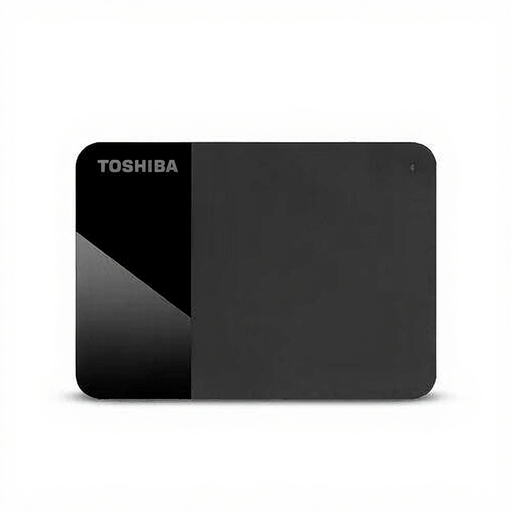
Toshiba Canvio Ready 4TB

Toshiba Canvio Ready 4TB

A portable HDD for storing and transferring files; check whether formatting is required before using it with macOS.

4 TB of storage, a Micro-USB B connection with USB 3.2 Gen 1 support, and Plug and Play according to the product description.

View at Joybuy

Frequently asked questions

On Windows, should you simply drag files to the drive after an editing session?

Not if you also want to be able to restore previous versions. Microsoft Support describes File History as a method that backs up files to an external drive or network location and can restore previous versions; check that your project folder is included.

How much storage do you need for a Time Machine drive?

For a Mac using Time Machine, Apple Support recommends a storage device with at least twice the storage capacity of the Mac. This advice applies to that backup method and isn’t a general capacity rule for Windows.

Can you set up an existing drive for Time Machine without preparing it first?

Not always: Apple Support says that Time Machine may ask you to erase the drive during setup. Before confirming the formatting, make sure any files already on the drive are safely stored elsewhere.

Is it worth keeping an additional backup disconnected?

Yes, if you want to keep an extra copy separate from the computer. The Consumers’ Association warns that ransomware can also affect a connected external drive; check that the backup has completed before disconnecting the drive.

What are your warranty rights on an external drive in the Netherlands?

According to ACM ConsuWijzer, for a consumer purchase the retailer is responsible for providing an appropriate solution if a product, when used normally, doesn’t meet what you could reasonably expect from it. A manufacturer’s warranty doesn’t replace this legal right; the drive’s warranty won’t protect your files from loss.
