What should you look for when choosing an external drive?
First check that the drive can read your type of CD and is compatible with your laptop; then decide whether you also want to burn discs.
| What to consider |
What should you check? |
Who is this important for? |
| Reading CDs |
Check for support for CD-ROM and, if relevant to your disc, CD-R or CD-RW. Also check whether it’s a data CD or an audio CD. |
If I want to transfer files from an existing data CD, read support is my top priority; around 36% of consumers say reading discs is their first buying priority. |
| Connection and system |
Compare your laptop’s ports with the included cable or adapter, and check the system requirements for the exact model. |
If you use a laptop with USB-C only, you’ll want to know whether the drive connects directly; around 29% of consumers give connection and system compatibility top priority. |
| Read errors and storage |
Check the disc for dirt or damage, handle it by the edge and centre hole, and open important files after copying them. If necessary, keep another copy on a different storage medium. |
If my CD is fragile or the files are important, I want to check the transfer and keep an extra copy; around 21% of consumers put this concern first. |
| Only the features you need |
You don’t need a burning function to copy files from an existing CD. Also check whether a suitable cable or adapter is included. |
If you’re mainly looking for a simple solution for copying files, you won’t want to pay for features you don’t need; around 14% of consumers say choosing only what they need is their top priority. |
Joybuy products for reading CDs and burning discs
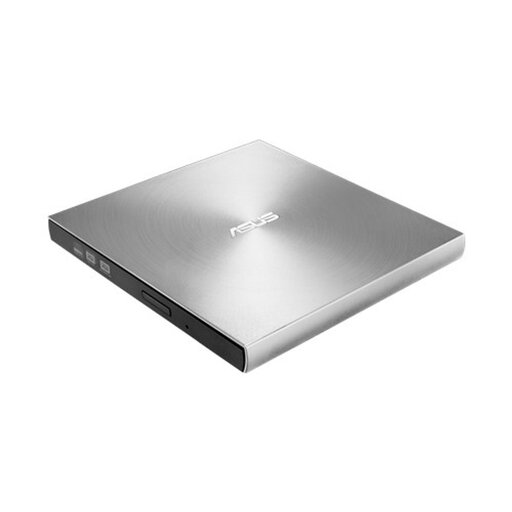
This Joybuy pick is an external drive for anyone who wants to read CDs as well as write CDs and DVDs.
 No image available
ASUS SDRW-08U7M-U external DVD±RW optical drive, silver
Worth considering if you want to read CDs as well as write CDs and DVDs.
The product information lists USB 2.0 and a CD read speed of 24x, alongside CD and DVD writing functions.
Joybuy
Frequently asked questions about copying files from CDs
Do I need burning software to copy files from a data CD?
No, not to transfer readable files to your laptop; burning means writing files to a blank disc. Microsoft describes File Explorer as a way to open and manage files and folders on your PC. Ripping music from an audio CD is a different process.
What can I do if Windows doesn’t show the connected drive?
First check the connection and the system requirements for the exact drive model. Microsoft describes several possible causes when Windows doesn’t recognise a CD or DVD drive. If you encounter this error, follow the relevant Microsoft steps or contact the manufacturer for help.
How should I handle old CDs while transferring files?
Hold the disc by the edge and centre hole. After copying, open important files to check that they’re readable. For storing important files, the Library of Congress recommends keeping copies on different storage media and in different locations.
Who should I contact about a faulty drive bought in the Netherlands?
Report the problem to the retailer. According to the Dutch government, you’re entitled to a product that works properly, and there’s no fixed statutory warranty period for all products in the Netherlands. A manufacturer’s warranty doesn’t replace your statutory rights.
Can I copy and share everything from an old CD?
No, not necessarily. For other people’s copyright-protected texts, music and photos, the Dutch government describes a private copy for personal use, not for distribution or making the material public. For computer programmes and games, it refers only to a backup copy; which rule applies depends on what’s on the CD.


