Don’t just choose an external drive: to retrieve earlier project versions, you’ll also need to set up File History or Time Machine. An HDD may suit a growing archive, while a portable SSD can be handy if you regularly take large files with you or move them between devices. Also check the capacity you need, the connection type and, if you’re storing pupil data, your institution’s policies.
Who should consider this choice?
Teachers who want to retrieve project versions
If you often edit teaching materials, you’ll need to set up a backup feature to restore earlier versions. Microsoft Support explains how to do this with File History, while Apple Support covers Time Machine.
Teachers with a growing teaching archive
If you store lots of documents, presentations or media, it’s worth allowing room for new files and backups. Apple Support notes that Time Machine deletes older backups as the drive fills up.
Teachers who store pupil data
If pupil data is stored on the drive, you’ll need to take your educational institution’s safeguards and policies into account. The Dutch Data Protection Authority explains schools’ responsibility to take appropriate measures to protect personal data.
What should you look for in an external backup drive?
Choose between an HDD and a portable SSD based on where you’ll use the drive and what you want to store on it. Neither option replaces setting up and testing version recovery.
External HDD
Suitable for: a growing teaching archive that usually stays in one place; check how much capacity you need.
Consider: a drive or a standard copy won’t automatically restore earlier project versions; you’ll need to set up a backup feature for that.
Portable external SSD
Suitable for: regularly carrying files with you or moving large media files between computers.
Consider: version recovery still requires a separately configured backup feature; also check that the ports and cables are compatible with your computers.
The main considerations when buying are version recovery, storage space, data protection and carrying files with you.
| Consideration |
What should you check? |
Who is this important for? |
| Restoring earlier versions |
Choose File History for Windows or Time Machine for Mac, include the right project folders and test restoring a file. Microsoft Support and Apple Support explain how to restore earlier versions using these features. |
If I need an earlier edit, I want to be able to restore what was in my project folder. Around 36% of consumers prioritise version recovery. |
| Space for a growing archive |
Check how much space your files take up, and allow for future growth and your preferred retention period. Apple Support says Time Machine deletes older backups as the drive fills up. |
For a growing teaching archive, I want room for new files and backups. Around 29% of consumers are mainly looking for archive space. |
| Protecting pupil data |
Check that storing data on the drive is in line with your institution’s policies, and find out how the backups will be protected. The Dutch Data Protection Authority explains schools’ responsibility to take appropriate measures. |
If pupil data will actually be stored on the drive, I want to know what safeguards and policies apply first. Around 21% of consumers prioritise data protection. |
| Carrying and transferring files |
Compare your computers’ ports with the drive’s connection and cables; also consider the size of the files you’ll be moving. |
If I regularly carry large media files with me, the connection and cable need to work with my computers. Around 14% of consumers prioritise transferring files on the go. |
Common mistakes when backing up teaching materials
-
Assuming an extra drive automatically keeps version history
Without the right backup settings, you won’t automatically be able to retrieve an earlier project version.
Choose a recovery method first, set it up and test that you can restore a file.
-
Continuing to use a full Time Machine drive without checking the oldest version
Apple Support says Time Machine deletes older backups when it needs space for new ones.
Regularly check how much free space is available and how far back you can still restore.
A growing archive may eventually need more storage space.
-
Formatting a Windows drive for Time Machine without first securing your files
Apple Support says Time Machine doesn’t store backups on a drive formatted for Windows; reformatting can erase existing files.
Check the format and make a copy elsewhere of any files you want to keep before you start.
-
Assuming a listed encryption option means protection is already switched on
A product feature alone doesn’t tell you how pupil data is protected in practice.
Check that security is set up and follow your institution’s policies for pupil data.
Managing passwords and recovery details requires ongoing attention.
Brands to consider as a guide
Toshiba
The Canvio Basics is a straightforward range of portable HDDs, including a 2 TB version.
- Toshiba says the drive is powered via USB.
- The stated format is NTFS for Windows; you’ll need to reformat it for use with macOS. The drive alone doesn’t provide configured version recovery.
Seagate
The Expansion Portable is a range of portable HDDs available in various capacities.
- For the configuration described, Seagate specifies USB 3.0 and a USB-A cable.
- You may need to reformat the drive for Time Machine. Check the capacity and specifications of the specific model.
Samsung
The Portable SSD T7 is a compact SSD range for anyone who carries or transfers files.
- For the 1 TB grey T7, Samsung lists two cable types and optional password protection with AES-256.
- The stated transfer speeds are manufacturer figures for this model, not independent test results or proof that version recovery is set up automatically.
Western Digital
The My Passport range includes portable HDDs with an option for drive encryption.
- Western Digital states that the versions described support AES-256 hardware encryption.
- The drive is initially formatted as NTFS; you’ll need to reformat it for macOS. Check the exact version and the backup feature you want to use.
Joybuy products for teaching materials and backups
This selection includes portable SSDs for carrying and transferring files, and external HDDs for larger archives. The desktop model is designed for a fixed setup. You’ll also need to set up a backup feature to restore earlier project versions.
 No image available
SanDisk Portable SSD 1 TB
A portable SSD for storing and carrying teaching files; restoring earlier versions requires a separately configured backup feature.
1 TB storage; stated read speed of up to 800 MB/s; drop protection up to 2 m.
View at Joybuy
 No image available
SanDisk Extreme Pro Portable SSD 1 TB
A portable SSD for project files you want to take with you; version recovery still depends on your configured backup feature.
1 TB storage; stated read speed of up to 2,000 MB/s requires a compatible USB 3.2 Gen 2x2 host. The description lists a USB-C cable and USB-A adapter.
View at Joybuy
 No image available
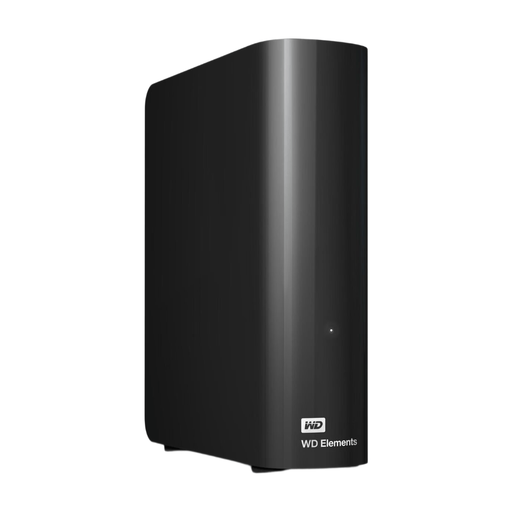
WD Elements Desktop 6 TB
A desktop HDD for a fixed setup and storing a larger teaching archive; set up version recovery separately.
6 TB storage; 3.5-inch model; USB 3.0; the description lists a mains adapter in the box.
View at Joybuy
 No image available
My Passport 6 TB White
A portable HDD for a large teaching archive that you also want to take with you; check the backup settings you need for version recovery.
6 TB storage; 210 g; USB connection. The description lists scheduled automatic backups and password protection with AES-256 hardware encryption, which must be enabled through software.
View at Joybuy
 No image available
Portable SSD 1 TB, 1,000 MB/s
A portable SSD for teaching materials and project files; you’ll need a separately configured backup feature to restore earlier versions.
1 TB storage; stated speed of 1,000 MB/s; USB-C and USB 3.2 Gen 2. The description notes that formatting may be required the first time you use it with Windows.
View at Joybuy
Frequently asked questions
Can an external drive automatically restore earlier versions of your teaching projects?
No, you’ll need to set up a backup feature that keeps versions. Microsoft Support explains how to restore earlier versions with File History, while Apple Support covers Time Machine; on Windows, also check that the project folder is included.
Can I use a drive formatted for Windows as a Time Machine drive straight away?
Not without changing the format to make it compatible. Apple Support says Time Machine doesn’t store backups on a drive formatted for Windows. Before formatting the drive, make sure you’ve copied any files you want to keep somewhere else.
How long are older Time Machine backups available?
That depends in part on how much space is available on the drive. Apple Support says Time Machine deletes older backups as the drive fills up.
Is one external drive enough as your only backup?
The National Cyber Security Centre recommends the 3-2-1 rule for backups: keep the original and two backups on different media, with one copy stored elsewhere. This is security advice, not a legal minimum specification for a drive.
What guarantee applies if I buy a drive online in the Netherlands as a consumer?
According to the Netherlands Authority for Consumers and Markets’ Consumer Information service, your statutory rights apply alongside any manufacturer’s guarantee. If a product is faulty despite normal use, the seller is responsible for providing an appropriate solution. The Dutch government says that, in many cases, you have 14 days to change your mind when buying from a business at a distance; check the applicable terms.


