
Video editor with an active project
You often open and move the media used in your project, and want to know whether the drive and computer are suited to the way you work.


If you often open project media from your drive or edit on the go, an external SSD is a suitable option. If you mainly want to store footage, an HDD is an alternative. Work out how much space you need based on your files, and check the connection, format and project links. One external drive is not a substitute for a separate backup: the National Cyber Security Centre (NCSC) advises keeping important data in multiple versions and locations.
You often open and move the media used in your project, and want to know whether the drive and computer are suited to the way you work.
You keep your source footage and final versions, but don’t edit most of it every day. Storage space and a backup you can restore are important.
You take your project to another computer and need to check that the media files, project links and drive format will all work.
Suitable for: regularly moving large project files or using media directly from the drive, including when you’re out and about.
Worth checking: make sure your computer’s port and cable support the speed class you’re considering.
Suitable for: storing source footage and finished versions when you don’t edit directly from the drive all the time.
Worth checking: speed or use while travelling may be a deciding factor. Also check the connection on the specific model.
Suitable for: keeping a large amount of project material accessible at one fixed workstation, if portability isn’t your main priority.
Worth checking: check the capacity, connection and requirements of the model you choose. An archive drive is still just one storage location.
Make your choice in this order: first decide whether you’ll work actively from the drive or mainly use it for storage, then calculate the space you need, and finally check the connection and compatibility between devices.
| What to consider | What should you check? | Who should pay particular attention? |
|---|---|---|
| Working speed | Check your computer’s USB or Thunderbolt support, the cable, and whether any stated speed is a maximum. | I often open and move active media, and want to know whether my computer can keep up with the drive; around 33% of consumers prioritise quick access to their project. |
| Storage capacity | Check the size of your project folder and decide which media, copies and generated files you want to keep. The space you need depends on the method you use to copy your files. | If I want to keep source footage and versions, I want to base the capacity I need on my files; around 25% of consumers prioritise archive storage. |
| Compatibility between devices | Check your computers, ports, file system and editing software workflow. Take the required media with you and open the copy to make sure it works. | I switch between computers and want the project to keep finding its media files; around 25% of consumers prioritise project compatibility between devices. |
| Keeping and restoring files | Keep a separate backup and test that you can open your files from it. If you use the drive away from home, check the protection offered by the exact model. | If I don’t want to lose my editing work, I want a copy I can restore; around 17% of consumers prioritise recoverability. |
A project file links to the media used in the project. Without those files, the project may be incomplete in its new location.
If you use Adobe Premiere, use Project Manager to collect the project and the media it needs. Work out how much space you need and open the copy before deleting the originals.
The connection, cable, drive and computer port all affect the transfer speed you can achieve. A stated maximum doesn’t automatically reflect the speed of your setup.
Compare the full USB or Thunderbolt specifications for the drive, cable and computer, and bear in mind the difference between a manufacturer’s maximum and measured performance.
If your project and backup are on the same drive, they’re still in one storage location.
Keep a separate copy somewhere else as well, and test that you can recover files from it.
Seagate’s current portable USB-C range differs from an older Expansion Portable model that came with a USB-A cable and has a different capacity specification.
Before buying, check the full model code, capacity and included cable for the specific model.
The T7 Shield is a portable SSD range for active project files.
Expansion Portable is a portable HDD option, while Expansion Desktop is designed for storage at a fixed workstation.
The Rugged SSD4 is a portable SSD option for workflows using a computer with a suitable high-speed port.
The X10 is an SSD alternative worth comparing if portable storage and a suitable connection are important to you.
This selection includes portable external SSDs for active project files and portable HDDs for storing source footage and project archives.
 Image unavailable
A portable SSD for project files and videos you want to take with you.
1 TB of storage and read speeds of up to 800 MB/s, according to the product description. It also mentions drop protection from a height of up to 2 metres and an integrated rubber hook.
 Image unavailable
A portable SSD for large files, if your computer supports the required connection.
1 TB of storage, USB 3.2 Gen 2x2 and read speeds of up to 2.000 MB/s, according to the product description. The stated maximum speed requires a suitable host; the description notes that write speeds are lower. It also lists IP65 and drop protection from a height of up to 3 metres.
 Image unavailable
A portable SSD for video and project files you want to move between compatible devices.
1 TB of storage, USB-C and read speeds of up to 1.000 MB/s, according to the product description. It also lists USB 3.2 Gen 2, drop protection from a height of up to 2 metres, and compatibility with Windows, macOS, iPadOS and Android.
 Image unavailable
A portable HDD for taking project material and media files between workstations.
2 TB of storage, USB 3.2 Gen 1 and USB bus power, according to the product description. It also mentions 256-bit AES hardware encryption. The drive is pre-formatted for NTFS/Windows, according to the description; a downloadable driver is mentioned for reading and writing on macOS.
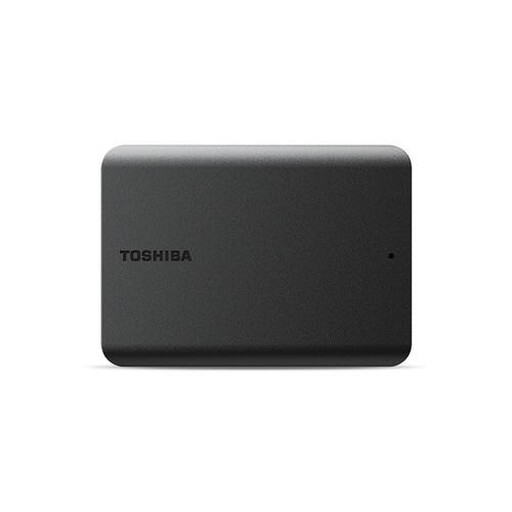 Image unavailable
A portable HDD for storing project files and videos.
1 TB of storage, a 2.5-inch form factor and USB 3.2 Gen 1, according to the product description. It mentions use with Windows and notes that the drive must be reformatted for use with a Mac.
Yes, but after copying, check that your editing project can still find the media it uses. In Adobe Premiere, Project Manager can collect project media using ‘Collect Files and Copy to New Location’. The capacity you need depends on the files included using that method.
exFAT is an option if you need to write to the same data drive on both systems. Apple warns that a Mac may be able to read NTFS but not write to it. Before formatting, make a copy of any existing data, as formatting erases the drive. exFAT is not a Time Machine destination.
Open relevant files from the separate copy, or open the restored project. For important data, the National Cyber Security Centre (NCSC) advises keeping multiple versions on different media, with a copy in another location.
No. According to ACM ConsuWijzer, statutory warranty applies alongside any manufacturer’s warranty for as long as the product should meet the expectations you could reasonably have under normal use. If a product is faulty, the seller is responsible for providing an appropriate solution; the statutory period is not fixed at two years for every drive.