
Creator with a growing video archive
You want to keep your source footage, project files and finished versions in one place. In that case, plenty of storage and a separate backup matter more than being able to take the drive with you frequently.


For a growing video archive kept at a fixed workstation, a high-capacity desktop HDD is a good fit. If you often transfer large files or take the drive with you, a portable SSD is worth comparing. Check that the connection and cable are compatible with your computer, and keep a separate copy as well as the drive. The Digital Trust Center recommends testing backups periodically by restoring files.
You want to keep your source footage, project files and finished versions in one place. In that case, plenty of storage and a separate backup matter more than being able to take the drive with you frequently.
You regularly transfer large video files and want to know whether the drive, computer port and cable can work together to deliver the transfer speeds you need. Manufacturer speed claims don’t guarantee how long it will take to copy an entire library.
You take files with you and weigh portability against connectivity, power and the rigours of travel. If your library contains personal data, appropriate security and access to the copy matter too.
Best for: a growing library that is usually backed up at one workstation, where storage space matters more than portability.
Consider: you’ll need a power socket and a permanent spot for it. What’s more, one drive is only one backup location.
Best for: large files that you transfer regularly or take between workstations.
Consider: the stated maximum speed won’t necessarily be achievable with your computer or when making a full backup. Check how much storage you need too.
Best for: anyone who wants to take the drive with them and values USB power.
Consider: an HDD has moving parts, so take extra care when transporting it. Also check the file system if you plan to use it with a Mac.
| What to consider | What to check before buying | Who should prioritise this? |
|---|---|---|
| Space for your library | Count the folders and versions you keep, then decide how much room you want to leave for future projects. | If I want to keep my source footage, projects and exports together, I’m mainly looking for enough capacity. Around 33% of consumers put space for their entire library first. |
| Transfer time | Check your computer’s connection and cable. Compare stated speeds only under suitable conditions. | After a long editing session, I want to transfer large files without waiting any longer than necessary. Around 27% of consumers give transfer time top priority. |
| Taking it between workstations | Check the connector type and whether the drive needs a power adapter. Read the precise terms of any protection claims. | If I need my library at different workstations, I take portability and power into account. Around 20% of consumers choose portability as their main consideration. |
| Recovery and protection | Check that the right files are being copied and test by restoring files. Consider security if the copy contains personal data. | I don’t just want to keep a copy; I also want to check that recovery works and protect access appropriately. Around 20% of consumers put recovery and protection first. |
A drive won’t protect you against every incident affecting the same location, and having one doesn’t in itself mean you’ll be able to recover your files.
Keep a separate copy and periodically test whether you can restore your files.
An extra copy requires storage space and management.
Manufacturers quote speeds for a particular interface or test setup. Your port, cable and source files all affect the speeds you can achieve on your own computer.
Check the connections on the drive and your computer, and compare stated read or write speeds only under suitable conditions.
Toshiba lists the Canvio Ready reviewed here as formatted as NTFS for Windows. Apple recommends APFS or APFS Encrypted for Time Machine.
Check the actual format and save any existing files elsewhere before reformatting a drive. Formatting erases the data on it.
The Consumentenbond explains that HDDs are more susceptible to knocks than SSDs, partly because HDDs have moving parts.
Think about how often you’ll really transport the drive, and keep a separate backup even if you choose a portable SSD.
The Expansion Desktop is designed for a large video archive kept at a fixed workstation.
The portable Portable SSD T9 is worth comparing if transfer speeds and portability are important to you.
The portable X9 Pro range includes a 4 TB version for anyone considering an SSD with USB 3.2 Gen 2.
The portable Canvio Ready is an HDD range for anyone who values USB power and storage on the go.
This selection includes portable SSDs and HDDs for taking video files with you or storing them.
 No image available
A good fit if you’re looking for a portable SSD and 1 TB is enough for the files you need to keep.
The stated read speed of up to 2,000 MB/s requires a compatible USB 3.2 Gen 2x2 connection. The write speed is lower.
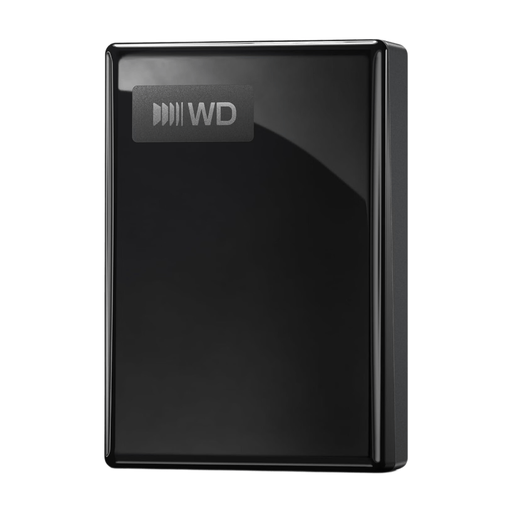 No image available
A portable HDD to consider if your video library fits within the stated capacity.
The product name lists USB-C and 5 TB. Check that the connection is compatible with your computer and cable.
 No image available
A portable hard drive to compare if 4 TB is enough for the files you want to keep.
Check that the included backup software and connections suit your computer and way of working.
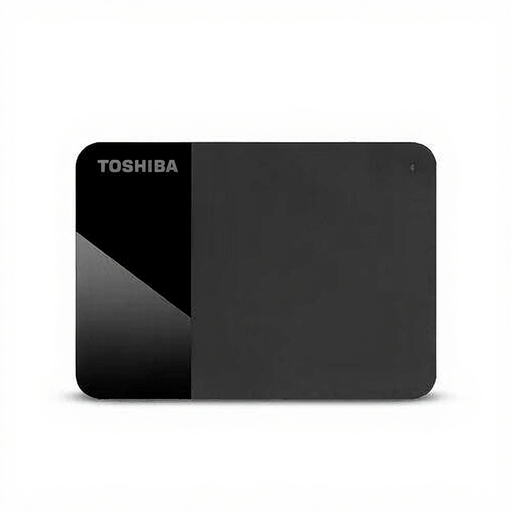 No image available
A portable HDD to consider if you need 4 TB of storage without a separate power adapter.
The product name lists a 2.5-inch drive and Micro-USB B. Check the connection and file system for your computer.
 No image available
A good fit if you want to take large files with you and 2 TB is enough for the backup you have in mind.
The product name lists USB Type-C and USB 3.2 Gen 2x2. Check that your computer supports this connection before taking the stated speeds into account.
No. If you have a growing library that is usually backed up in one place, a high-capacity desktop HDD could be a good fit. If you often transfer large files or take the drive with you, compare portable SSDs too, and check that the port and cable are compatible with your computer.
Not all drives have the right file system to begin with. Apple recommends APFS or APFS Encrypted for Time Machine. Check what’s on the drive before formatting it, as formatting erases any existing data.
Check that the intended files are in the copy, and periodically test it by restoring files. The Digital Trust Center recommends keeping backups in more than one location or in more than one form.
A manufacturer’s warranty and your statutory rights are not the same thing. ACM ConsuWijzer explains that there is no fixed term for the statutory guarantee in the Netherlands. If a product breaks sooner than you could reasonably expect with normal use, contact the retailer.
If an organisation processes personal data, the Dutch Data Protection Authority says it must assess the risks and decide on appropriate security measures. That doesn’t mean every video library needs one specific type of drive or a standard encryption method.