
Manager of a large video library
You keep lots of video files in one place and need enough room for a local copy and future growth.


Choose a capacity that suits your current video library and the growth you expect, and check the backup before deleting your originals. A desktop HDD suits a large video collection kept in one place; a portable HDD is handy if you take the drive with you, while a portable SSD is a good fit for regular travel or transferring large files. No drive replaces a recovery test or a separately stored copy.
You keep lots of video files in one place and need enough room for a local copy and future growth.
You want to be able to recover files if your computer or storage device fails, and are happy to check your backup regularly and store it separately.
You regularly take your drive with you and weigh up portability and transfer speed against the capacity you need.
First work out how much storage you need. Then consider whether your priority is recovery, portability or a connection and setup that suit your computer.
| What to consider | What should you check? | Who is this important for? |
|---|---|---|
| Capacity and growth | Compare the current size of your video library and its expected growth with the capacity of the exact model. Also check whether your backup method keeps earlier versions. | As my video library grows, I want enough space for new footage. Around 36% of consumers put capacity first. |
| Recoverability | Check which files the backup task copies, try restoring a file and keep the drive disconnected when you’re not using it. | I want to be able to restore footage if the original goes missing, not just move files somewhere else. Around 29% of consumers put recoverability first. |
| Portability and transfers | Think about how often you’ll need to take the drive with you, and check your computer’s port and cable. Advertised speeds don’t guarantee a particular copying time. | If I regularly take the drive or large video files with me, size and transfer speed matter a lot. Around 21% of consumers put portability and transfers first. |
| Connection and setup | Check the operating system, port, cable and formatting of the exact model. Choose a local backup method and make sure it includes your video folders. | I want to know in advance whether the drive will work with my computer and backup method, so I can copy files safely. Around 14% of consumers put compatibility and setup first. |
This could leave the new drive as your only remaining copy. A backup is there to help you recover files if the original data is lost.
Copy the files first, check them and test that you can restore them before clearing the original storage.
A backup kept disconnected is less accessible to a compromised computer. The UK National Cyber Security Centre advises against leaving external backup media permanently connected.
Plan when you’ll update your local copy, then disconnect the drive. You may need a second drive or another storage location to keep a separate copy.
A desktop model may need a mains adaptor, and transfer speeds also depend on your computer’s connection. The advertised speed isn’t necessarily the speed you’ll get with every port and cable.
When comparing capacity, also consider the size, power supply, connection and cable for the exact model.
Toshiba says Canvio Basics is formatted as NTFS for Windows and needs reformatting for macOS. Reformatting deletes any data already on the drive.
Check the formatting and backup method before filling the drive, and secure any existing data before reformatting it. Allow time for setup.
My Book is a desktop HDD range for video libraries that are mainly backed up from a fixed location.
Expansion Desktop is a desktop HDD range for large local files and media.
Canvio Basics is a portable HDD range for local copying via USB.
T7 Shield is a portable SSD range for anyone who regularly takes a drive with them or transfers files.
These products suit three local backup approaches: a portable SSD, a portable HDD or a desktop HDD. Compare the capacity and connection with your library, computer and backup routine.
 No image available
A portable SSD option if you want to take a local copy with you regularly.
1 TB. The product information lists read speeds of up to 800 MB/s and drop protection from a height of up to 2 metres; check that the capacity suits your library.
 No image available
A portable HDD option if you want to take a local copy with you and need more space than a lower-capacity model offers.
5 TB and USB-C. The product information lists a built-in USB-C cable; protect the drive from physical knocks.
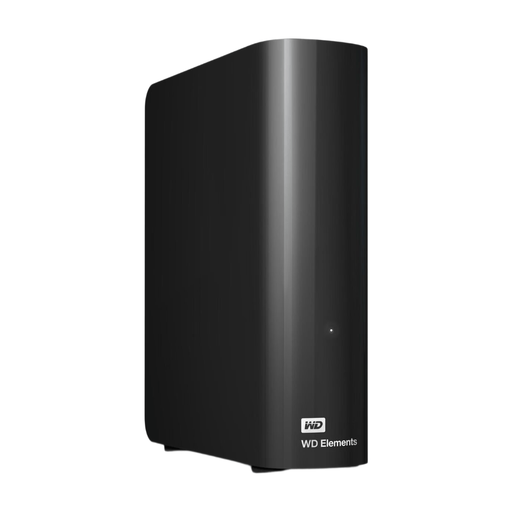 No image available
A desktop HDD option for a fixed location where you keep a copy of your local video library.
6 TB, USB 3.0 and a mains adaptor. The product information specifies NTFS for Windows; reformatting may be needed for Mac. Protect the drive from drops and strong impacts.
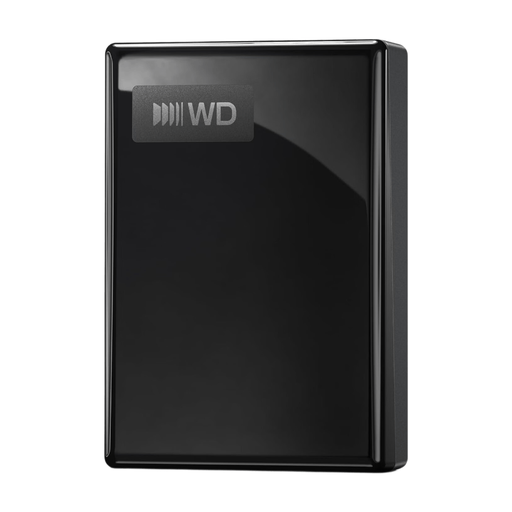 No image available
A portable HDD option if you want to take a local copy with you and set up scheduled backups.
2 TB, USB-C and exFAT. The product information lists software for scheduling backups; check that it suits your routine and computer. Protect the drive from drops and physical knocks.
 No image available
A portable HDD option if you want to take a larger local copy with you and set up scheduled backups.
6 TB, USB 3.0, hardware encryption and password protection. The product information lists software for scheduled backups; protect the drive from drops and physical knocks.
No. VeiligInternetten describes a backup as a copy you can use if the original data is lost. After copying, check that you can retrieve a file before deleting the originals.
Windows File History can copy files to an external drive; check that your video folders are included. On a Mac, you can use an external USB drive with Time Machine. Set up your chosen method and test that you can restore a file.
No. For a separately stored copy, the UK National Cyber Security Centre advises against leaving an external backup drive permanently connected and recommends checking that you can recover your data. This is security advice, not a Dutch legal requirement.
When you buy as a consumer, you’re entitled to expect a product that works as it should. According to the Government of the Netherlands, there is no fixed statutory warranty period in the Netherlands; a manufacturer’s warranty is in addition to your statutory rights.
According to the Dutch Data Protection Authority, photos and videos kept solely for your own use, or shared only within a very limited personal circle, are covered by the personal or household use exemption. That exemption may no longer apply if you publish the content more widely or use it for business; storing it locally alone doesn’t determine this.