First, work out how much storage space your video library needs and choose a drive that can hold the complete copy. A portable HDD can suit a large library, an SSD is a good choice if you regularly move or transfer files, and a desktop drive works well for storage in one fixed location. After copying, check that you can open or restore files from the backup, and keep another copy separate from the original.
Who is this guide for?
Moving house with irreplaceable videos
You want to make a copy before packing, store it separately from the original files and check that the videos work before you move. The National Cyber Security Centre advises keeping backups in different locations and testing them.
Owner of a large video collection
You want to work out the total file size first, then choose a portable or desktop drive with enough room for your collection.
Moving house and transferring files often
You regularly take your drive with you or copy large files, and need to balance portability and transfer speed against the storage space you need.
What should you consider when choosing?
Portable HDD
Choose this option: if your library will fit on the drive and you want to take it with you without a separate power adaptor.
Bear in mind: portable hard drives are delicate electronic devices, and a USB specification doesn’t guarantee a particular copying speed.
Portable SSD
Choose this option: if you regularly move your backup or transfer large video files, and your library will fit on the SSD you choose.
Bear in mind: stated maximum speeds aren’t guaranteed speeds on your computer; the connection, cable and conditions all play a part.
External desktop drive
Choose this option: if you’ll make your backup mainly in one fixed location where there’s a power socket.
Bear in mind: the Seagate Expansion Desktop reviewed requires a power adaptor, so it’s less convenient to use on the move.
| What to consider |
What to look for when buying |
Who should consider this most? |
| Restorable copy |
Keep the original and backup separate, and open or restore a few copied videos before you move. |
I want to be sure I can restore the copy before packing; around 33% of consumers prioritise being able to restore their files. |
| Space for your collection |
Add up the size of the source folders and check that there’s enough available drive space after formatting. |
If I need my whole library to fit on one drive, I’ll check the total file size first; around 27% of consumers prioritise capacity. |
| Taking it with you when you move |
Check the size, cable and whether the drive needs a separate power adaptor. |
I want to be able to take my backup easily between locations; around 20% of consumers prioritise portability. |
| Compatibility |
Check whether you use Windows, Mac, both or Time Machine, and check the file system before erasing anything. |
If I want to open files on a particular device or use a specific backup feature, I’ll check the format in advance; around 13% of consumers prioritise compatibility. |
| Copying time |
Compare speed claims with your computer’s USB ports and cable; stated maximum speeds aren’t a guarantee of real-world performance. |
If I often transfer large videos, I’ll want to know which port and cable I can use; around 7% of consumers prioritise copying time. |
Common pitfalls
-
Packing your only backup with the original
If you take both copies to the same place, they’re exposed to the same risk of being lost. The National Cyber Security Centre advises keeping backups in different locations.
Test the copy by opening or restoring a few videos, and keep it separate from the original files.
-
Buying a drive for Windows without checking Mac or Time Machine compatibility
The file system can determine whether you can write files to the drive or use it for Time Machine. Formatting can also erase existing data.
First, decide what you’ll use the drive for and which devices you’ll use it with. Check its current format and save any files on it before reformatting.
Reformatting takes extra time and can erase data on the drive.
-
Treating a claimed USB or SSD speed as a guaranteed copying speed
Actual transfer speeds also depend on your computer, port and cable. A maximum specification doesn’t guarantee how quickly your files will copy.
Check your computer’s ports and the cable you’ll use before comparing speed claims.
Brands to consider
Western Digital
My Passport is a range of portable HDDs. Western Digital lists a 5 TB version, model WDBPKJ0050BBK-WESN.
- Western Digital says the range includes password protection and hardware encryption.
- For Mac use, check the formatting or the NTFS driver mentioned by Western Digital. These features don’t replace a separately stored backup.
Seagate
The Expansion Portable 5 TB, model STKM5000400, is a portable HDD; Expansion Desktop is a separate range for storage in one fixed location.
- Seagate lists a USB-A cable for the portable version.
- Seagate says the desktop drive needs a power adaptor, making it less convenient to connect on the move. Capacities and services vary by version and region.
Samsung
The Samsung T7 Shield MU-PE4T0S/EU is a 4 TB portable SSD.
- Samsung lists an IP65 rating and maximum sequential speeds of 1.050 MB/s read and 1.000 MB/s write for this model.
- These are Samsung’s claims, not independent test results or a guarantee that a backup will survive a drop.
Crucial
The Crucial X9 Pro CT4000X9PROSSD9 is a 4 TB portable SSD for anyone who regularly moves files.
- Crucial lists an IP55 rating and sequential read and write speeds of up to 1.050 MB/s.
- Crucial states that its highest speeds require a suitable USB 3.2 Gen 2 connection, and that performance may vary.
Joybuy products for video storage
These Joybuy products are external drives for backing up videos, from portable storage for taking on the move to models for a fixed location. Check in advance that the capacity and connection are right for your library and computer.
 No image available
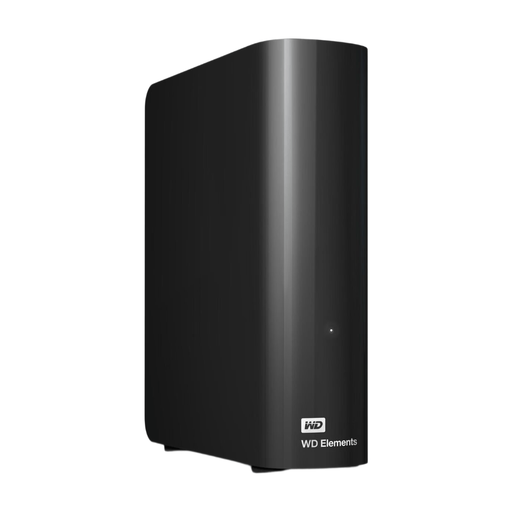
WD Elements Desktop 6 TB
An option for a large library that will mainly be stored in one fixed location.
6 TB storage; USB 3.0; desktop drive with external power adaptor.
Joybuy
 No image available
WD My Passport 6 TB White
A portable option if you want to take a large video library with you.
6 TB; 2.5-inch form factor; USB 3.0; the product description lists password protection, AES hardware encryption and backup software.
Joybuy
 No image available
Toshiba Canvio Basics 4 TB
A portable option for storing and taking video files with you, if 4 TB is enough.
USB Type-A / Micro-USB B; the title lists USB 2.0/3.2 Gen 1. For use with macOS, the product description says reformatting is required.
Joybuy
 No image available
Samsung Portable SSD T7 2 TB Blue
A portable SSD for anyone who often transfers large files, provided 2 TB is enough for their library.
USB Type-C 3.2 Gen 2; the product description lists sequential speeds of up to 1.050 MB/s read and 1.000 MB/s write, plus USB-C-to-C and USB-C-to-A cables. Actual speeds also depend on the connection and cable.
Joybuy
 No image available
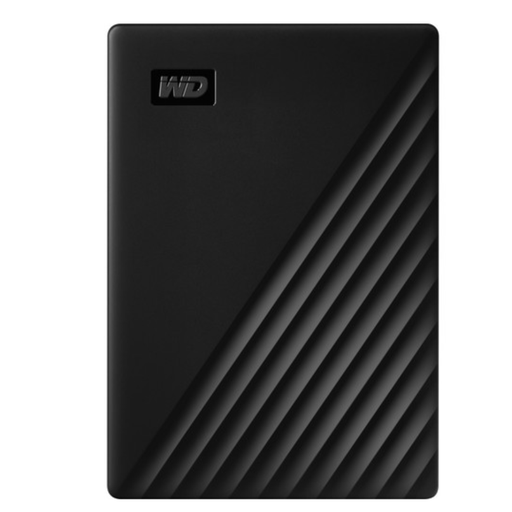
WD My Passport 5 TB
A portable HDD for a large library you’ll take with you when you move, if 5 TB is enough.
5 TB; USB 3.2 Gen 1; USB bus-powered, so no external power adaptor is needed. The product description lists AES hardware encryption and scheduled backups. For Mac use, the description says reformatting is required.
Joybuy
Frequently asked questions
How can I tell if my backup is usable before I move?
Check that the copy completed successfully and carry out a restore test. For example, open a few videos from the backup, then keep it separate from the original; the National Cyber Security Centre advises testing backups.
Which format should I choose to open video files on both Mac and Windows?
Apple lists ExFAT as a Windows-compatible format for volumes larger than 32 GB. Before formatting, check which files are already on the drive, as formatting can erase data.
Can I use the same ExFAT drive for Time Machine without changing anything?
No. Apple says Time Machine doesn’t store backups on a drive with a Windows file system. Apple recommends APFS or APFS Encrypted; setting up a new backup drive may require erasing and reformatting it.
Who should I contact if a product is faulty, and how long does the legal guarantee last in the Netherlands?
Report a faulty product to the seller. According to the Dutch government, there’s no fixed statutory guarantee period in the Netherlands; what you can expect depends on the product and the circumstances.
Do I have a cooling-off period when buying a drive online?
According to the Dutch government, a distance sale from a business usually comes with a 14-day cooling-off period. Check the terms of the specific purchase; under this guidance, an online purchase from a private individual isn’t classed as a distance sale.


