
Videographer with a large archive
You want to safeguard a lot of original footage before the move. First, check whether the entire archive will fit on one drive.


Choose a desktop HDD if you want to copy a large archive at a fixed workstation; a portable SSD is a better fit for a selection of projects that you’ll take between workstations. First, check the size of the files you want to keep and make sure both computers have the right connections. The National Cyber Security Centre advises keeping important data in multiple copies. Only delete the original files after you’ve tested that you can restore them.
You want to safeguard a lot of original footage before the move. First, check whether the entire archive will fit on one drive.
You want to connect a selection from your library at different workstations. Capacity, cable and port speed all play a part.
You may be transporting material containing personal data. So consider not only whether it can be restored, but also who could access it if a copy went missing.
Choose this option: if your archive won’t fit comfortably on the 4 TB SSD models considered and you can copy it at a fixed location before the move.
Bear in mind: you’ll need a power connection, and the mechanical drive needs to be transported carefully.
Choose this option: if the files you’re taking with you fit within your chosen capacity and you want to use the drive between workstations.
Bear in mind: quoted speeds are maximums. Also check that your computers’ cables and ports are suitable.
| What to consider | What should you check? | Who is this for? |
|---|---|---|
| Space for your archive | Add up the files you actually want to copy, allow for future additions and compare the total with the capacity of the specific model. | If I want to keep my entire archive before the move, the drive I choose needs enough space. Around 36% of consumers prioritise capacity for their complete archive. |
| Restoring your files | Set aside time to open or restore files from the copy, and keep a separate copy away from the equipment being moved. | I don’t just want to see that the copying is complete; I also want to check that the files open again. Around 29% of consumers give restoring files their highest priority. |
| Transport and connections | Check the cable, port, power supply and required file system support on the computers before and after the move. Treat quoted MB/s as a maximum, not a guaranteed copying time. | When I take selected projects between workstations, the drive needs to be practical to connect at each one. Around 21% of consumers prioritise portability and file transfer. |
| Access and purchase terms | Check whether the recordings contain personal data, what security measures are appropriate and how you’ll store any recovery key. Also check whether you’re buying mainly as a private individual or for business use. | When handling client recordings, I want to prevent a lost copy from giving unauthorised people access. The purchase terms may also depend on how I use the drive. Around 14% of consumers prioritise confidentiality and appropriate terms. |
A copy won’t help if you’ve already deleted the original before checking that the files can be opened or restored. If all the copies are lost together, you won’t be able to recover the files from them.
Keep copies in separate locations and test that you can restore them before deleting the original files. The National Cyber Security Centre advises keeping important data in at least three copies: the originals and two backups.
Quoted top speeds don’t guarantee how long copying will take. Manufacturer Crucial states that performance can vary and that the highest speed depends on a compatible host and connection.
Check the USB port and cable at both workstations, and don’t plan the copy based solely on the quoted maximum speed.
A protection claim applies to the stated conditions and doesn’t make a drive a complete backup strategy.
Protect the drive while transporting it, eject it safely using the operating system and keep another copy that you can restore.
According to ACM ConsuWijzer, consumer protection doesn’t automatically apply to an agreement used mainly or solely for business purposes.
Before buying, check whether you’re purchasing as a private individual or for business use, and read the terms that apply to the agreement and any manufacturer’s warranty.
According to its datasheet, the Expansion Desktop range includes a 16 TB desktop HDD model for creating a large archive copy at a fixed workstation.
The WD Elements Desktop range includes a 16 TB model considered for archive copies made mainly at a fixed location.
The T7 Shield is a range of portable SSDs. The Dutch product information describes a 4 TB model for files you take between workstations.
The X9 Pro 4 TB is a compact SSD option for anyone who wants to take files between multiple computers.
The Extreme PRO Portable SSD (V3) 4 TB is a range of portable SSDs for projects moved between locations.
This selection includes portable SSDs and hard drives for transport, as well as desktop HDDs for copying at a fixed workstation.
 No image available
A portable SSD for a selection of video files you can take between workstations.
Capacity: 1 TB. The product description lists read speeds of up to 800 MB/s and drop protection from heights of up to 2 metres.
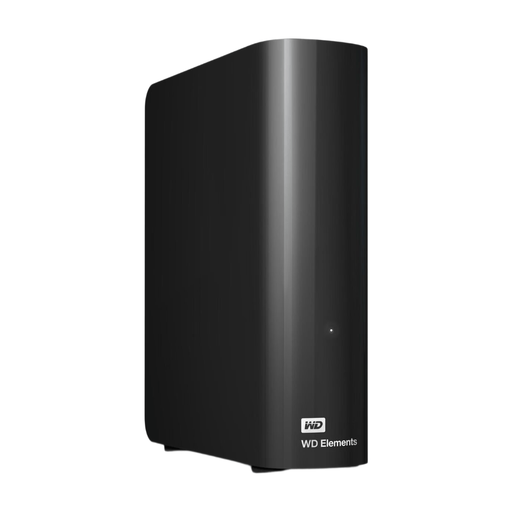 No image available
A desktop HDD for keeping an archive copy at a fixed workstation.
Capacity: 6 TB. The product description lists USB 3.0 and an included mains power adapter. The stated NTFS format is for Windows; the product text says you’ll need to reformat the drive to use it with a Mac.
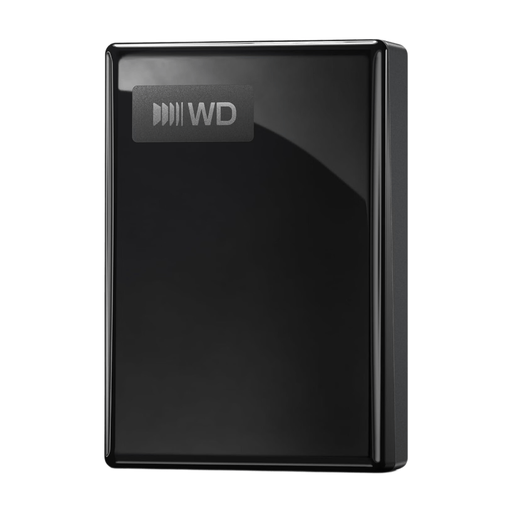 No image available
A portable hard drive for video files you want to take between workstations.
Capacity: 5 TB. The product description lists USB-C, USB bus power and hardware encryption with password protection. The product information states that it’s compatible with Windows and Mac.
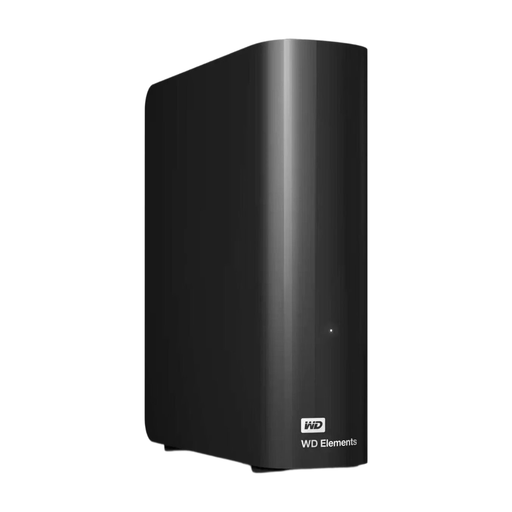 No image available
A desktop HDD for keeping a large archive copy at a fixed workstation.
Capacity: 16 TB. The product description lists USB 3.0, an included cable and a mains power adapter. The stated NTFS format is for Windows; the product text says you’ll need to reformat the drive to use it with a Mac.
 No image available
A portable SSD for a selection of video projects you want to take between workstations.
Capacity: 4 TB. The product description lists USB 3.2 Gen 2x2, maximum read and write speeds of up to 2.000 MB/s, and AES 256-bit hardware encryption. USB-C-to-C and USB-C-to-A cables are also listed.
Check that the files you need have been copied and test that you can restore them before deleting the originals. The National Cyber Security Centre also advises opening a few files from the backup. Keep the originals or another separate copy until you’ve checked that you can restore them.
First, safely eject the drive using the operating system. Seagate advises handling external mechanical drives carefully and using the power supply provided with them.
No. The speeds considered are maximums quoted by manufacturers, not guaranteed copying times. Crucial states that performance can vary and that reaching the highest speed requires a compatible USB 3.2 Gen 2 host and suitable cable. So check the entire connection set-up.
Not automatically. According to ACM ConsuWijzer, consumer protection doesn’t apply to an agreement used mainly or solely for business purposes. Consider how you’ll actually use the drive and the purchase agreement; a manufacturer’s warranty isn’t the same as your statutory rights.
The information cited doesn’t establish a single encryption requirement for every video drive that’s transported. If the studio processes personal data, the GDPR requires appropriate technical and organisational security measures based on the risks. The Dutch Data Protection Authority lists encryption as one possible measure to limit the impact of loss. Decide what’s appropriate for the material and store any recovery key securely.