
Preparing the handover
You want to check that the teaching files are complete and readable, and keep a separate backup for yourself after handing them over. The National Cyber Security Centre recommends testing backups by trying to restore them.


First, choose a drive to suit the amount of teaching material you have and the computer your client will use to open the files. A portable HDD may suit a large archive, while an SSD is an option if you often copy large files or regularly take the drive with you. Check that the files are readable and keep a separate backup: the drive you hand over is not a complete backup on its own.
You want to check that the teaching files are complete and readable, and keep a separate backup for yourself after handing them over. The National Cyber Security Centre recommends testing backups by trying to restore them.
You may be handing over presentations, images or videos and want to choose a drive with enough space for the files you’ve selected.
You want your client to be able to open the files, so check in advance that the connections and formatting will work with both computers.
The National Cyber Security Centre recommends keeping several versions of important data and testing that you can restore it. Also work out how much storage the transfer requires and check that the files can be opened on your client’s computer.
| What to consider | What to look for | Who is this most relevant to? |
|---|---|---|
| Restorable copy | Check that important files open from the drive, and keep a separate copy as well. | If I hand over the transfer drive, I want to know that I’ll still have my own backup and that I can access important files. Around 29% of consumers put recoverability first. |
| Space for your archive | Check the size of the folders you’ve selected, including any extra versions, and compare it with the drive’s usable capacity. | If my archive contains lots of presentations, images or videos, I want to know in advance that they’ll all fit. Around 23% of consumers say sufficient archive space is their main concern. |
| Compatibility | Check the ports and file system on both computers, then try opening the files on the recipient’s computer. | If my client uses a different computer system, I want to avoid finding that a compatible plug alone isn’t enough to open the files. Around 18% of consumers put compatibility first. |
| Privacy and access | Check which files you’re allowed to share and, if needed, agree on security and how to pass on the password. | If teaching files may contain personal data, I want to check first which files can be shared and who will have access. Around 18% of consumers put access management first. |
| Speed and portability | Compare the USB ports on both computers and consider how often you copy large files or take the drive with you. | If I often copy large files or regularly carry the drive around, transfer time and portability will affect my choice. Around 12% of consumers prioritise speed and portability. |
Once you’ve handed it over, you no longer have the drive yourself. What’s more, a successful copy doesn’t prove that you can restore files from the drive.
Keep a separate copy and check that you can access important files before handing the drive over.
Keeping an additional independent copy takes extra storage space and time.
Even if the cable fits both computers, the file system or backup format may not be suitable. Toshiba, for example, says that Canvio Basics is formatted for Windows and needs to be reformatted for use with macOS.
Ask which computer and access method your client uses. Test the files before formatting anything; formatting can erase files already on the drive.
You may need a suitable cable, and reformatting takes extra time.
Drive security doesn’t determine whether you’re allowed to share personal data or third-party material with your client.
Check which files you’re allowed to share and what access arrangements apply. The Dutch Data Protection Authority explains that personal data cannot simply be shared with others; permission or applicable usage rights may be needed for copyright-protected material.
The T7 Shield is a range of portable SSDs designed to be carried around and used for regular file transfers.
My Passport is a portable HDD range, including the black 2 TB model WDBYVG0020BBK-WESN.
Canvio Basics is a portable HDD range for storing and copying files.
Expansion Portable is a portable HDD range for file storage.
These portable SSDs and HDDs are options for storing and transferring teaching files. Choose one based on the space you need, the connection and the recipient’s computer.
 No image available
A portable SSD option for transferring and storing files.
1 TB of storage; stated read speed of up to 2.000 MB/s with a compatible USB 3.2 Gen 2x2 host. Write speed is lower.
The description lists AES 256-bit hardware encryption, drop protection up to 3 metres, a USB-C cable and a USB-A adapter.
 No image available
A portable HDD option for archives that need plenty of storage space.
The description lists 6 TB of storage, USB 3.0 and software for automatic backups.
According to the description, password protection and AES 256-bit hardware encryption need to be enabled using the software mentioned.
 No image available
A portable HDD option for documents, photos and videos you want to open on different computers.
2 TB of storage; the description lists USB-C, plug-and-play and compatibility with Windows and Mac.
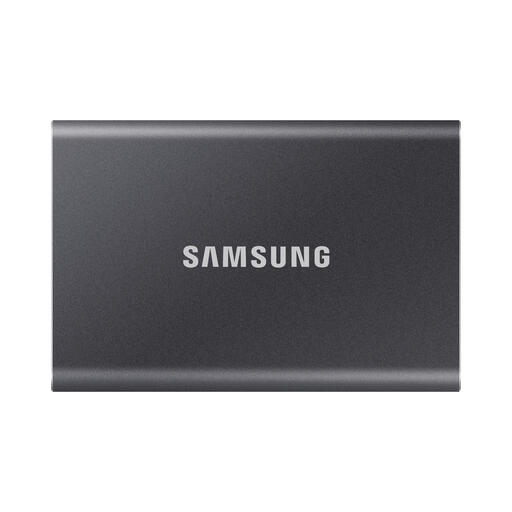 No image available
A portable SSD option for transferring large files.
2 TB of storage; the description lists USB-C and maximum read and write speeds of 1.050/1.000 MB/s.
The description lists AES 256-bit hardware encryption, compatibility with Windows and macOS, and USB-C-to-C and USB-C-to-A cables.
 No image available
A portable HDD option for storing and transferring a large teaching archive.
4 TB of storage; USB 3.2 Gen 1 with a Micro-USB B-to-USB-A cable included. The description says it is formatted for Windows.
The drive needs to be reformatted for macOS. The description warns against moving or shaking the drive while it is in use.
Open important files from the drive and check that the copy contains the folders you selected. Where appropriate, also test that you can restore files and keep a separate backup. The National Cyber Security Centre recommends keeping several copies and testing that you can restore them.
Don’t assume you can without checking first. Apple recommends APFS or encrypted APFS for Time Machine; setting up a new backup drive may require you to erase and reformat it. Agree on the file system for the transfer with the recipient before putting files on the drive.
Don’t treat a manufacturer’s warranty as a promise that files can be recovered. Western Digital lists features and warranty terms for My Passport, but a warranty is no substitute for a separate, tested backup. In the Netherlands, statutory consumer guarantees apply alongside any commercial warranty; ACM Consumer Information explains that what you can expect from a product is also relevant.
Not automatically: first check which files you’re allowed to share and what arrangements apply. If files contain personal data, the purpose of the transfer and appropriate security are important; the Dutch Data Protection Authority explains that organisations cannot simply share personal data. You may need permission or applicable usage rights for other people’s copyright-protected material, as the Dutch Government explains.
Safely eject an external drive in Windows before unplugging the cable. Microsoft recommends doing this to help prevent data loss.