Joybuy storage and backup products
These Joybuy products are external SSDs and HDDs for storing projects and taking files with you. To restore older versions, you’ll also need to set up a suitable backup or version history feature.
 No image available
SanDisk Portable SSD 1 TB
A portable SSD for anyone who wants to take their external storage with them.
Storage: 1 TB. The product description states that it can withstand drops of up to 2 metres.
Set up version history or a backup separately to restore older versions.
View at Joybuy
 No image available
My Passport for Mac 2 TB Blue
A portable HDD for Mac users looking for storage and Time Machine support.
Storage: 2 TB. The product name mentions password protection and Time Machine Ready; you’ll need to set up Time Machine separately.
The description lists a USB-A cable and USB-C adapter. Check the configuration and save existing files elsewhere before reformatting the drive.
View at Joybuy
 No image available
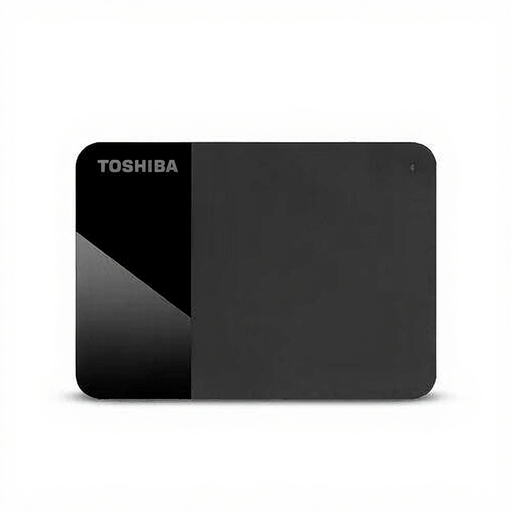
Toshiba Canvio Ready 4 TB
An external HDD for anyone who wants to store several project folders and copies.
Storage: 4 TB. Size: 2.5 inches. Connection: Micro-USB B 2.0/3.2 Gen 1 (3.1 Gen 1).
The description states that it is powered via USB. Restoring older versions requires a separately configured backup or version history feature.
View at Joybuy
 No image available
Samsung Portable SSD T7 2 TB Blue
A portable SSD for anyone who wants to take files between work locations.
Storage: 2 TB. The description lists a USB-C-to-C cable and a USB-C-to-A cable.
You’ll also need to set up a backup or version history feature to restore older versions.
View at Joybuy
 No image available
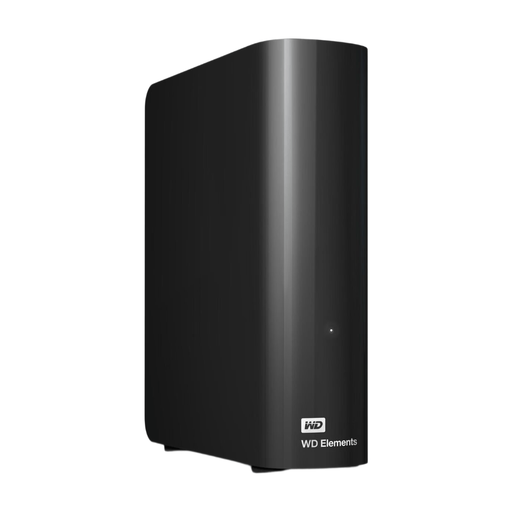
WD Elements Desktop 6 TB
A desktop HDD for anyone who wants to store lots of project files in one place.
Storage: 6 TB. Connection: USB 3.0. The description lists an external AC power adapter.
As it requires external power, this model is less suitable for taking frequently between work locations. Set up version history or backups separately.
View at Joybuy
Frequently asked questions
Are older versions saved automatically when you put recipes on an external drive?
No. Saving to an external drive isn’t the same as setting up version history. Microsoft Support explains how File History can restore earlier versions, while Apple Support explains how Time Machine can restore older or deleted Mac files when the backup is set up correctly.
What should you check before using a drive with a Mac?
Check that you can connect the drive to a compatible port, then follow the Time Machine setup steps. Apple recommends using a backup drive with at least twice the storage capacity of your Mac; setup may prompt you to erase the drive. Apple recommends using a Time Machine drive for these backups.
Does the external drive need to stay connected for a backup?
The external destination needs to be available when the backup runs. If File History displays a notification, Microsoft Support advises reconnecting the external drive. Also check when the last successful backup was made.
What can you do in the Netherlands if the drive is faulty?
When you buy as a consumer, you’re entitled to a product that works as it should, and you can report a fault to the seller. According to the Dutch government, the Netherlands has no fixed statutory guarantee period; a manufacturer’s guarantee is in addition to your statutory rights.
Is encryption a legal requirement for your recipe files?
The Dutch Data Protection Authority explains that organisations processing personal data must take appropriate technical and organisational measures based on the risks. Consider how sensitive your files are and who can access them; a particular type of external drive is not, by itself, a complete security measure.


