Start by choosing a local back-up method that keeps earlier versions of your spreadsheets: simply copying files to an external drive won’t automatically let you restore previous versions. An external HDD is suited to use in one place, while a compact SSD is worth considering if you often take the drive with you. Also check the connection, whether it’s set up for Windows or Mac, and how sensitive data is protected.
Who is an external back-up drive suitable for?
Spreadsheet users who need earlier versions
You regularly edit files and want to be able to restore an earlier version after a mistake, an unwanted change or deletion. So don’t just think about the drive: also set up a local back-up method that includes your files. Microsoft Support explains how to restore versions using File History, while Apple Support covers back-ups with Time Machine.
People storing sensitive data
For example, you may store spreadsheets containing other people’s information and want to factor in the risks if the drive is lost. Choose suitable access protection. According to the Dutch Data Protection Authority, GDPR obligations for organisations processing personal data depend on the circumstances.
People who take their drive with them
You connect your back-up drive in different places. Check which ports and cables your devices use, and compare a portable HDD with a compact SSD for the way you plan to use it.
What should you look for in an external drive for spreadsheets?
External HDD for use in one place
Suitable if: you mainly connect the drive at home or at the office to store local copies.
Trade-off: in a buying guide published in July 2022, the Consumers’ Association reported that HDDs are more susceptible to shocks than SSDs.
Compact SSD for use on the go
Suitable if: you often take the drive with you and want a connection that works with your computer.
Trade-off: stated maximum transfer speeds don’t tell you how long a spreadsheet back-up will take on your computer.
SSD with a stated level of enclosure protection
Suitable if: you take the drive with you and its stated dust and water protection matters to you.
Trade-off: Samsung lists an IP65 rating for the specific T7 Shield model MU-PE1T0R/EU; this rating is no substitute for a separate copy or access protection.
| What to consider |
What should you check? |
Who should consider this most? |
| Restoring earlier versions |
Check that the local method includes the right folders and keeps older versions; test restoring a file. |
I want to be able to restore an earlier spreadsheet version after a mistake or deletion. Around 40% of consumers give version recovery their top priority. |
| Confidentiality |
Check whether your back-up method offers encryption and how to store a recovery password. |
I store sensitive data and want to limit unauthorised access if the drive is lost. Around 30% of consumers prioritise confidentiality. |
| Portability and connection |
Compare the ports on your devices with the connection and cables supplied with the exact model. |
I take the drive with me and want to connect it to my devices. Around 20% of consumers give portability and connection their top priority. |
| Storage capacity |
Decide which folders and how many older versions you want to keep. For Time Machine, Apple recommends a drive with ideally at least twice the storage capacity of your Mac. |
I want enough space for the files and versions I actually back up. Around 10% of consumers prioritise storage capacity. |
On Windows, File History can back up to an external drive; on a Mac, Time Machine can use an external drive. Microsoft Support and Apple Support explain how to choose folders for these methods. Apple’s Time Machine guidance for Mac is not a general minimum capacity requirement for every back-up.
Common mistakes when choosing an external back-up drive
-
Buying a drive without setting up version recovery
A drive on its own won’t automatically keep earlier spreadsheet versions. Microsoft explains how to restore versions using File History.
Set up the local back-up method, check that it includes the right folders, and test restoring an earlier version.
If only the wrong or most recent version is available, you could lose changes.
-
Leaving the drive permanently connected as your only back-up
The Dutch Data Protection Authority warns that ransomware can also affect files on connected drives or back-ups.
Keep a separate copy stored elsewhere and regularly check that you can restore your files.
If the connected copy is affected too, restoring spreadsheet data can become more difficult.
-
Using a Windows-formatted drive with a Mac without checking the set-up
For the Canvio Basics model reviewed, Toshiba lists NTFS formatting and says it needs to be reformatted for macOS. Apple warns that Time Machine may ask to erase the drive during set-up.
Check the file system and secure any files already on the drive before setting it up as a Mac back-up drive.
Reformatting takes time and can erase files already stored on the drive.
Brands to consider
Toshiba
Canvio Basics is a range of portable HDDs for local storage. For the 2 TB model reviewed, Toshiba lists Windows formatting and says it needs to be reformatted for macOS.
- Toshiba says the drive works with Windows using a single USB cable, with no installation software required.
- Check the formatting and what reformatting involves before setting up the drive for a Mac.
Seagate
Expansion is a range of portable HDDs for local storage via USB. Seagate lists compatibility with Windows, Mac and Chromebook.
- Seagate explains how to save files using drag and drop.
- Dragging files onto a drive doesn’t confirm that earlier spreadsheet versions will be saved automatically; check your back-up method.
Kingston
XS1000 is a compact range of external SSDs for people who take their drive with them or use USB-A and USB-C devices.
- Kingston lists a USB-A cable and USB-C adapter as included.
- The maximum read and write speeds stated by Kingston are not independent measurements or proof of encryption.
Samsung
T7 Shield is a range of external SSDs. Samsung lists an IP65 rating for the blue 1 TB model reviewed, MU-PE1T0R/EU.
- The enclosure rating stated by Samsung may be useful if you take the drive with you.
- An enclosure rating won’t protect a lost drive from being accessed, and it doesn’t remove the need for a second back-up.
External drives for local spreadsheet back-ups
This selection includes portable HDDs for local storage and compact SSDs for use on the go.
 No image available
SanDisk Portable SSD 1 TB
A portable SSD for keeping a local copy of your spreadsheets, even when you’re on the go.
Capacity: 1 TB.
View at Joybuy
 No image available
My Passport for Mac, 2 TB, blue, Time Machine-ready, with password protection
A portable HDD for local storage. Check that its set-up works with the back-up method you use on your Mac.
Capacity: 2 TB. Colour: blue.
View at Joybuy
 No image available
My Passport, 6 TB, white, portable hard drive with password protection and back-up software
A portable HDD for storing other files locally as well as spreadsheets.
Capacity: 6 TB. Colour: white.
View at Joybuy
 No image available
Portable SSD, 1 TB, 1000 MB/s
A portable SSD for local files when you want a compact drive to take with you.
Capacity: 1 TB. Stated speed in the product name: 1000 MB/s.
View at Joybuy
 No image available
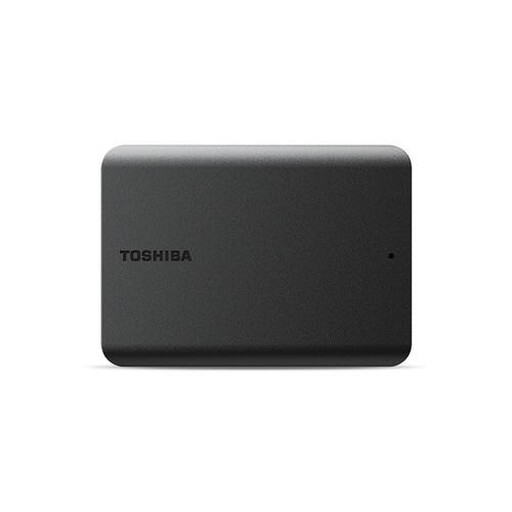
Toshiba Canvas Basics, 1 TB, black, 2.5 inch, USB 3.2
A portable HDD for local copies. Check that the connection and formatting are compatible with your computer.
Capacity: 1 TB. Size: 2.5 inch. Connection as stated in the product name: USB 3.2.
View at Joybuy
Frequently asked questions about local spreadsheet back-ups
How can I automatically back up spreadsheets on Windows without using the cloud?
With File History, you can back up to an external drive and restore earlier versions. Check that the folder containing your spreadsheets is included; Microsoft Support explains how to add other folders to a library.
Can I use Time Machine with an external drive without using the cloud?
Yes, Time Machine can use a connected external storage device. Apple recommends using the drive only for Time Machine and warns that set-up may ask to erase the drive. Keep the recovery password safe if you encrypt the back-up.
Is encryption a legal requirement for my spreadsheets?
Not as a general requirement for every buyer. When organisations process personal data, the GDPR requires appropriate technical and organisational measures. According to the Dutch Data Protection Authority, what is appropriate depends on the organisation and the risks. The GDPR exemption applies to purely personal or household use.
What if the external drive breaks sooner than expected?
For purchases made by consumers in the Netherlands, statutory rights apply alongside any manufacturer’s warranty. ACM ConsuWijzer explains that there is no fixed statutory warranty period: with normal use, it depends on what you could reasonably expect from the product. The retailer is your point of contact if a product is faulty; a warranty is no substitute for a separate back-up of your data.


