If the drive will mainly stay in one place and be used for regular copies, an external HDD is an obvious option to compare. If administrators regularly take scans with them, an SSD is a practical alternative to consider. With either type, check the capacity, connections and file access. One drive is not a complete backup: keep the original and a separate copy that you can restore from, and agree on the group’s retention and security rules.
Who is this guide for?
Receipt archive administrator
Wants to keep scans organised and be able to retrieve them if a computer fails. The Digital Trust Center defines a backup as a copy that lets you restore data after it has been lost. A regular copying routine is therefore just as important as the drive itself.
Treasurer managing shared files
Arranges handovers between authorised administrators and needs to check whether scans contain personal data. The Dutch Data Protection Authority stresses that personal data must be properly secured, so it is also important to agree who can access the drive and how it is stored.
Volunteer using different computers
Wants to know whether the drive, cable and file system will work with the computers used to submit or view receipts. Check the ports and operating systems on the computers involved before choosing a model.
What should you look for when choosing?
First, decide whether the drive will stay at one workstation or travel between administrators. Then choose a suitable capacity and check that the connection, file system and access security work with the group’s computers and way of working.
| Consideration |
What should you check? |
Who is this most relevant to? |
| Restorable copies |
Decide where the original and a separate copy will be kept, and test that you can restore a file. |
If I want to be able to recover scans after losing a computer, I need more than storage on a single drive. Around 33% of consumers prioritise restorable copies. |
| Access and personal data |
Check what information the scans contain and who needs access. Make sure the chosen security features work on the computers. |
When several volunteers use the drive, I want to match access to their roles and handle personal data carefully. Around 27% of consumers give managing personal data their top priority. |
| Using different computers |
Check which USB-A and USB-C ports and operating systems are available, and confirm the file system before transferring files. |
If receipts need to be viewed on different computers, I don’t want to discover during a handover that the connection or file system isn’t compatible. Around 20% of consumers prioritise compatibility. |
| Capacity and features |
Check the current folder size, allow for growth and set aside space for a separate copy. |
For an archive that won’t be taken out often, I want enough space for scans and copies without paying for features that don’t suit the way we work. Around 20% of consumers care most about suitable capacity and spending. |
Common pitfalls
-
Moving scans to one drive and calling it a backup
If the original file disappears and the drive is the only copy left, there is just one copy. A drive can be lost or fail.
Decide which file is the original, keep a separate copy as well and periodically try restoring a file.
This approach means having a separate place to store copies and setting aside time to check that they can be restored.
-
Assuming that scanning a receipt means you can throw away the paper copy
There are conditions for keeping paper records in digital form only. Scanning alone does not automatically mean the original can be destroyed.
Check which rules apply to the group’s records before disposing of paper originals. The Dutch Tax and Customs Administration advises numbering and scanning till receipts.
-
Making a high advertised SSD speed the main deciding factor
Manufacturers’ maximum speeds don’t tell you how much time you’ll save with small scans. The USB connection you use also makes a difference.
First check the group’s connections and transfer routine, then decide whether regularly taking the drive with you matters more than speed.
Brands to consider
Toshiba
The Canvio Basics range consists of straightforward HDDs powered via USB. Toshiba specifies NTFS as the file system.
- Toshiba lists several capacity options in the range.
- The models need to be reformatted for the macOS versions specified. Check in advance that this is suitable for the group’s computers.
Seagate
Seagate describes its Portable range as portable HDDs for documents and backups via USB.
- Seagate lists 1 TB, 2 TB, 4 TB and 5 TB options, which can be used without a separate power supply.
- Check the connection and security features separately for the model you choose.
Samsung
The T7 Shield is an SSD range to consider if the drive will be moved regularly and you want password protection.
- For the black 1 TB model MU-PE1T0S/EU, Samsung lists AES 256-bit hardware encryption and USB-C-to-C and USB-C-to-A cables.
- These features apply to that model. Protection for the casing is no substitute for a separate backup.
Kingston
The XS1000 is a compact SSD range for transferring files and making copies between devices with USB-A or USB-C.
- Kingston lists 1 TB and 2 TB models and says a cable with an adapter is included.
- The stated transfer speeds are maximums. Check which connections and accessories come with the model you choose.
Joybuy products for storing scans
This selection includes external HDDs and SSDs for storing and transferring scanned receipts. Check which features suit the group’s way of working for each model.
 No image available
SanDisk Portable SSD 1TB
A portable 1 TB SSD to consider if administrators regularly take scans with them.
The product description lists read speeds of up to 800 MB/s and drop protection from heights of up to 2 metres.
View at Joybuy
 No image available
My Passport for Mac 2TB Blue
A 2 TB HDD for a Mac archive. Check that the file system and connection work with the group’s computers.
The product description lists Time Machine backups, password protection and hardware encryption. This model is pre-formatted for Mac.
View at Joybuy
 No image available
Portable SSD 1TB 1000MB/s
A portable SSD to compare if scans are transferred between computers with USB-C.
The product description lists 1 TB of storage, USB-C, USB 3.2 Gen 2 and read speeds of up to 1,000 MB/s.
View at Joybuy
 No image available
Western Digital My Passport 2TB Black
A portable 2 TB HDD for storing and copying documents. Check that the connection works with the computers the drive will be used with.
The product description lists USB bus power, backup software and 256-bit AES hardware encryption.
View at Joybuy
 No image available
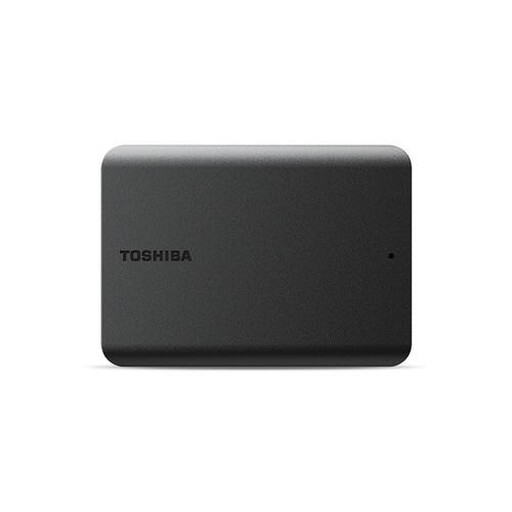
Toshiba Canvas Basics 1TB Black 2.5" USB 3.2
An external 1 TB HDD to consider for keeping a local copy of scans.
The product description lists USB 3.2 Gen 1, USB 2.0 compatibility and plug-and-play use. For Mac, it says reformatting is required.
View at Joybuy
Frequently asked questions
Is one external drive enough to archive receipts?
No, not if it is the only copy. Keep a separate copy of the original and check that you can restore a file. The Digital Trust Center describes a backup as a copy that lets you restore data after it has been lost.
Can you scan paper till receipts and throw away the originals straight away?
Don’t assume so just because you’ve scanned the receipts. The Dutch Tax and Customs Administration advises numbering and scanning till receipts, but there are conditions for keeping paper records in digital form only. Check which rules apply to the group’s records before disposing of the originals.
How do you use a drive if the group has both Windows and Mac computers?
Check the file system on all the computers you use before transferring files or reformatting the drive. Toshiba specifies NTFS for Canvio Basics and says that reformatting is required for the macOS versions listed. Make a separate copy of any existing files before reformatting.
How long should scans be kept?
It depends on the organisation and the type of document. The Dutch Tax and Customs Administration says that records for a foundation or association generally need to be kept for at least 7 years, and records relating to property for 10 years; other circumstances may also apply. If scans contain personal data, the Dutch Data Protection Authority says the GDPR principle also applies: keep them no longer than necessary.
Does the group need to encrypt personal data on the drive?
First assess the risks associated with the data and how the drive will be used. The Dutch Data Protection Authority requires appropriate security, but the general guidance cited does not prescribe the same technical measure for every group and every receipt. Check who will have access and whether any chosen security feature is actually enabled.


