
A maker with a growing photo archive
You want new photos of your pieces and catalogue files to fit on the drive in future, too. So compare the capacity of the exact model with the size of your archive and the space you need for extra copies.


A high-capacity portable HDD is a good fit for a growing photo archive that you copy periodically. An external SSD is a practical option if you often transfer large files or take your catalogue with you. Neither is a complete backup strategy on its own: the National Cyber Security Centre advises keeping multiple versions of important data and recommends testing that you can actually restore it.
You want new photos of your pieces and catalogue files to fit on the drive in future, too. So compare the capacity of the exact model with the size of your archive and the space you need for extra copies.
You need more than just storage space: you also want a process that lets you restore catalogue files. The National Cyber Security Centre advises keeping multiple versions of important data and testing that you can restore them.
You regularly transfer photos or catalogue files between workstations. If so, check your devices’ connections and how easy it is to transfer files.
Start by considering how much space your archive and the copies you want to keep will need. Then think about how often you take files with you, and whether the drive and backup settings are compatible with your computer.
| What to consider | What should you check? | Who is this important for? |
|---|---|---|
| Room to grow | Compare your archive’s current size and expected growth with the capacity of the exact model. Allow space for multiple versions. | If my collection keeps growing, I want to have room for new photos of my pieces and extra copies, too. Around 36% of consumers prioritise room to grow. |
| Restore options | Check that all your catalogue folders are included, and test that you can restore photos and catalogue files. The National Cyber Security Centre advises keeping multiple versions and a copy in another location. | If something goes wrong, I want to be able not only to make a copy, but also to restore my files. Around 29% of consumers put restore options first. |
| Taking files with you | Check your computer’s connection and cable. The manufacturer’s maximum transfer speed is no guarantee of the speed you’ll get at your workstation. | When I take large photo files between workstations, I want to know whether the connection and transfer speed are right for my devices. Around 21% of consumers prioritise this. |
| Computer and backup settings | Check the file system and whether the backup software includes your catalogue folder. Reformatting can erase data already on the drive. | When setting up the backup on my own computer, I want to be sure that the right folder is included and that the drive connects properly. Around 14% of consumers start by checking compatibility. |
If the drive or its storage location fails, you could lose your only backup as well. What’s more, a successful copy operation doesn’t prove that you can restore your files.
Keep separate copies and test that you can restore relevant photos and catalogue files.
A second copy or separate storage location requires extra storage space and management.
The stated maximum isn’t necessarily the transfer speed you’ll get on your computer. The connection and cable can make a difference.
Check your computer’s port and cable, and weigh transfer speed against capacity and how you’ll use the drive.
Windows File History includes libraries; you need to add any catalogue folders stored elsewhere separately.
Check which folders are included in the backup and try restoring files before relying on it.
You may not notice a missing folder until you try to restore it.
These product ranges are examples of portable HDD and SSD storage worth considering. The capacities and features listed apply only to the specific models mentioned.
The Expansion Portable range is a portable HDD option for making a periodic copy of a larger archive.
My Passport is a portable HDD range to compare if you want to make a local copy of your archive.
The T7 Shield range is an external SSD option for anyone who often takes files with them or transfers them.
The X9 4 TB, model CT4000X9SSD9, is an external SSD worth comparing for portable storage and file transfers.
These product picks are for a growing photo and catalogue archive, from periodic storage to files you take with you regularly.
 No image available
A good fit if you’re looking for a portable SSD for photos and catalogue files.
1 TB storage; USB-C connection; stated read speed of up to 800 MB/s.
The product description states that it offers drop protection from heights of up to 2 metres.
 No image available
A portable HDD option if you need space for a growing archive and copy files periodically.
5 TB; USB-C; USB 3.2 Gen 1; 2.5-inch form factor.
The product description mentions drag-and-drop file copying.
 No image available
According to the product description, this portable HDD is preformatted for Mac and suitable for use with Time Machine.
2 TB; USB 3.0; USB-C adapter included; weight 120 grams.
The product description mentions password protection.
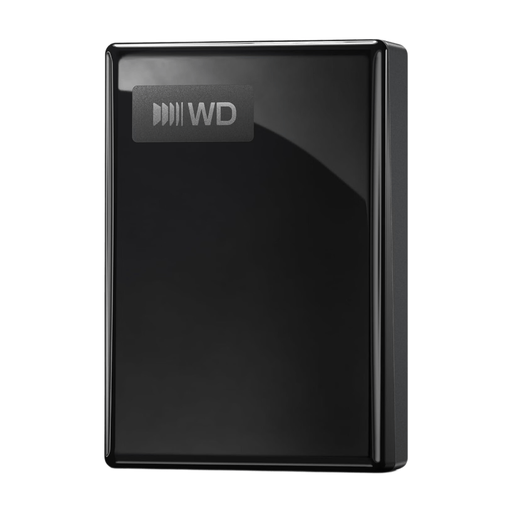 No image available
A portable HDD option if you need extra space and copy files regularly.
5 TB; USB-C; USB 3.2 Gen 1; powered via USB.
The product description mentions hardware encryption with password protection and software for scheduled backups.
No image available
A portable HDD option if you want to copy photos and catalogue files periodically.
4 TB; USB-C; USB 3.2 Gen 1; 2.5-inch form factor; weight 240 grams.
The product description mentions plug-and-play use and drag-and-drop.
As a test, restore a few photos and a catalogue file. The National Cyber Security Centre advises performing a restore and checking that the restored files are usable.
Yes. Windows File History and Apple Time Machine can use an external drive as a backup destination. In Windows, add catalogue folders outside the included libraries separately. Apple recommends using a drive with at least twice the storage capacity of your Mac for Time Machine. Check the settings before relying on the backup.
The Dutch government explains that there is no fixed statutory warranty period in the Netherlands. If a product is faulty, contact the retailer. Don’t treat the drive’s warranty as a replacement for a separate copy of your data.
Not simply because it’s a pottery catalogue. If you process personal data as a business, the Dutch Data Protection Authority advises choosing appropriate security measures for your situation. Consider, among other things, who has access to the backup and how you protect it.