
Podcast creator with a growing archive
Do you keep episodes, raw recordings and project files so you can find them later? First, add up how much space these folders take up, then compare drive capacities.


For an archive you mainly keep for storage, compare external HDDs based on the capacity you need and the connection. If you often take large project folders with you or work directly from them, compare portable SSDs too. Whichever drive you choose, keep a separate backup and test that you can restore your files.
Do you keep episodes, raw recordings and project files so you can find them later? First, add up how much space these folders take up, then compare drive capacities.
Do you work in different places or regularly move large project folders? Compare portable SSDs and check that your computer and cable support the connection you need.
Want to make sure your source files remain accessible if they’re lost, damaged or deleted by mistake? Plan for a separate copy as well as your drive, and test that you can restore your files.
Best for: a growing local archive that you don’t edit directly from the drive all the time.
Keep in mind: In a 2022 buying guide, Consumentenbond described HDDs as more susceptible to wear and shocks than SSDs. One HDD is not a separate backup either.
Best for: project folders you regularly take with you, copy or open directly.
Keep in mind: stated maximum transfer speeds aren’t a guarantee of the speed you’ll get with your computer and cable. An SSD doesn’t replace a second copy stored separately either.
When storing podcast episodes and local source files, archive capacity, working on the go, recovery, compatibility and confidentiality each play a role.
| Consideration | What to look for when buying | Who is this important for? |
|---|---|---|
| Restoring source files | Decide where your separate copy will be stored and regularly test that you can restore your files. The Digital Trust Center recommends testing backups. | If I can’t recreate raw recordings and project folders, I want to know whether I can restore them. Around 29% of consumers rank recoverability as their top priority. |
| Archive capacity | Add up the size of your episodes, raw recordings and project folders, then compare it with the capacity of the exact model. | If I also keep source files and project folders, I want enough room for the whole archive. Around 23% of consumers put archive capacity first. |
| Taking project files with you | Check the connection and cable supplied with the model. Assess any physical protection based on the specific model. | If I often move large project folders between workspaces, I look for a suitable connection and protection on the go. Around 18% of consumers rank working on the move as their top priority. |
| Compatibility | Check the operating system, file system and cable for the exact model. Toshiba states that the Canvio Basics model reviewed comes preformatted as NTFS for Windows and needs reformatting for macOS. | If I want to manage the same files on the computers I plan to use, I check in advance that the drive can be read from and written to on them. Around 18% of consumers put compatibility first. |
| Access to recordings | Decide who needs access and compare the security features of the specific drive with your storage practices. | If recordings contain identifiable or sensitive information, I want to manage access carefully. Around 12% of consumers rank confidentiality as their top priority. |
If your only drive fails, the local source files on it will no longer be available either.
Keep a separate copy in another location and test that you can restore your files. The Digital Trust Center recommends carrying out recovery tests regularly.
An additional storage location requires extra capacity and time for recovery tests.
A maximum interface or sequential speed doesn’t, by itself, tell you what speed you’ll get with your computer, cable and files.
Check the connections across the whole setup, and don’t choose based solely on the highest speed figure.
According to Toshiba, the Toshiba Canvio Basics model reviewed comes formatted as NTFS for Windows; Toshiba says it needs reformatting for macOS.
Check the file system of the exact model before saving irreplaceable recordings to it.
Allow time to set up the drive or, if necessary, reformat it.
Seagate lists a recovery service for the Expansion Portable and warns that it isn’t available in every country. A service isn’t the same as a copy you keep and test yourself.
Check the terms for the Netherlands before relying on a service, and keep recoverable copies separately from the drive too.
Canvio Basics is a range of portable HDDs for local storage. Toshiba lists models with capacities of 1, 2 and 4 TB.
Expansion Portable is a range of portable HDDs; the data sheet identifies model STKM2000400 as 2 TB.
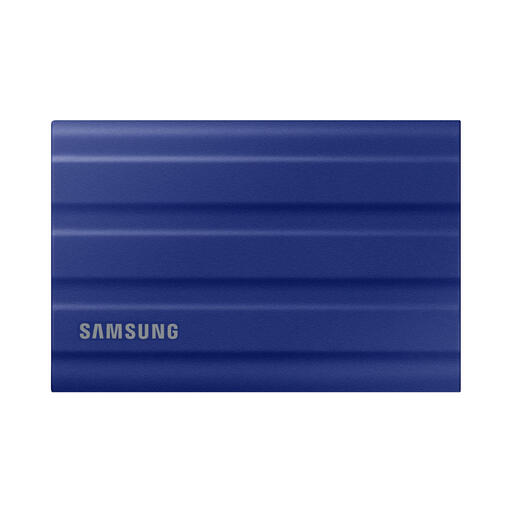
The 2 TB T7 Shield, model MU-PE2T0S/EU, is a portable SSD worth comparing if you regularly travel with project files or work with them on the go.
XS1000 is a range of compact external SSDs, with a 2 TB model for portable storage.
My Passport is a range of portable HDDs worth comparing if you want to consider storage capacity and password protection together.
The options below include portable HDDs for a local archive and portable SSDs for anyone who takes project files with them.
 No image available
A portable HDD for a local archive with lots of episodes and source files. The product name mentions password protection and automatic backup software. Keep a separate copy as well, as one drive isn’t a backup.
 No image available
An external HDD for a growing local archive. The product name lists USB Type-A and Micro-USB B with USB 3.2 Gen 1; check that the connection is compatible with the computer you’ll use to access your files.
 No image available
A portable HDD for a local archive of episodes and source files. The product name lists a Micro-USB B connection and USB 3.2 Gen 1; check that the connection is compatible with your computer.
 No image available
A portable SSD for a local archive that you also want to take with you. The product name lists USB Type-C and USB 3.2 Gen 2; check that your computer has the connection you need.
 No image available
A portable SSD for a local archive or project files you take with you. The product name lists USB Type-C and USB 3.2 Gen 2x2; check that the connection is compatible with your computer.
No, that would leave the files in just one place. The Dutch Digital Trust Center recommends keeping backups in different locations and testing them regularly by restoring files. Decide what additional copies your archive needs.
It depends on the model and how you work. Toshiba says the Canvio Basics model reviewed comes preformatted as NTFS for Windows and needs reformatting for macOS. Check the file system before copying files or reformatting a drive.
Regularly restore a selection of files and check that the recordings and project files open. The Digital Trust Center recommends a recovery test as a way to check a backup.
No. According to the Dutch government, there is no fixed statutory warranty period in the Netherlands; what matters is what you can reasonably expect from the product. If a product is faulty, you can contact the seller for a solution; a manufacturer’s warranty is in addition to this.
Not necessarily. The Dutch Data Protection Authority lists identifiable audio recordings as possible personal data. If the GDPR applies to how you process the recordings, you must set an appropriate retention period and protect personal data. The authority doesn’t specify a standard retention period for all recordings. The appropriate legal basis and retention period depend on your situation, not on the drive model you choose.