Just storing completed podcast episodes? A portable, USB-powered HDD is a sensible first option to compare. If you regularly open or edit projects directly from the drive, a compact SSD is also worth considering. According to the Consumers’ Association, an HDD is more susceptible to knocks than an SSD. Whichever type you choose, irreplaceable recordings need a separate, up-to-date copy.
Who is this guide for?
Creator with a growing episode archive
You mainly store completed episodes, but also want room for source recordings and project files. Compare the stated capacity with your own files and plans for growth before choosing a drive. The Consumers’ Association and product information from Toshiba and Seagate can help you weigh up your options.
Editor who opens projects directly from the drive
You also use the external drive as a working drive. Check that the connection and cable are compatible with your computer, and keep a separate archive copy of important projects. Samsung and Kingston provide details of the connections and stated speeds of their SSD models.
Creator with irreplaceable recordings
Your priority is being able to recover files if they’re lost or damaged. Choose your drive type alongside a plan for keeping a separate, up-to-date copy. Veilig Internetten and the Consumers’ Association offer advice on backups and disconnecting connected drives.
What should you look for when choosing?
Portable HDD for your archive
A good fit if: you mainly store completed episodes and source files, and do little editing directly from the drive.
Keep in mind: an HDD has moving parts and, according to the Consumers’ Association, is more susceptible to knocks than an SSD.
Compact SSD for active projects
A good fit if: you often open projects from the external drive, move files or take the drive with you regularly.
Keep in mind: stated peak sequential speeds aren’t guaranteed to work with every computer or audio workflow. Check that your computer’s port is compatible.
| What to consider |
What should you check? |
Who is this important for? |
| Space for your archive |
Compare the stated capacity with your episodes, source recordings, project files and expected growth. |
If I want to store both completed episodes and source material, I’ll prioritise enough archive space. Around 29% of consumers put capacity first when buying. |
| Recoverable copy |
Plan a separate, up-to-date copy and check that you can restore your files from it. Disconnect a backup drive after use. |
If original recordings can’t be recreated, I don’t want to rely on a single drive. Around 29% of consumers give recoverability their highest priority. |
| Size and connection |
Check the USB port, included cable, power supply and drive format of the exact model. Toshiba says the Canvio Basics is formatted as NTFS for Windows and needs reformatting for the macOS versions listed. |
On a small desk, I want to connect a drive without unnecessary cables or a separate power adapter. Around 24% of consumers prioritise size and a suitable connection. |
| Working from the drive |
Check which USB standard your computer’s port supports, and don’t treat stated peak speeds as guaranteed speeds for audio editing. |
If I regularly open or move active projects from external storage, I want to know whether the connection is compatible with my computer. Around 18% of consumers give working speed their highest priority. |
Common pitfalls
-
Keeping the only copy of your recordings on one external drive
If a drive fails or is damaged, your files may become inaccessible. A connected backup could also be affected by ransomware at the same time as your computer.
Keep a separate, up-to-date copy, and decide when you’ll update and disconnect it.
-
Choosing a drive based only on its stated peak speed
The stated SSD speeds apply to a particular USB interface and aren’t guaranteed for every computer or audio workflow. Archiving completed episodes has different requirements from regularly working directly from the drive.
First decide how you’ll use the drive, then check your computer’s connection and the cable supplied with the exact model.
-
Assuming every drive works straight away with Windows and Time Machine
Toshiba says the Canvio Basics, formatted as NTFS for Windows, needs reformatting for the macOS versions listed. Seagate says it needs reformatting for use with Time Machine.
Before buying, check the drive format and the backup software you want to use. Back up any existing files before reformatting a drive.
Brands to compare
Toshiba
The Canvio Basics is a portable, USB-powered HDD. Toshiba says the EMEA range includes a 2 TB model.
- For the 2TB model HDTB420EK3AA, Toshiba lists dimensions of 78 × 109 × 14 mm and a USB-A-to-Micro-B cable.
- Toshiba says this model is formatted as NTFS for Windows and needs reformatting for the macOS versions listed.
Seagate
The Expansion Portable is a portable, USB-powered HDD. The product specifications consulted list the 2TB model STKM2000400.
- Seagate says a single USB cable is all you need, and this model comes with a USB 3.0 cable.
- The data sheet says reformatting is required to use the drive with Time Machine. The Rescue service mentioned isn’t available in every country; check the terms for the Netherlands.
Western Digital
The WD Elements Portable is a range of portable HDDs. Western Digital lists a 1TB model for the Dutch market, among others.
- Western Digital lists USB 3.2 Gen 1/USB 3.0 for this product range.
- The Dutch manufacturer’s page lists model WDBUZG0010BBK-WESN for the 1TB version. Check the model code of the version you choose.
Samsung
The Portable SSD T7 is a range of compact SSDs. The Dutch product page describes the grey 1TB model MU-PC1T0T/WW.
- Samsung lists USB 3.2 Gen 2 for this model, along with USB-C-to-C and USB-C-to-A cables.
- Samsung’s stated sequential maximum speeds are 1.050 MB/s read and 1.000 MB/s write. These aren’t speeds measured for podcast use.
Kingston
The XS1000 is a range of compact external SSDs, available in 1 TB and 2 TB versions according to Kingston.
- Kingston lists dimensions of 69,54 × 32,58 × 13,5 mm and a USB-C drive connection, with a cable and adapter included for USB-A/USB-C use.
- The stated maximum speeds of 1.050 MB/s read and 1.000 MB/s write are manufacturer figures. Check that your computer’s port is compatible.
Joybuy products
This selection includes portable HDDs and SSDs for storing podcast files. Choose between archive storage and regularly working from the drive, based on how you’ll use it.
 No image available
SanDisk Portable SSD 1TB
A portable SSD option for storing podcast files in a small workspace.
Storage capacity: 1 TB.
View at Joybuy
 No image available
SanDisk Extreme Pro Portable SSD 1TB
A portable SSD option for storing podcast files and working on projects.
Storage capacity: 1 TB. The stated maximum read speed requires a compatible USB 3.2 Gen 2x2 device.
View at Joybuy
 No image available
WD Elements Portable 2TB USB-C Graphite
A portable HDD for storing completed episodes and other archive files.
Storage capacity: 2 TB. The product name specifies USB-C connectivity.
View at Joybuy
 No image available
My Passport 2TB Red
A portable hard drive for a growing episode archive.
Storage capacity: 2 TB.
View at Joybuy
 No image available
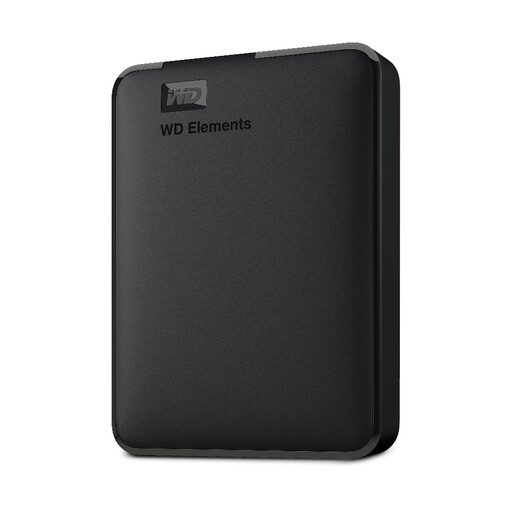
WD Elements Portable 2TB USB 3.0
A portable HDD for storing completed episodes and archive files.
Storage capacity: 2 TB. The product name specifies USB 3.0 and formatting for PC and Mac.
View at Joybuy
Frequently asked questions
Can I store completed episodes on an HDD and active projects on an SSD?
Yes, they’re different uses. Decide which files you open directly on a regular basis and which you mainly store. Keep a separate copy of irreplaceable files too. The SSD speeds mentioned are manufacturer maximums, not a requirement for every podcast.
Will any drive formatted for Windows work straight away as a Time Machine drive?
No. Apple lists a connected external storage device as a possible Time Machine destination. Toshiba says the Canvio Basics, formatted as NTFS for Windows, needs reformatting for the macOS versions listed. Check your Time Machine settings and save any files already on the drive before reformatting it.
How can I keep a backup usable if I don’t leave the drive connected all the time?
Schedule regular backups, connect the drive when needed and check that you can restore your files. The Consumers’ Association advises disconnecting an external backup drive after backing up, as ransomware can also affect connected drives.
Is a manufacturer’s warranty the same as my statutory warranty in the Netherlands?
No. According to the Dutch government, you’re entitled to a product that works as it should when you buy it, and a manufacturer’s warranty is an extra. There’s no fixed statutory warranty period for all products in the Netherlands; if a product is faulty, contact the seller.


