Choose an external drive with enough capacity for your existing scripts and expected scans. A portable HDD is suitable for storage in a fixed location, while an SSD is an option if volunteers regularly carry or transfer files. Also check that the cable and file system work with the computers you use. Don’t rely on a single drive as your only archive copy: Netwerk Digitaal Erfgoed recommends keeping separate copies and checking the files.
Who is this choice relevant to?
Volunteer responsible for safeguarding the archive
You want to avoid losing scripts due to a fault or mistake, and need a drive that fits into a practical backup plan. Netwerk Digitaal Erfgoed and the National Cyber Security Centre provide guidance on storing and backing up files.
Administrator who shares scripts
You work with different computers or volunteers and want to check in advance that the connection, cable and formatting are compatible with the devices in use. Check the manufacturer’s information for each model and the computers used to access the archive.
Administrator of a growing scan collection
You’re adding digitised scripts and want to work out how much space you need based on the current collection and expected growth. Netwerk Digitaal Erfgoed explains how to store and check digital files; Toshiba provides model-specific information on storage capacity and formatting for the Canvio Basics range.
What should you look for when buying?
Portable HDD
Suitable when: you mainly copy a growing collection of documents and scans, and usually keep the drive in one place.
Trade-off: HDDs have moving parts and are more susceptible to knocks than SSDs. Check the connection, cable and formatting of the specific model.
Portable SSD
Suitable when: volunteers regularly carry the collection with them or transfer large files, and the capacity is sufficient.
Trade-off: according to Netwerk Digitaal Erfgoed’s buying guide, an SSD is faster and less susceptible to knocks, but usually offers less capacity than an HDD. Stated model speeds don’t guarantee the same speed on every computer.
First, take stock of your existing files and expected scans. Then choose the capacity, connection and any security features that suit your archive collection and the computers volunteers use to access it.
| What to consider |
What should you check? |
Who should give this more consideration? |
| Recoverable copies |
Decide what role the drive will play in your backup plan, where a separate copy will be kept and how you’ll check that files can be retrieved. |
If I want to be able to recover scripts after a loss or mistake, I’ll arrange several copies and regular checks; around 33% of consumers prioritise recoverability. |
| Sharing files between computers |
Make a note of the USB ports, supplied cables and file systems on the computers in use; make a copy elsewhere before reformatting. |
When volunteers work on different computers, I want to know whether everyone can open and save files; around 27% of consumers prioritise compatibility between computers. |
| Collection and growth |
Count the existing files in GB or TB, distinguish text documents from scans and allow for expected growth. |
If I’ll keep adding scans, I want to base capacity on the actual collection and its expected growth; around 20% of consumers put storage space first. |
| Access and security |
Check whether the collection contains personal data, who needs access and whether the exact model offers password protection; agree how keys will be managed. |
When scripts contain sensitive information, I want to manage access carefully without excluding authorised volunteers; around 20% of consumers prioritise manageable access. |
Common buying pitfalls
-
Treating the external drive as the entire archive
An HDD or SSD can fail or go missing. If that happens, a single copy gives you no way to recover the scripts.
Before buying, decide where a separate copy will be kept and who will check that files can be recovered and read.
Keeping an extra copy and carrying out regular checks requires storage space and ongoing management.
-
Checking only the USB plug
A compatible cable doesn’t automatically mean the file system will be readable and writable on every computer straight away. Formatting may require preparation.
Check the ports and formatting on the volunteers’ computers. Keep another copy of the files before reformatting.
Depending on the drive and computers you choose, you may need a different cable, some preparation or reformatting.
-
Assuming a stated SSD speed guarantees archive performance
A stated sequential model speed isn’t a measurement of your own computer or workflow; the connection affects transfer speeds.
Compare the connection and stated figures with the computers you’ll use to transfer files, and also consider capacity and backups.
-
Setting a password without managing the keys
According to Netwerk Digitaal Erfgoed’s buying guide, files may become inaccessible if passwords or encryption keys are lost.
Agree how authorised successors will get access and keep a separate recovery copy.
If access codes are lost, recovering the archive files may be impossible.
Brands to consider
Western Digital
The My Passport 2 TB model reviewed is a portable HDD for keeping a local archive copy when password protection and a USB-A connection are required.
- For the model reviewed, Western Digital lists 256-bit AES hardware encryption and a USB-A cable included in the box.
- Check the full model number; these details don’t automatically apply to every My Passport model or to use with macOS without preparation.
Toshiba
The Canvio Basics range reviewed consists of portable, USB-powered HDDs suitable for storing catalogued documents or scans.
- Toshiba lists capacities of up to 4 TB and USB 3.2 Gen 1 for this range.
- According to Toshiba, the drives reviewed are formatted as NTFS for Windows and need reformatting for macOS; this doesn’t automatically apply to other Toshiba ranges.
Samsung
The Samsung Portable SSD T7 1 TB in grey, reviewed here, is suitable for archive work where portability and regular file transfers matter.
- For this model, Samsung lists sequential speeds of up to 1,050 MB/s read and 1,000 MB/s write, optional password protection, and USB-C to USB-C and USB-C to USB-A cables included in the box.
- These are manufacturer figures, not independent measurements or guaranteed speeds on every computer; the T7 is a single storage device.
Seagate
Expansion Portable is a range of portable HDDs for local file storage.
- Seagate lists a USB 3.0 connection and models including 2 TB.
- For the model you choose, check the warranty terms and whether the required cable is included.
SanDisk
The Extreme Portable SSD 1 TB reviewed is a portable SSD option for anyone who values portability and speed.
- For model SDSSDE61-1T00-G25, SanDisk specifies USB 3.2 Gen 2 and a sequential read speed of 1,050 MB/s.
- This is a manufacturer figure, not a measurement of archive performance; check the full model code and the connection you need.
Joybuy products for archive storage
This selection includes portable HDDs and SSDs for local storage and transferring play scripts and scans. Choose a capacity and connection to suit your catalogued collection and the computers you use.
 Image unavailable
Western Digital My Passport 4 TB Black
A portable HDD option if you want to store a catalogued collection locally and need password protection.
4 TB storage, USB 3.0, password protection and 256-bit AES hardware encryption.
The product description mentions backup software for scheduled copies; you should also keep a separate archive copy.
View at Joybuy
 Image unavailable
Portable SSD 1 TB, up to 1,000 MB/s
A portable SSD option if you want to store or regularly transfer documents while you’re out and about.
1 TB storage, USB-C and USB 3.2 Gen 2; the stated read speed is up to 1,000 MB/s.
The product description mentions drop protection up to 2 metres. Speeds on your own computer may depend on the connection you use.
View at Joybuy
 Image unavailable
Western Digital My Passport 2 TB Black
A portable HDD option if you want to store scripts locally and password protection is important to you.
2 TB storage, a USB-A cable included in the box, and 256-bit AES hardware encryption with password protection.
Check that the connection and formatting are compatible with the volunteers’ computers.
View at Joybuy
 Image unavailable
Toshiba Canvio Basics 4 TB
A portable HDD option for a catalogued collection used on Windows computers.
4 TB storage, USB 3.2 Gen 1 and a USB cable included in the box.
The product description says reformatting is required for macOS; keep another copy of the files first.
View at Joybuy
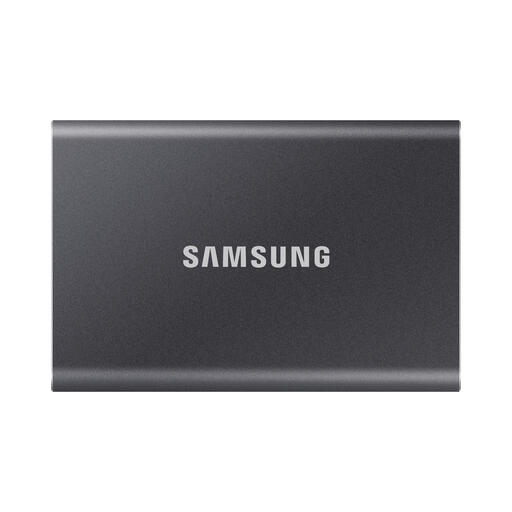 Image unavailable
Samsung Portable SSD T7 2 TB grey
A portable SSD option if you want to share scripts between computers and password protection is important to you.
2 TB storage, USB 3.2 Gen 2 and AES 256-bit encryption.
The product information lists USB-C to USB-C and USB-C to USB-A cables included in the box; check that they’re compatible with the devices you use.
View at Joybuy
Frequently asked questions
Is one external drive enough for storing play scripts long term?
No. Don’t use an external HDD or SSD as the collection’s only copy. Netwerk Digitaal Erfgoed recommends keeping separate copies; also schedule checks to make sure the files are still readable.
Can a drive supplied for Windows be used straight away with a Mac?
That depends on the model and file system. Toshiba says that the Canvio Basics model reviewed is formatted as NTFS for Windows and needs to be reformatted for macOS. Check the computers you’ll use in advance and keep a copy elsewhere before reformatting.
How do you work out how much storage space the archive needs?
Take stock of the existing collection in GB or TB, distinguish text documents from scans and allow for expected growth. Compare the result with the capacity of the exact model before choosing a drive.
How can you check that stored scripts remain usable?
Take stock of file formats and storage locations, and check the files periodically to make sure they’re readable. Netwerk Digitaal Erfgoed describes checksums as a way to check that backups have completed successfully; this doesn’t replace keeping a separate copy.
What should you bear in mind when using password protection?
Check whether the model you choose offers password protection and agree how authorised successors will retain access. Keep access details secure and maintain a separate recovery copy, so one drive or lost key doesn’t become the archive’s only point of access.


