
Manager of a large photo archive
You mainly need enough space for your photo files and their backups in one permanent location.


Start by working out how much space you need for your photo files, catalogue and any other files you want to keep. A desktop HDD suits a permanent backup location and a larger storage requirement, but the Seagate Expansion desktop model reviewed here has an external power adapter. A portable SSD is worth considering if you move the drive frequently or transfer large files. Also check exactly what your photo software backs up: Adobe says Lightroom Classic’s built-in catalogue backup only includes the catalogue file.
You mainly need enough space for your photo files and their backups in one permanent location.
You move your backup regularly and want to weigh the capacity you need against the transfer speed you’d like.
You want to know which files are copied and who can access the backup. The right access controls depend on how it’s used.
First decide which files you need to back up and how much space they’ll require. Then choose between a drive that stays in one place and one that’s easier to take with you. Finally, check that the connection and access arrangements suit your shared workstation.
| What to consider | What to look for when buying | Who is this most relevant to? |
|---|---|---|
| Capacity for photos and catalogue | Add together the photo files, catalogue and any other files you want to keep, then compare the total with the capacity of the exact model. | If I want to keep my entire archive in one place, the drive needs to have room for all the files I need. Around 40% of consumers put capacity at the top of their list when buying. |
| Portability and transfers | Check the connection and the cable supplied. Also find out whether the drive can be used without a separate mains adapter. | If you move your backup regularly, you’ll want to know whether the drive suits your workstation and how you plan to use it. Around 30% of consumers prioritise portability and transfer time. |
| Completeness and recovery | Check which files the software copies and whether you can recover both your photos and the catalogue information you need. | If I want to restore my photo library later, I need to keep more than just the catalogue; I also need to know where the photos are. Around 20% of consumers say a complete, recoverable copy is their top buying concern. |
| Access on a shared workstation | Decide who can access the drive. Check whether you need encryption and how you can regain access if you lose the password. | If not every user should be able to view the same photos, I want to check in advance how the backup is protected. Around 10% of consumers put access management first. |
According to Adobe, Lightroom Classic’s built-in catalogue backup only includes the catalogue file. Photo files and exports need to be backed up separately.
Check which files your photo software includes, and make separate copies of your photos, catalogue and any necessary exports if needed. Test that you can restore those files.
An external drive can also fail or become inaccessible. If it’s your only copy, you may have no second backup available when that happens.
Keep a separate backup as well as your working copy, and regularly check that you can recover the files you need.
The Seagate Expansion desktop range reviewed here uses an external power adapter. Toshiba says the Canvio Basics model reviewed here is formatted as NTFS for Windows and needs to be reformatted for macOS.
Check that the exact model is compatible with the connections and operating systems on your computers. Before formatting, check whether the drive contains any files you want to keep.
Canvio Basics is a portable HDD range for anyone looking for USB-powered storage, with models available up to 4 TB.
The Expansion desktop range is designed for a permanent backup location and offers a choice of higher capacities.
The T7 Shield is a portable SSD range for anyone who values fast transfers and portability.
The Extreme PRO Portable SSD (V3) is an external SSD range for demanding transfers. Check that your workstation’s connection is compatible with the model you choose.
These products include portable HDDs for anyone looking for capacity and portability, portable SSDs for transfers, and a desktop HDD for a permanent backup location.
 No image available
A 4 TB portable HDD for an archive where capacity and portability both matter.
USB bus-powered; exFAT; password protection with AES 256-bit hardware encryption; compact 2.5-inch design.
 No image available
A 4 TB portable HDD for anyone who wants to move a backup without a separate mains adapter.
USB bus-powered; USB 3.2 Gen 1; USB Type-A and Micro-USB B. Formatted for Windows; reformat for macOS.
 No image available
A 2 TB portable SSD for anyone who transfers large files and wants a drive they can take with them.
USB 3.2 Gen 2; sequential speeds of up to 1.050 MB/s read and 1.000 MB/s write; AES 256-bit hardware encryption. Includes USB-C-to-C and USB-C-to-A cables; compatible with Windows and macOS.
 No image available
A 2 TB portable SSD for transferring large files from a workstation with a compatible connection.
USB 3.2 Gen 2; stated sequential speeds of up to 1.050 MB/s read and 1.000 MB/s write. The product description lists IP65; this doesn’t mean the drive can be submerged.
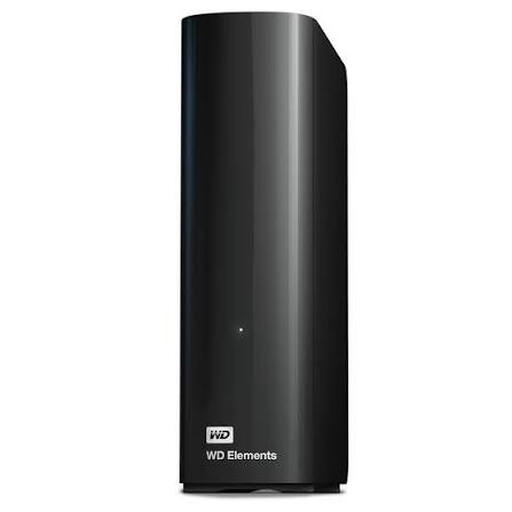 No image available
An 8 TB desktop storage drive for a large backup kept in one place.
USB 3.0; backwards compatible with USB 2.0; plug-and-play use with Windows 10 and later.
Not necessarily. According to Adobe, Lightroom Classic’s built-in backup only includes the catalogue file; you need to back up photos and exported files separately. Check which files the backup feature includes in other software.
It depends on the drive and the computers you use. Toshiba says the Canvio Basics model reviewed here is formatted as NTFS for Windows and needs to be reformatted for macOS. Before formatting, check whether it contains any files you want to keep.
Make a recent copy regularly and check that you can recover the files you need. Safe Internet recommends automatic or manual backups and suggests using encryption if appropriate. Keeping a second copy separately reduces your reliance on a single drive.
Assess security based on how the drive is used and the risks involved; don’t assume one measure will be enough in every situation. The Dutch Data Protection Authority notes an exception for strictly personal or household use. When an organisation processes personal data, appropriate security measures must be determined based on the risks, including who can access photos on the shared workstation.
For a consumer purchase in the Netherlands, the seller is responsible for the statutory guarantee if the product doesn’t meet the standard you were entitled to expect. This statutory right is separate from any limited manufacturer’s warranty; what’s appropriate depends on the circumstances of the fault.