Choose a capacity that accommodates your original files, catalogue files, project versions and expected growth. Then decide whether an HDD or SSD is better suited to how you work. A portable HDD is a good fit for capacity-focused home backups, while an SSD is worth considering if you regularly move large projects or take your drive with you. A drive alone won’t create a recoverable version history or a second copy: Adobe states that Lightroom Classic backs up only the catalogue file. To restore earlier versions, you’ll need to set up a backup feature such as File History or Time Machine.
Who is this choice relevant to?
Photographer with a growing archive
You keep original files, catalogue files and completed project versions. Having enough space and a recoverable copy matters more to you than maximum speed. Adobe makes it clear that Lightroom Classic’s catalogue backup doesn’t automatically include photos and exports.
Editor working with lots of revisions
You regularly update projects and want to be able to retrieve an earlier version if something goes wrong. Microsoft Support and Apple Support explain how to use backup features to restore files and versions. Set up the feature and check which folders it includes.
Photographer working on location
You move large files or take your drive with you, so connectivity and transfer speeds matter. Samsung and Crucial state that their quoted SSD speeds depend on factors such as using a suitable host device and cable.
What should you look for when buying?
Portable external HDD
Choose this option if: you mainly want to store a growing photo collection and project versions at home, and capacity matters more than short transfer times.
The trade-off: an HDD won’t create a version history on its own. Check your backup settings and handle a drive you often take with you carefully.
Portable external SSD
Choose this option if: you regularly transfer large photo or project files, or want a compact drive to take with you.
The trade-off: quoted speeds don’t guarantee transfer times. The connection, host device and cable all play a part, and an SSD doesn’t replace an additional backup copy.
| What to consider |
What should you check? |
Who should prioritise this? |
| Capacity for your collection and future growth |
Add together your original files, catalogue files, saved versions and expected growth. Compare the total with the usable capacity of the drive you’re considering. |
If you’re keeping a growing collection of original files and project versions, it’s worth first checking how much space they take up altogether. Around 36% of consumers say capacity for their collection and future growth is their top priority. |
| Restoring older project versions |
Check which folders your backup software includes, how long it keeps versions and whether you can restore an older file. |
If you might need an earlier edit after making a change or deleting something, version recovery should be a priority. Around 29% of consumers put restoring older project versions first. |
| Transfer speeds and connectivity |
Check your computer’s port and the cable supplied. Bear in mind that quoted maximum speeds depend on using a suitable host device and connection. |
If you regularly move large projects, you’ll want your drive, cable and computer to work well together. Around 21% of consumers say speed and connectivity are their top priority. |
| Protecting your backups |
Check whether you can encrypt files, where you’ll keep your recovery password and whether you have a separate second copy. |
If you want to reduce the risk of losing your drive or someone accessing it without permission, look for encryption and keep a second copy. Around 14% of consumers put backup protection first. |
Common mistakes with photo backups
-
Backing up only the catalogue file
Adobe states that Lightroom Classic’s built-in backup includes only the catalogue file. Edited photos and exports may therefore be left out.
Check where your catalogue, original files and exports are stored, then make sure you include the necessary folders separately in your backup.
-
Confusing an extra copy with version history
A current copy doesn’t automatically let you retrieve an earlier edit or a deleted file. That depends on the backup feature you’ve set up and the folders it includes.
Set up version backups and try restoring an older project file before relying on them.
-
Assuming an SSD’s quoted speed guarantees backup times
Manufacturers quote maximum sequential speeds under specific conditions. Your host device and cable also affect transfer speeds.
Check your computer’s port and cable before prioritising speed over the capacity you need.
-
Relying on one external drive for complete protection
An external drive can also be damaged or lost. If it’s your only backup, that could put your backup at risk too.
Keep a separate second copy of irreplaceable projects and check that you can restore files from it.
External drive brands to consider
Western Digital
The My Passport range includes portable HDDs. The stated 5 TB capacity applies to the black WDBPKJ0050BBK-WESN variant.
- Western Digital lists 5 TB of storage for this specific variant.
- Check the connection, file system and backup settings for your computer. Manufacturer information isn’t an independent performance test.
Samsung
The portable T7 Shield range is made up of SSDs. The black MU-PE2T0S/EU has a capacity of 2 TB.
- Samsung Netherlands lists USB 3.2 Gen 2, sequential maximum read speeds of 1.050 MB/s and write speeds of 1.000 MB/s, and an IP65 rating for this variant.
- These are manufacturer specifications and claims, not measured speeds on your computer or a guarantee against data loss.
Seagate
According to Seagate, the One Touch portable range includes USB-C HDD variants with capacities of 2 TB and 4 TB.
- Seagate lists backup tools and hardware encryption for the range.
- Check the exact variant and software requirements before buying. Information about the range won’t necessarily apply to every model.
Crucial
The X9 Pro 2TB, model CT2000X9PROSSD9, is a portable SSD for moving projects between devices.
- Crucial quotes speeds of up to 1.050 MB/s with a suitable USB 3.2 Gen 2 host and cable.
- Actual speeds may vary. Reformatting the drive for a different workflow will erase the data already on it.
Joybuy products for photo storage and backups
This selection includes portable external SSDs for transferring projects and external HDDs for photo storage. Compare their capacity and connection with the folders and versions you want to back up.
 Image unavailable
SanDisk Portable SSD 1 TB
A portable SSD for storing and regularly moving photos and project files.
Capacity: 1 TB. The product description lists read speeds of up to 800 MB/s and drop protection from heights of up to 2 m.
Joybuy
 Image unavailable
SanDisk Extreme Pro Portable SSD 1 TB
A portable SSD for large project files you need to transfer regularly.
Capacity: 1 TB. The product description lists USB-C and USB-A connectivity, IP65 protection and read speeds of up to 2.000 MB/s with a suitable USB 3.2 Gen 2x2 host. Actual speeds may vary.
Joybuy
 Image unavailable
Portable SSD 1 TB, up to 1.000 MB/s
A portable SSD for photo and project files when compact connectivity and fast transfers matter.
Capacity: 1 TB. The product description lists USB-C, USB 3.2 Gen 2, read speeds of up to 1.000 MB/s and drop protection from heights of up to 2 m.
Joybuy
 Image unavailable
Western Digital My Passport 2 TB Black
A portable HDD for backing up photo and project files.
Capacity: 2 TB. The product description lists USB 3.2 Gen 1, hardware encryption and backup software with a schedule you can customise. Handle the drive with care: the description warns against drops, liquids and moving it while transferring data.
Joybuy
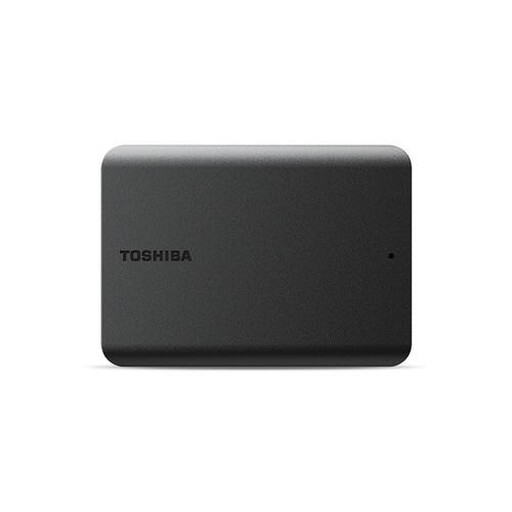 Image unavailable
Toshiba Canvas Basics 1 TB Black 2.5-inch USB 3.2
An external HDD for keeping files such as photos on a portable drive.
Capacity: 1 TB. The product description lists USB 3.2 Gen 1, a cable included in the box and compatibility with Windows and Mac. The drive needs to be reformatted for use with macOS.
Joybuy
Frequently asked questions
Does an external drive automatically create versions of your projects?
No, you’ll need to set up a suitable backup feature. Microsoft Support explains how to restore versions using File History, while Apple Support covers Time Machine. Check which project folders are actually included.
Does a Lightroom Classic catalogue backup also back up your photos?
No. Adobe states that the built-in catalogue backup includes only the catalogue file. Make sure you also back up edited photos and exports separately.
How do you set up a drive for Time Machine?
Apple recommends using a backup drive with at least twice the storage capacity of your Mac, and suggests keeping it for Time Machine backups only. During setup, your Mac may ask you to erase the drive, so check for any files on it first.
What are your rights in the Netherlands if a drive you’ve bought turns out to be faulty?
When you buy as a consumer, you’re entitled to a product that meets the required standards, and the retailer is your point of contact. According to the Dutch government, there’s no fixed time limit for the statutory guarantee in the Netherlands. A manufacturer’s warranty is an addition to, not a replacement for, your statutory rights.


