Who is this guide for?

Keeping your photos safe at home

You want to store a growing personal collection locally and protect it against loss caused by a fault or mistake. Capacity and separate copies matter more to you than top speed. The National Cyber Security Centre and the Consumers' Association discuss the importance of backups and the differences between HDDs and SSDs.

Photographer on the move

You regularly copy photos in different places and want a drive that’s easy to take with you. The connection and protection during transit are also important. Samsung and Kingston’s product information describes their portable SSD models and connections.

Mac or Windows user who doesn’t use the cloud

You want to set up local backups and check in advance that the drive, format and process are right for your computer. Microsoft Support explains File History for Windows, while Apple Support explains Time Machine on a Mac.

What should you consider when choosing?

Portable HDD

A good fit if: you mainly want to copy a growing photo collection at home and storage capacity matters more to you than speed.

The trade-off: according to the Consumers' Association, HDDs are more vulnerable to knocks than SSDs. Check the capacity and connection of the exact model, too.

Portable SSD

A good fit if: you often take your drive with you or regularly transfer photos.

The trade-off: the stated speed depends on factors including your computer’s connection and the cable. Maximum speeds are not guaranteed in your set-up.

Desktop HDD

A good fit if: the drive will stay in one place and you want to store an archive at home.

The trade-off: the Seagate Expansion desktop drive we reviewed needs a power adapter, making it less practical to take with you.

What to consider What to check before buying Who is this important for?
Restorable backup Keep the original, schedule regular copies and test that you can restore a photo. If I want to be able to retrieve my photos after a problem, one drive won’t be my only copy. Around 31% of consumers put the reassurance of being able to restore their files first.
Room to grow Compare the current size of your photo folders and expected growth with the capacity of the exact model. If I want to keep my existing collection and new photos in one local place, I’ll plan ahead for the space I’ll need. Around 25% of consumers prioritise capacity for a growing archive.
Portability and protection Check the dimensions, included cables and any protection claims for the full model. If I often take my backup drive with me, I want to know how suitable the model is for travelling; a second copy is still important. Around 19% of consumers prioritise portability.
Set-up on your computer Check your computer’s port, cable, operating system and preferred backup feature. Copy existing files before reformatting. I want to set up local backups without complicated steps and find out in advance whether the drive will work with my computer. Around 13% of consumers prioritise easy local set-up.
Transfer time Compare the USB modes supported by your computer and drive, the cable, and the stated read and write speeds of the exact model. If I often copy large photo folders, transfer time matters, but you can only make use of the stated speed with a compatible connection. Around 12% of consumers put speed first.

Common pitfalls

  • Moving your photos and then deleting the originals

    If the external drive is then your only copy, it won’t protect you if the drive fails or goes missing. The National Cyber Security Centre recommends keeping multiple backups.

    Check that a copied photo opens, then make a second copy and store it separately before deleting any originals.

    An extra drive or another separately stored copy requires more storage space and management.

  • Confusing the standard T7 with the T7 Shield

    The IP65 rating stated by Samsung applies to the T7 Shield and does not automatically apply to the standard T7.

    Check the full model number and the protection claims for the specific model.

  • Formatting without first protecting the files on the drive

    You may need to format a drive when setting it up for Time Machine. Crucial warns that reformatting erases data on the drive.

    First copy any files you want to keep somewhere else and check which file format you need.

    Files stored only on the drive you’re formatting may be lost.

  • Assuming an SSD’s maximum speed is its guaranteed transfer speed

    The maximum speeds stated by Samsung and Kingston also depend on the connection and equipment you use with the drive.

    Check the USB capabilities of your computer and drive, and don’t choose based only on the highest MB/s figure.

Brands to compare

Western Digital

The WD Elements Portable 4 TB we reviewed is a portable HDD for anyone looking for local storage space for an archive.

  • Western Digital confirms that this model has a capacity of 4 TB and a USB 3.2 Gen 1 connection.
  • This USB 3.0 model is not the same as the separate WD Elements Portable USB-C range. According to the Consumers' Association, HDDs are more vulnerable to knocks than SSDs.

Seagate

The Expansion Portable is a range of portable HDDs; the Expansion Desktop is designed to stay in one place.

  • Seagate lists USB 3.0 for the Expansion Portable; capacity and specifications vary by model.
  • The Expansion desktop drive we reviewed needs a power adapter. Seagate’s information about recovery services comes from the manufacturer and is not an independently verified recovery rate.

Samsung

The T7 Shield 2 TB we reviewed is a portable SSD model with a protective casing.

  • Samsung states that the T7 Shield offers speeds of up to 1.050/1.000 MB/s and has an IP65 rating.
  • These speed and protection claims apply to the T7 Shield and not automatically to the standard T7. The speed you can achieve also depends on the connection.

Kingston

The XS1000 range we reviewed consists of compact external SSDs for local file copies.

  • Kingston lists USB 3.2 Gen 2 and speeds of up to 1.050/1.000 MB/s for the range we reviewed. A cable with an adapter for USB-A and USB-C is also mentioned.
  • These are stated maximum speeds, not independent measurements of the speed you’ll get on your computer.

Crucial

The X9 Pro 2 TB is a portable SSD option to compare if you want to use it locally with different devices.

  • Crucial states that the drive comes formatted as exFAT.
  • Compatibility may depend on the device and formatting. Crucial warns that reformatting erases data on the drive.

Joybuy products for local photo backups

These Joybuy products are portable external SSDs and HDDs for anyone who wants to store photos locally. Check the storage capacity, connection and backup settings for each model.

SanDisk Portable SSD 1TB

SanDisk Portable SSD 1TB

A portable SSD for anyone who wants to store photos locally and take their drive with them.

The product description lists 1 TB, read speeds of up to 800 MB/s and drop protection from heights of up to 2 metres.

View at Joybuy
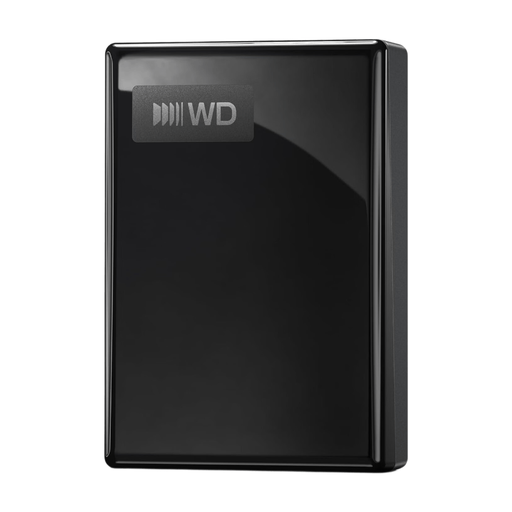
WD My Passport USB-C 2TB Black

WD My Passport USB-C 2TB Black

A portable HDD for anyone who wants to keep a local copy of their photo collection.

The product description lists 2 TB, USB-C, exFAT and software for scheduled backups.

View at Joybuy

WD My Passport 4TB Black portable hard drive

WD My Passport 4TB Black

A portable HDD for a growing photo collection and scheduled local copies.

The product description lists 4 TB, USB 3.0, USB power and 256-bit AES hardware encryption. It also mentions software for scheduled backups.

View at Joybuy
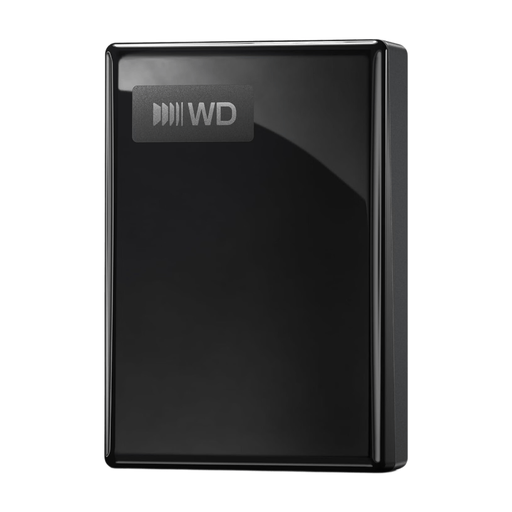
WD My Passport USB-C 1TB Black

WD My Passport USB-C 1TB Black

A portable HDD for anyone who wants to store photos and other files locally and schedule backups.

The product description lists 1 TB, USB-C, exFAT and compatibility with Windows and macOS.

View at Joybuy

Western Digital My Passport USB-C 4TB Black

Western Digital My Passport USB-C 4TB Black

A portable HDD for keeping a local copy of your photos on a Windows or Mac computer.

The product description lists 4 TB, USB-C, USB 3.2 Gen 1 and exFAT.

View at Joybuy

Frequently asked questions

Can I automatically back up photos locally without using the cloud?

Yes. According to Microsoft Support, Windows File History can copy personal files and folders to an external drive and restore previous versions. Check that your photo folders are included in the selected libraries. Apple Support explains how to use Time Machine for automatic backups to a connected external drive; a drive that isn’t connected won’t be updated in the meantime.

How large should a drive be for Time Machine?

Apple recommends a drive with at least twice the storage capacity of your Mac for a full Mac backup, and advises using the Time Machine drive only for those backups. This advice is for this Mac set-up and isn’t a general minimum for copying photo folders alone.

Is one external drive enough if I don’t want to use the cloud?

One drive can hold an extra copy as long as you keep the original photos, but the drive itself could fail or go missing. The National Cyber Security Centre recommends keeping multiple backups. So consider keeping a second local copy somewhere else, and test that you can restore your photos.

What should I check before formatting a drive?

First copy any files you want to keep somewhere else, as formatting can erase data on the drive. Apple describes formatting as part of some Time Machine set-ups; Crucial also warns about data loss when reformatting. Then check that the file format is compatible with your device and backup software.

What can I do if the drive I bought fails too soon under normal use?

For a purchase by a consumer in the Netherlands, the seller is responsible if a product doesn’t do what you could reasonably expect under normal use. ACM ConsuWijzer explains that a manufacturer’s warranty doesn’t replace your statutory rights. Bear in mind that a remedy for faulty hardware won’t, by itself, recover lost photos.
