What should you consider when choosing?
First, work out how much space your photo archive and future copies will need. Then compare the size and connection, and consider whether extra speed matters for the way you use the drive.
| What to consider |
What should you look for? |
Who should pay particular attention? |
| A backup you can restore |
Keep the originals elsewhere too. Check that your backup method includes your photo folders, and test restoring a few photos. |
If I want to restore photos after they’re lost or deleted, I’ll keep the originals separate and check that the copy works. Around 40% of consumers prioritise being able to restore their files. |
| Space for photos and future copies |
Check how much space your current folders take up and allow for them to grow. Compare the capacity of the exact version you’re considering with the space available after formatting. |
If I want to keep my existing archive and future copies, I’ll choose a capacity that meets that need. Around 30% of consumers prioritise archive storage space. |
| Size for a small desk |
Check the drive’s dimensions and allow room for the cable. Make sure the connection is compatible with your computer. |
If I have little desk space, I’ll want to know how much room the drive and cable will take up. Around 20% of consumers prioritise a compact size for their desk. |
| Speed for regular transfers |
Check your computer’s port and cable. Treat any stated maximum speed as a manufacturer’s figure under certain conditions, not as a guaranteed backup speed. |
If you often copy large photo folders, check whether your connection supports the transfer speed you want. Around 10% of consumers prioritise transfer speed. |
Products at Joybuy
This selection includes compact external SSDs and portable HDDs for storing photos locally, from models suited to regular transfers to versions with more storage space.
 No image available
SanDisk Portable SSD 1TB
A portable SSD option for storing photos locally when desk space is limited.
SSD; 1 TB.
View at Joybuy
 No image available
WD Elements Portable 5TB USB-C, Graphite Black
A portable HDD option if space for a growing photo archive matters more to you than regularly transferring large files.
5 TB; USB-C.
View at Joybuy
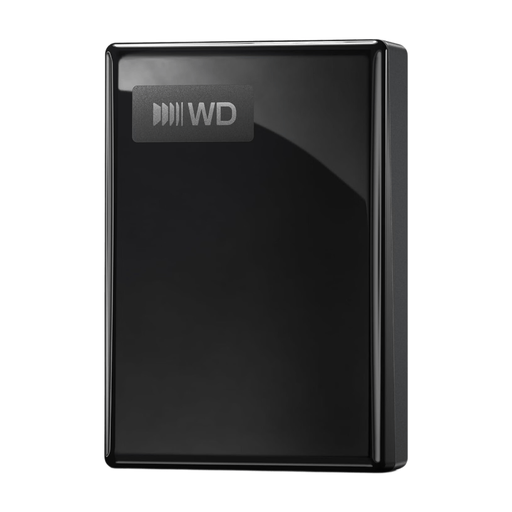 No image available
My Passport USB-C 1TB, Black
A portable HDD option for keeping a local copy of your photos, with a USB-C connection.
1 TB; USB-C.
View at Joybuy
 No image available
Western Digital My Passport USB-C 4TB, Black
A portable HDD option if you need more space for a photo archive and want a USB-C version.
4 TB; USB-C.
View at Joybuy
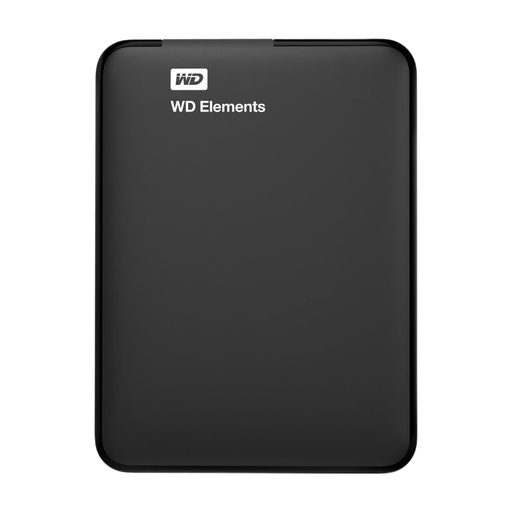 No image available
WD Elements Portable 1TB, USB 3.0
A portable HDD option for keeping a local copy of your photos, with USB 3.0.
1 TB; USB 3.0.
View at Joybuy
Frequently asked questions
Does an external drive with my photos automatically count as a backup?
No. A backup is a copy of files that also exist somewhere else. Keep the originals separate, update the copy and check that you can restore your photos.
How do I set up a local photo backup on Windows or Mac?
On Windows, File History can copy personal folders to an external drive; check that your photo folders are included. On a Mac, Time Machine can automatically back up to a compatible external drive. Apple recommends using a drive with at least twice the storage capacity of your Mac for Time Machine, and warns that setup may ask you to erase the drive.
What does the warranty cover if the drive develops a fault?
For consumer purchases in the Netherlands, the seller must provide a product that is fit for purpose, and you can contact them if it isn’t. The Dutch government says there is no fixed statutory warranty period in the Netherlands; a manufacturer’s warranty is in addition to your legal rights. A warranty on the drive is no substitute for keeping a backup of your photos.
Can I keep a private local copy at home of photos in which other people are identifiable?
According to the Dutch Data Protection Authority, the exception for personal or household use applies when you keep the images private or share them only with a very limited group. The exception doesn’t apply if you publish them more widely or use them for business; in that case, check separately which rules apply to taking and publishing the images.


