Who is this guide for?

Shared-computer user

You want to make a local copy of your photos without giving other users automatic access to your private pictures. So think about access controls, and disconnecting the drive and storing it separately. The National Cyber Security Centre and the Dutch Data Protection Authority stress the importance of handling backups and personal data carefully.

Manager of a growing photo archive

You want room for new files and older versions. The National Cyber Security Centre points out that keeping files for longer requires more storage space, so choose a capacity that suits the size of your archive and how long you plan to keep it.

Photo user with both Windows and Mac

You need to decide whether the drive will transfer regular files between both systems or be set up as a Time Machine drive. Apple and Microsoft describe different backup options. Check the format, and copy any existing files elsewhere before reformatting a drive.

What should you look for when buying?

What to consider What should you check? Who is this important for?
Access and recovery Check who can access the drive or recovery code, whether security works on the system you intend to use, and whether you can restore a photo. I want to control who can access my photo copy on the shared computer, and be able to restore a photo later. Around 36% of consumers put access controls and recoverability at the top of their list.
Archive space Check how much space your photos currently take up, and allow for growth and keeping older versions. I want enough room on the drive for my growing photo archive and earlier versions. Around 29% of consumers give archive space top priority.
System and backup method Check the USB connection and format. Decide whether you’ll transfer files or use Windows File History or Mac Time Machine. I want to use the same drive with my computer and the backup method I’ve chosen. Around 21% of consumers focus mainly on system and backup compatibility.
Transferring and carrying Check that your computer and cable support the stated USB generation, and consider how often you copy large files or take the drive with you. I regularly transfer large photo or video files, or take the drive with me. Around 14% of consumers prioritise transfer convenience and portability.

Common pitfalls

  • Mistaking extra storage for a tested backup

    Moving files to a single external drive may leave you without a second copy. The National Cyber Security Centre recommends keeping multiple copies and testing recovery.

    Copy files rather than just moving them, keep another copy separately and periodically try restoring a photo.

    Keeping a separate copy also requires extra storage space.

  • Assuming a connected drive is private and isolated

    Other users of the computer may be able to access connected storage. Ransomware can also affect backups and external drives, according to the National Cyber Security Centre.

    Decide who is allowed to unlock the drive, set up any security features appropriately, and keep a copy out of the computer’s reach.

  • Formatting before securing your files

    Reformatting a drive can erase existing files. A drive set up for ordinary file sharing is not automatically configured for Time Machine either.

    Decide in advance whether you want to transfer files or make a backup. Copy any existing data elsewhere before reformatting the drive.

  • Confusing the manufacturer’s warranty with protecting your photos

    A warranty on the drive doesn’t guarantee that your files will be preserved. The Netherlands Authority for Consumers and Markets’ ConsuWijzer also distinguishes between a manufacturer’s warranty and statutory rights. Western Digital warns that forgetting your WD Security password can lead to data loss.

    Check the terms for the exact model, and keep an independent copy of your photos and the recovery details you need.

Brands to consider

Seagate

The Expansion Portable range is designed for local storage and periodic copies. Seagate lists the 5 TB model as STKM5000400.

  • Seagate lists a USB-A cable as included with this model.
  • Seagate says reformatting is required for Time Machine. Also check the terms of the two-year limited manufacturer’s warranty for this model in EMEA.

Samsung

The portable T7 Shield is an SSD range for people who often transfer files or take a drive with them. The specifications listed are provided by the manufacturer.

  • Samsung lists 2 TB, model MU-PE2T0S/EU, USB 3.2 Gen 2 and sequential speeds of up to 1.050/1.000 MB/s for the T7 Shield.
  • Samsung lists IP65 and drop resistance of up to 3 metres. This doesn’t mean your photos will be safe after every drop or fault. Keep a separate copy.

Kingston

The XS1000 is a compact external SSD range, available in 1 TB and 2 TB models. Check the version and connection before you buy.

  • Kingston lists USB 3.2 Gen 2 and a USB-A cable with a USB-C adapter.
  • The stated maximum read and write speeds are 1.050/1.000 MB/s. The five-year limited manufacturer’s warranty doesn’t guarantee that a backup will remain available for five years.

Western Digital

The My Passport range may be worth considering if password protection is important to you. According to Western Digital, WD Security is supported for the My Passport range when the relevant drive has been set up for the software.

  • Check that WD Security is supported for the model you’ve chosen and can be set up appropriately.
  • Western Digital warns that hardware encryption and password protection are not the same thing, and that forgetting your WD Security password can lead to data loss. Keep unlock details somewhere other than the shared computer.

Joybuy products

This selection includes external HDDs for local storage and periodic photo copies, as well as portable SSDs for transferring files or taking them with you.

My Passport for Mac 2TB Blue portable hard drive

WD My Passport for Mac 2TB Blue

An option for making a local copy of photos on a Mac.

2 TB; Time Machine Ready; password protection.

View at Joybuy

My Passport 6TB White portable hard drive

WD My Passport 6TB White

An HDD option for a photo archive that needs plenty of storage space.

6 TB; password protection; automatic backup software.

View at Joybuy
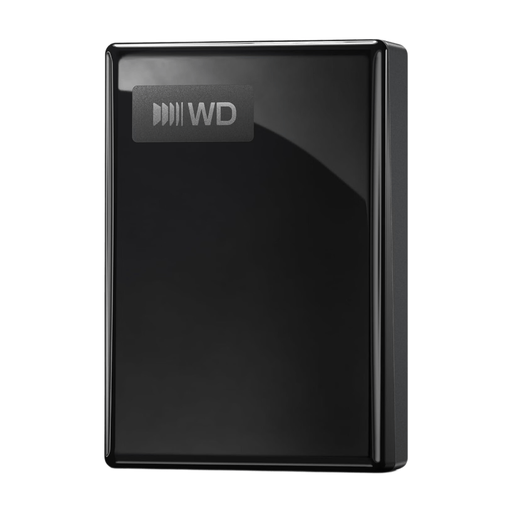
My Passport USB-C 5TB Black portable hard drive

WD My Passport USB-C 5TB Black

An HDD option if you need extra space for a local photo archive.

5 TB; USB-C.

View at Joybuy

Samsung Portable SSD T7 2TB USB Type-C 3.2 Gen 2 Blue

Samsung Portable SSD T7 2TB Blue

A portable SSD option for transferring photos and other files.

2 TB; USB Type-C 3.2 Gen 2.

View at Joybuy

Samsung MU-PE1T0S 1TB USB Type-C 3.2 Gen 2 Black

Samsung MU-PE1T0S 1TB Black

A portable SSD option if you want to take a local copy with you or transfer files.

1 TB; USB Type-C 3.2 Gen 2.

View at Joybuy

Frequently asked questions

How do I back up photo folders outside Pictures on Windows?

According to Microsoft, add the folder to an existing or new library for File History. Then choose the external drive and test whether you can restore a photo.

Can I use one drive for Windows files and Mac Time Machine?

It depends how you plan to use it: regular file sharing and a Time Machine backup don’t automatically use the same setup. Apple recommends ExFAT for a drive larger than 32 GB that’s also used with Windows, and APFS or APFS Encrypted for Time Machine. Reformatting can erase existing files, so copy them elsewhere first.

Does the external drive need to stay connected all the time?

The drive needs to be connected when you make a backup, but it doesn’t need to stay connected all the time. The National Cyber Security Centre warns that ransomware can also affect connected drives and backups, so keep a separate copy too and test recovery.

Is the statutory warranty in the Netherlands exactly two years?

No. According to the Netherlands Authority for Consumers and Markets’ ConsuWijzer, there is no fixed period for the statutory warranty: what you can reasonably expect from the product is what matters. A separate manufacturer’s warranty has its own terms and doesn’t reduce your statutory rights.

Does the GDPR apply to photos I keep privately in a backup?

According to the Dutch Data Protection Authority, there is an exemption for photos someone keeps solely for themselves or shares within a very limited private circle. The exemption doesn’t automatically apply to business use or wider publication. How the photos are used is what matters, not simply whether the computer is shared.
