What should you consider for photo backups in a shared studio?
Start by considering the size of your archive and the recovery copies you need. Then choose between the storage space for periodic copies and an SSD for regular transfers. Either way, check the connections and access arrangements on your studio computers.
The percentages below reflect consumers considering an external drive for photo backups in a shared studio.
| Consideration |
What to look for |
Who should consider this most? |
| Recoverability |
Work out how much space your archive and the versions you want to keep will need. Also plan a copy at another location and test that you can restore your files. |
If I need a copy when a drive or location fails, I want to know in advance how to recover my photos. Around 31% of consumers put recoverability first. |
| Archive space |
Check the size of your photo folders and decide how many versions you want to keep before comparing capacities. |
As my photo archive grows, I want enough space for the files I actually want to keep. Around 25% of consumers choose archive space as their top priority. |
| Access security |
Decide who needs to be able to restore the backup and check that your chosen drive and studio computers support the security features you want. |
In a shared studio, I want to control who can access the photos, especially if commercial images show identifiable people. Around 25% of consumers put controlled access first. |
| Transfer and transport |
Check the ports and cables on the computers you use. Choose a file system based on whether you need to share files between systems or use specific backup software. |
If I regularly transfer photo collections or take the drive with me, I want to know whether the connection and setup will work with my computers. Around 19% of consumers put transfer and transport first. |
Joybuy products for local photo backups
This selection includes portable SSDs and HDDs for local photo copies, with a range of capacities and versions for uses including Mac and USB-C. A studio drive remains a local copy, so plan to keep a copy at another location too.
 No image available
SanDisk Portable SSD 1TB
A portable SSD option for a local copy you regularly move between workstations.
1 TB of storage.
Joybuy
 No image available
My Passport for Mac 2TB Blue
A portable HDD option if you’re looking for an external drive for a Mac-focused backup setup.
The product name says Time Machine Ready; check the drive format and setup before transferring files.
Joybuy
 No image available
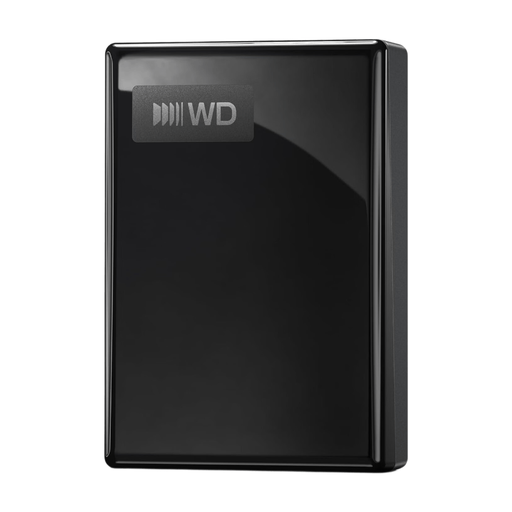
My Passport USB-C 2TB Black
A portable HDD option for a local photo archive. Check that the connection is compatible with the computers in your studio.
USB-C version with 2 TB of storage.
Joybuy
 No image available
My Passport 6TB White
A portable HDD option to consider if you want to keep a large photo archive locally.
6 TB of storage.
Joybuy
 No image available
My Passport 4TB Black
A portable HDD option for periodic local copies of a photo archive.
4 TB of storage.
Joybuy
Frequently asked questions
Can the same drive share Windows photos and store a Time Machine backup?
Not without planning the format and setup in advance. Apple Support says ExFAT is suitable for sharing files with Windows, but Time Machine won’t save backups to a drive with a Windows file system. Consider using a separate drive or a suitably formatted volume, and copy any existing files elsewhere before formatting.
How do I disconnect an external drive without interrupting a backup?
Wait until the backup task is complete, try restoring a file if needed, then safely eject the drive in Windows before unplugging the cable. Microsoft Support recommends safely removing the drive to prevent data loss.
Are backup software or data recovery included as standard?
It depends on the drive and service. Windows has File History for files and folders. Seagate offers Rescue Data Recovery Services, but says the service isn’t available in every country. Check the terms for the specific product and don’t treat a recovery service as a replacement for a second copy.
Does the GDPR apply to photos on a studio drive?
Identifiable people in photos are personal data. The Dutch Data Protection Authority says organisations must protect personal data appropriately and not keep it for longer than necessary. The fact that a drive is in a shared space doesn’t mean every photo on it contains personal data.
Must the loss of a drive containing business portraits always be reported?
No, not automatically. The Dutch Data Protection Authority says the organisation must assess the risk to the people affected: it must notify the Authority unless a risk to their rights and freedoms is unlikely. Whether the people affected must also be informed depends on whether the risk is likely to be high.


