
Photo editor with limited desk space
Wants a small drive for regular transfers, so considers its size, cable and connection before prioritising speed. Crucial and Samsung list dimensions and connection details for specific models.


Choose a drive with enough space for your current photo archive and new photos, and check that it’s compatible with your computer’s connection. A portable HDD offers a range of storage capacities; a compact SSD may be a good choice if desk space is limited and you transfer files regularly. Set up your backup, check which photos are being copied and test that you can restore a file.
Wants a small drive for regular transfers, so considers its size, cable and connection before prioritising speed. Crucial and Samsung list dimensions and connection details for specific models.
Needs space for a local copy and new photos, so compares the capacity of portable HDDs with that of compact SSDs. Seagate and Samsung list capacities for their specific product ranges.
Wants to be able to restore lost or changed photos, so also considers backup settings, frequency and a restore test. VeiligInternetten, Microsoft Support and Apple Support explain backup and restore options.
Good for: a growing photo archive that you copy periodically, where storage capacity is a priority.
Consider: checking the exact model and dimensions. Handle an HDD with care, and don’t keep your only copy on it.
Good for: limited desk space or regularly transferring large files.
Consider: stated speeds depend on factors including your computer and connection. An SSD is no substitute for a second copy or a restore test.
Good for: anyone who regularly takes their backup drive with them and wants to compare a more protected model.
Consider: protection claims apply to specific models and conditions; they don’t prevent data loss.
| What to consider | What to look for when buying | Who is this important for? |
|---|---|---|
| Desk space and connection | Compare the dimensions of the exact model, the cable supplied and the port on your computer. | I want to fit the drive in without awkward cables; around 33% of consumers mainly look for space-saving design and convenient connections. |
| Ability to restore files | Choose a backup routine, check which photo folders are included and test restoring a file. | I want to be able to retrieve photos if they go missing or change; around 27% of consumers prioritise being able to restore files. |
| Capacity | Check the current size of your photo folders and allow for new photos. For a full Time Machine backup, Apple ideally recommends at least twice the Mac’s storage capacity. | I want to leave room for my growing archive; around 27% of consumers mainly look for capacity. |
| Compatibility and transfer | Check the port, cable, file system and backup software before erasing or setting up the drive. | I want to know whether my computer and backup method will work together; around 13% of consumers prioritise compatibility and transfer. |
A drive only works as a backup if it contains the right photos and you can restore them. Windows File History can restore earlier versions of files.
Check which folders are copied, keep the original photos and test restoring a file.
Allow time for checks, and use a different storage location if you want to keep an extra copy.
A compact drive can fill up as your photo archive grows. For a full Time Machine backup, Apple ideally recommends a drive with at least twice the Mac’s storage capacity; this advice isn’t about photo folders alone.
Decide whether you’re backing up just your photos or your whole computer, then compare the space you need with the capacity of the exact model.
Apple warns that reformatting an existing drive for Time Machine may erase data.
Check the file system before setup, and move any existing contents somewhere else first.
The Expansion Portable range is a portable HDD option for a photo archive. Seagate lists 2 TB and 4 TB models with USB-C in its current range.
Samsung offers several portable SSD models, including the T7, T7 Shield and T5 EVO. Features vary by model and version.
The X9 is an SSD option worth comparing if a small drive on your desk is important.
This Joybuy selection includes portable HDDs and compact external SSDs for keeping a local copy of your photos. Compare capacity, connection and how much desk space each drive takes up.
 No image available
A portable HDD option if your photo archive needs room to grow.
4 TB; USB-C; exFAT; dimensions 75 × 108 × 19,1 mm. The product description lists password protection and AES 256-bit encryption.
 No image available
A portable SSD option if you want to keep a compact local copy of your photos.
1 TB; USB-C; USB 3.2 Gen 2; stated read speed up to 1.000 MB/s.
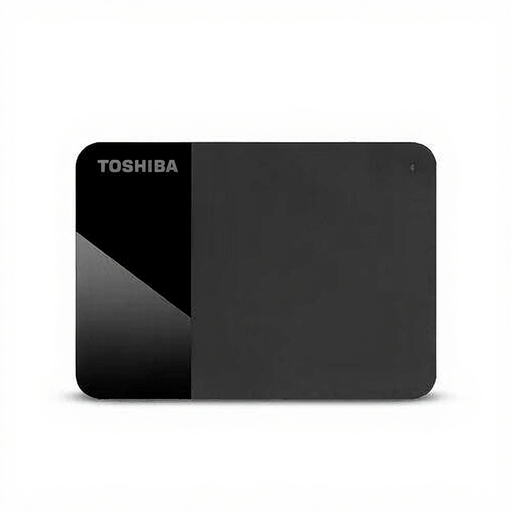 No image available
A portable HDD option to compare if you need plenty of space for files and photos.
4 TB; 2.5-inch; Micro-USB B; USB 2.0/3.2 Gen 1 compatibility; bus-powered.
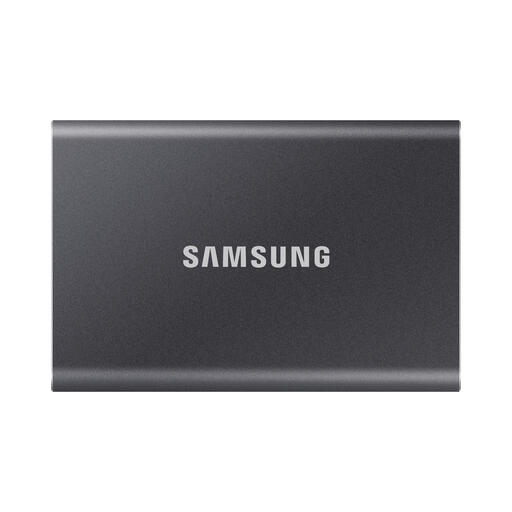 No image available
A compact SSD option for a local photo archive, if its capacity suits your collection.
2 TB; USB 3.2 Gen 2; Samsung lists maximum sequential speeds of 1.050/1.000 MB/s. The product details list USB-C-to-C and USB-C-to-A cables, and dimensions of 85 × 57 × 8 mm.
 No image available
A compact SSD option to compare if you also want to take the drive with you.
2 TB; USB 3.2 Gen 2; stated read and write speeds up to 1.050/1.000 MB/s; IP65; dimensions 59 × 88 × 13 mm. The product details list drop resistance up to 3 metres; IP65 does not mean the drive can be submerged in water.
Connect an external drive and set up File History. Microsoft Support says that standard libraries such as Pictures are included; add any other photo folders you need, then test that you can restore a file.
Not always without preparing it first. Apple Support recommends APFS or encrypted APFS and notes that setup may require erasing and reformatting the drive. Move any existing files somewhere safe first.
No. File History can’t write new copies to a disconnected drive. Microsoft Support recommends reconnecting the drive and waiting for the next scheduled backup, or starting one yourself.
Check the size of the photo folders you want to copy and leave room for new photos. For a full Time Machine backup, Apple ideally recommends at least twice the Mac’s storage capacity; that advice doesn’t automatically apply to a photo folder alone.