
Photographers with a growing archive
You store original images locally and mainly need enough space for regular back-ups of your collection.


Start by working out how much space you need for your catalogue and original images. An external HDD may suit a growing archive that you mainly back up at home, while an SSD is worth considering if you often move files or take the drive with you. Also check that the connection and formatting are compatible with your computer and back-up method. Back up both your catalogue and original files, and test that you can restore them. Adobe states that Lightroom Classic’s built-in back-up includes the catalogue file only.
You store original images locally and mainly need enough space for regular back-ups of your collection.
You regularly move large photo folders and weigh up portability, transfer speeds and possible protection for the drive.
You want to be able to restore both your catalogue and your local original images. Adobe makes the distinction clear for Lightroom Classic: its built-in catalogue back-up does not include the photos themselves.
A good fit if: you mainly back up a growing archive of original images at home, and capacity matters more than short transfer times.
Keep in mind: check the space you need, the connection and the formatting. Reformatting can erase existing files.
A good fit if: you often transfer large photo folders or regularly take the drive with you.
Keep in mind: the stated maximum speed depends on your computer and connection. An SSD is still only one back-up destination.
A good fit if: you use the drive on the move and protection against dust, water or drops, for example, matters for your needs.
Keep in mind: check the protection claim for the exact model and the conditions it applies to. Protection does not automatically make files recoverable.
| What to consider | What to look for | Who it matters most to |
|---|---|---|
| Space for your photo archive | Check the size of the original images, catalogue and other files you want to copy. Allow for future additions and the available capacity after formatting. | I want to keep adding to my growing collection without having to select files each time. Around 36% of consumers mainly prioritise archive space. |
| Restoring files | Check that both the catalogue and local source folders are included. Adobe says Lightroom Classic’s built-in back-up contains only the catalogue file; the NCSC recommends testing a restore. | I want to recover not just my catalogue, but also the photos that go with it. Around 29% of consumers prioritise a complete, verifiable back-up. |
| Taking the drive with you and transferring files | Check that your computer, cable and drive use compatible connections. Check protection claims for the exact model and use; they do not replace an additional back-up. | I take the drive with me or regularly move large photo folders, and want to know whether my computer supports the connection. Around 21% of consumers prioritise portability and file transfers. |
| Computer and back-up method | Check that the connection and formatting suit your computer and chosen method. Apple recommends APFS or APFS (Encrypted) for Time Machine; reformatting can erase existing data. | I want to set up the drive with my computer and back-up method without losing existing files. Around 14% of consumers prioritise compatibility. |
According to Adobe, Lightroom Classic’s built-in back-up contains only the catalogue file. This means that original images stored locally are not automatically included.
Include your catalogue and original image folders separately in your back-up plan, and test that you can restore both.
If that one back-up is lost or stops working, restoring your files can be difficult. The NCSC recommends keeping multiple copies on different media, with one copy stored elsewhere.
Use the external drive as one part of your plan and decide which additional copy suits your needs.
According to Seagate, Toolkit’s mirrored folder syncs additions, changes and deletions. This means a deleted file may also be removed from the mirrored folder.
Check whether your chosen method keeps earlier versions, and test restoring a deleted file.
Apple says a drive may need to be erased and reformatted when setting it up for Time Machine. Files already on the drive could be lost in the process.
Check what is on the drive before setting it up, and make a copy elsewhere first if needed.
The Canvio Basics range is designed for portable HDD storage; the EMEA version mentioned includes a 4 TB model.
The T7 and T7 Shield are separate portable SSD models; check which features apply to the specific model.
The X9 is a portable SSD range; the specification mentioned is for the X9 2 TB.
The One Touch HDD is worth considering if you are comparing portable HDD storage with back-up software.
The Extreme Portable SSD 1TB V2 appeared in a 2025 Dutch photography ranking by Fotografiebeginner.nl.
This selection includes portable external SSDs for taking photo files with you and transferring them, as well as external HDDs for a local photo archive.
 No image available
A portable SSD for taking photo files with you and transferring them.
Capacity: 1 TB. The product description lists read speeds of up to 800 MB/s and drop protection from heights of up to 2 metres.
 No image available
A portable SSD for anyone who takes photo files with them and regularly transfers large files.
Capacity: 1 TB. The product description lists read speeds of up to 2,000 MB/s, IP65 and drop protection from heights of up to 3 metres. The stated read speed requires a compatible USB 3.2 Gen 2x2 host device; write speeds are lower.
 No image available
A portable HDD for storing a growing photo collection and scheduled back-ups.
Capacity: 4 TB. The product description lists USB 3.0, 256-bit AES hardware encryption, password protection and automatic back-up software.
 No image available
A portable HDD for local photos and other files, with an automatic back-up feature listed in the product description.
Capacity: 2 TB. The product description lists USB 3.0, 256-bit AES hardware encryption and password protection.
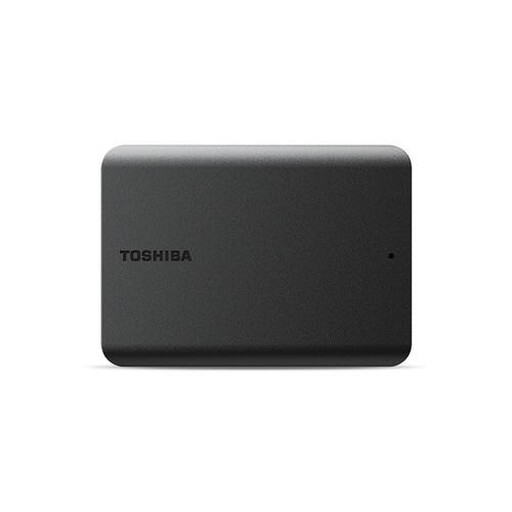 No image available
A portable HDD for storing and transferring photo files locally.
Capacity: 1 TB. The product description lists USB 3.2 Gen 1 and compatibility with USB 2.0. For use with a Mac, it says reformatting is required; check the existing contents first and make a copy if needed.
No. According to Adobe, that back-up contains only the catalogue file. Back up your local original images separately too, and check that you can restore both.
Restore some files and open a few of the photos. This lets you check that the right files were included and are accessible.
Not always without some preparation. Apple recommends APFS or APFS (Encrypted); setting up the drive may involve erasing and reformatting it. Check first whether it already contains any data.
Not necessarily. Microsoft describes back-ups of libraries; add any source folders stored elsewhere to a library, then check that they have been included in the back-up.