What should you consider when choosing?
First, work out how much data you want to copy. Then check the connection and back-up method, before choosing a drive that suits how often you’ll transport it.
| What to consider |
What should you check? |
Who should pay particular attention? |
| Recoverability |
Complete the copy, check that you can restore your files, and keep an independent copy somewhere else as well. |
If I don’t want one incident to affect both my files and back-up during the move, recoverability comes first. About 29% of consumers say recoverability is their main concern. |
| Archive capacity |
Check the total size of the files you want to copy. For a full Mac back-up with Time Machine, Apple recommends using a drive with at least twice the Mac’s capacity. |
With a large photo archive, I want to avoid leaving anything out of the copy. About 23% of consumers prioritise capacity. |
| Transport and protection |
Check the size and the protection offered by the exact model against conditions during transport; protection is no substitute for an additional copy. |
If I need to take the drive with me often, I want storage that’s practical to carry and a model suited to the journey. About 18% of consumers prioritise transport and protection. |
| Client photos |
Consider who can access and take the drive, and how to enable any encryption and manage access. |
If my archive contains images that can be linked to clients, I want to consider the risk of unauthorised access when choosing. About 18% of consumers put protecting client images first. |
| Connection and back-up method |
Check the ports and cables on the computer making the copy, and on any computer you might use to restore files. Also check whether you’re making a file copy or using a tool such as Time Machine. |
If the drive needs to work with different computers, I want to know before the move that I can connect it and restore my files. About 12% of consumers say compatibility is their main concern. |
Drives for a local photo back-up
These Joybuy products include portable SSDs and HDDs for making a local copy of your photos. Choose based on the size of your archive, your connections and how often you’ll take the drive with you during the move.
 No image available
SanDisk Extreme Pro Portable SSD 1 TB
A portable SSD option if you take a back-up between locations and want extra protection during transport.
1 TB storage, USB-C and AES 256-bit hardware encryption. The description lists IP65 protection and drop protection up to 3 m; this model weighs 46,9 g.
The stated read speed of up to 2.000 MB/s requires a compatible USB 3.2 Gen 2x2 device; write speed is lower. Check that 1 TB is enough for your archive.
View at Joybuy
 No image available
DigiEra Magnetic Portable SSD 1 TB, LPS2000M-2, White
A portable SSD option for a local file copy if your computer or other device has USB-C.
1 TB storage, USB-C and USB 3.2 Gen 2x2. The product name lists speeds of up to 2.000 MB/s; check that your device’s port is compatible.
The stated maximum speed doesn’t guarantee how long a copy will take. Magnetic attachment and direct ProRes recording are designed for certain iPhone 15 and 16 models, and aren’t needed for a standard file back-up.
View at Joybuy
 No image available
Samsung Portable SSD T7 2 TB, Blue
A portable SSD option for a larger photo copy if 2 TB is enough for your measured archive.
USB 3.2 Gen 2, AES 256-bit hardware encryption and included USB-C-to-C and USB-C-to-A cables. Samsung states sequential maximum speeds of 1.050 MB/s read and 1.000 MB/s write.
The stated maximum speeds don’t guarantee how long a copy will take; actual transfer speeds also depend on the computer and connection you use.
View at Joybuy
 No image available
WD Elements Portable 5 TB, Graphite Black
A portable HDD option if you want to store lots of photos locally and mainly put the drive away after copying.
5 TB storage, USB-C, USB 3.2 Gen 1 and exFAT formatting. The product description says it works with Windows and Mac systems.
According to the Consumers’ Association, HDDs are more vulnerable to knocks than SSDs, so handle the drive carefully during transport.
View at Joybuy
 No image available
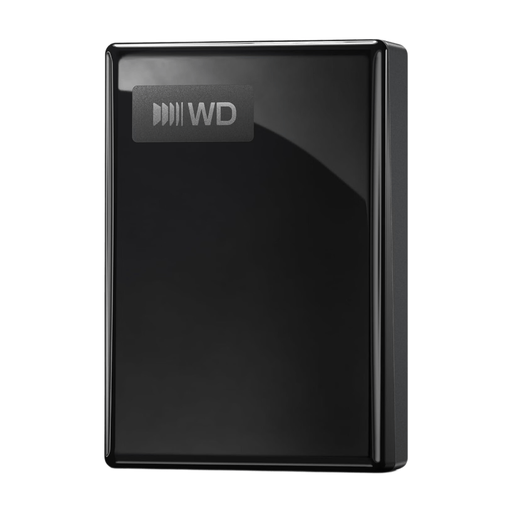
WD My Passport USB-C 5 TB, Black
A portable HDD option for a local photo archive if its capacity matches the total size of the files you want to copy.
5 TB storage, USB-C, exFAT and AES 256-bit hardware encryption. The product description also mentions password protection.
According to the Consumers’ Association, HDDs are more vulnerable to knocks than SSDs, so take care when transporting the drive.
View at Joybuy
Frequently asked questions
Is one external drive enough when moving a studio?
Not if it’s your only back-up. The National Cyber Security Centre recommends keeping three copies of important business data, including one copy in a separate location. Also test that you can restore files from your back-up.
How do you set up an external drive for Time Machine?
Connect a suitable storage device and add it as a back-up drive in Time Machine on your Mac. Apple recommends a drive with at least twice the Mac’s capacity for a Mac back-up, and warns that setting it up may involve erasing the drive. So first check whether it contains any unique files. This capacity recommendation applies to Time Machine, not to every individual photo copy.
What should you check just before packing?
Check that the copy is complete, open or restore a few files you need, and don’t keep all your copies in the same place. The National Cyber Security Centre also recommends testing back-ups and keeping a copy in a separate location.
Should a drive containing client photos be encrypted?
If your studio processes personal data, your security measures should be appropriate to the risks. The Dutch Data Protection Authority lists hard-drive encryption as one possible measure, but doesn’t prescribe a single drive feature as a requirement for every studio. Consider who has access and how you’ll manage encryption and recovery access.


