
Photographers with a growing archive
You want to keep RAW files, edits and older project versions locally. Allow for future versions too, and keep a separate backup.


For occasional backups of a growing photo archive, an HDD may be a good fit. If you often take projects with you or edit them directly from the drive, a portable SSD is a more natural choice. First, work out how much space your photos and saved versions will need, then set up backup software: an external drive won’t save earlier versions automatically. Keep a separate backup too; Consumentenbond warns that ransomware can affect connected external drives.
You want to keep RAW files, edits and older project versions locally. Allow for future versions too, and keep a separate backup.
If an edit goes wrong, you’ll want to be able to restore an earlier version of your project. The backup method you set up and the folders it includes are just as important as the drive itself.
You move large projects between workspaces or edit directly from external storage. So consider the connection, transfer speeds and how easy the drive is to carry around.
First work out how much space your archive and the versions you want to keep will need. Then decide whether you’ll mainly be making occasional backups or frequently moving and editing files.
| What to consider | What should you look for? | Who is this important for? |
|---|---|---|
| Space for your archive and versions | Add up the space needed for your photos, catalogues and exports, then allow room for versions. Compare the total with the capacity of the exact model. | If I want to keep both a growing collection and several versions of my projects, I need to know in advance that everything will fit. Around 36% of consumers say space for their archive and versions is their main need. |
| Restoring earlier versions | Choose backup software that includes your project folders, and test that you can restore an older file version. | If an edit overwrites files, I want to be able to go back to an earlier version of my project. Around 29% of consumers put restoring earlier versions first. |
| Working in different places | Check the connection and cable supplied with the exact drive. Bear in mind that quoted speeds depend on the port used and the conditions stated by the manufacturer. | If I take projects with me or work directly from external storage, I want a drive that suits my workspaces and how I transfer files. Around 21% of consumers prioritise working on projects on the move. |
| Protection and backups | Decide where you’ll keep a separate copy and how you’ll manage any recovery password. Disconnect a backup drive after use. | If I want to protect files against loss, unauthorised access or an incident, I don’t want to rely on a single connected copy. Around 14% of consumers prioritise separate, protected storage. |
A standard copy can overwrite an earlier edit. You can only restore versions that your backup method has actually saved.
Set up Time Machine or File History for the relevant project folders, then test that you can restore an older version.
Setting this up and testing a restore takes extra time. Remember to allow for the storage space that saved versions will need, too.
Consumentenbond points out that ransomware can also affect connected external backups.
Keep a backup separate from your computer and disconnect a portable backup drive after use.
Keeping a separate backup may require a second storage location or an additional drive.
A quoted SSD speed is a manufacturer’s figure for a specific model. On its own, it doesn’t tell you how quickly your entire setup will process files. A desktop drive may also need a separate power adapter.
First decide whether you need to work on the move or want a fixed backup location. Then check the capacity, port, cable and power requirements of the exact model.
The Canvio Basics range reviewed here includes portable HDD models with capacities of 1, 2 and 4 TB.
Expansion Desktop is a range designed for a fixed storage location, while Seagate Portable is a separate range of portable HDDs.
The Portable SSD T7 Shield reviewed here is a portable SSD model with a capacity of 2 TB.
My Passport is a range of portable HDDs; one product listing describes a 5 TB model.
This selection includes portable SSDs and HDDs for local photo and project files. You’ll need to set up backup software separately if you want to be able to restore earlier versions.
 No image available
This portable model is designed for taking photos and projects with you.
Capacity: 1 TB.
The product description states read speeds of up to 800 MB/s, drop protection from heights of up to 2 metres and a loop for attaching the drive.
 No image available
This portable SSD is designed for taking photos and creative projects with you.
Capacity: 1 TB. The product description lists USB-C, USB 3.2 Gen 2 and read speeds of up to 1.000 MB/s.
Compatibility with several types of devices is listed; check that the connection is right for your equipment.
 No image available
This portable SSD is designed for local storage and transferring large files.
Capacity: 1 TB. The product description lists USB 3.2 Gen 2×2, read speeds of up to 2.000 MB/s and write speeds of up to 1.800 MB/s.
The description lists connections for devices including laptops, tablets and cameras; check the connection on your own device.
 No image available
This portable HDD is designed for local photo archive storage.
Capacity: 2 TB. The product description lists USB 3.2 Gen 1, USB power and 256-bit AES hardware encryption.
The product description states that the casing is not waterproof and is not designed to withstand heavy drops.
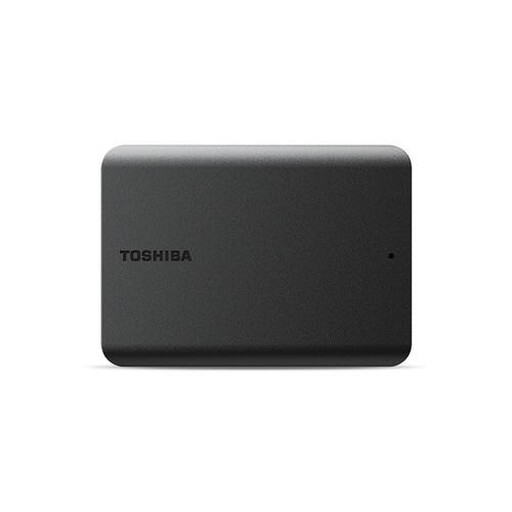 No image available
This compact external HDD is designed for local storage and taking files with you.
Capacity: 1 TB. The product description lists USB 3.2 Gen 1, USB 2.0 compatibility and a 2.5-inch form factor.
No. You’ll need to set up a backup method that saves versions. Apple describes Time Machine as a way to back up to a suitable, configured drive; Microsoft says File History can restore earlier file versions. Check that your project folders are included.
Apple recommends using a storage device with at least twice the capacity of your Mac for Time Machine. Apple also says it’s best to use a Time Machine drive solely for those backups. This advice applies to that use; for a different photo archive, calculate the space you need based on your files and the versions you want to keep.
Check the format first: for the Canvio Basics models reviewed here, Toshiba lists NTFS and says reformatting is required for Mac. Apple warns that setting up a Time Machine drive may require erasing it. So move any existing files to a safe location first.
According to the Dutch Government, the retailer is your point of contact for the legal guarantee if a consumer product is faulty. The Netherlands does not have a fixed two-year legal guarantee period; the assessment depends on what you could reasonably expect from the product.
The Dutch Data Protection Authority notes an exception for personal or household use when photos remain private or are shared only with a very limited group. This exception does not automatically apply to business use or wider publication; assess such projects separately.