
People managing a shared photo archive
You want to know which copy is up to date, who has access and whether a photo can be restored. VeiligInternetten describes a backup as a copy of files.


A portable HDD may be a good fit if you copy the collection periodically and capacity is your priority. A portable SSD is a better option if you regularly take the drive with you or transfer large files. Before you buy, check that the connection and file system are compatible with your workplace and backup method, and work out how much storage you need based on the collection and how much you expect it to grow. An external drive only makes a useful backup if you can restore files from it.
You want to know which copy is up to date, who has access and whether a photo can be restored. VeiligInternetten describes a backup as a copy of files.
You need to take account of the connections in use, the file system and the backup software. Being able to open a file doesn’t automatically mean the drive will work as a backup destination.
You may carry scans or photo files between locations, so a compact drive, suitable cables and careful handling of the data you take with you are important.
A good fit when: you copy the collection occasionally and capacity and connectivity matter more than frequent file transfers.
Bear in mind: it needs careful handling when you transport it. A drive that stays connected to a shared workstation isn’t automatically a separate backup.
A good fit when: you regularly move photos between workstations or often need to copy large batches of files.
Bear in mind: the USB port and cable will affect what the drive can do at your workstation. An SSD can still be lost, and it’s no substitute for a tested recovery process.
| What to consider | What should you check? | Who should pay particular attention? |
|---|---|---|
| Recovery and access | Agree who will run the backup, when the drive will be disconnected or stored elsewhere, and how a test restore will work. Also check how access and any recovery key will be managed. | If I need to be able to restore photos later and know who can access the copy, I prioritise recovery and access. Around 33% of consumers are most concerned about recoverability. |
| Connection and software | Make a note of the operating system, available USB ports, cables required and chosen backup method. Check these before formatting a drive. | If you want to use the drive with different computers, make sure the connection and backup software are compatible. Around 27% of consumers prioritise compatibility. |
| Archive storage space | Measure the folders you need to include and decide how much growth to allow for and whether to keep older versions. Compare this with the capacity of your chosen drive. | If I want to leave room for new photos without leaving out any files I need, I base my choice on the collection and its expected growth. Around 20% of consumers are most concerned about capacity. |
| Transfers and transport | Consider how often you copy large files, which USB port is available and how you’ll store the drive safely after use. | If you regularly take the drive with you or copy large files repeatedly, portability and connectivity matter. Around 20% of consumers prioritise transfers and transport. |
If a drive contains the only remaining copy, the drive itself is still a potential point of failure.
Keep the original or another copy, and test that you can restore a selected photo.
Keeping a separate copy takes extra organisation and time for a recovery test.
Apple says that setting up a drive for Time Machine may require you to erase it. Toshiba says the Canvio Basics USB-C needs to be reformatted for use with a Mac.
Check your intended backup method and make a separate copy of any files already on the drive before formatting it.
Crucial says the X9’s stated maximum read speed was measured under its own test conditions, and that performance can vary depending on factors including the host device and cable.
Check the workstation’s USB connection and weigh up speed against capacity and a working recovery process.
The Canvio Flex is designed for sharing files between compatible devices. The Canvio Basics USB-C is a different product line with its own file system.
The portable T7 Shield SSD may be worth considering if you carry an SSD with you and take the model-specific protection claims into account.
The XS1000 is a compact portable SSD range, with a 2TB version for copying files.
The X9 is a portable USB-C SSD. Crucial says it supports Windows File History and Apple Time Machine.
The Expansion Portable is a range of portable HDDs for photo storage and file backups.
These product picks are portable external SSDs for storing or carrying photos. Check that the capacity, connection and supplied cables are suitable for the computers and backup method at your workplace.
 No image available
A portable 1 TB SSD for storing and carrying photos and videos.
Read speeds of up to 800 MB/s; drop protection up to 2 metres, according to the product description.
The product description mentions an integrated hook for attaching the drive to a belt or rucksack.
 No image available
A portable 1 TB SSD for photos, videos and documents.
The product description lists USB 3.2 Gen 2 and maximum read speeds of up to 1.000 MB/s.
Drop protection up to 2 metres is mentioned in the product description.
 No image available
A portable 1 TB SSD for files and photos, with a USB-C connection according to the product description.
The description lists USB 3.2 Gen 2×2 Type-C and maximum read and write speeds of up to 2.000 and 1.800 MB/s respectively.
The product description mentions compatibility with USB-C laptops.
 No image available
A portable 1 TB SSD for files at a shared workstation.
The product description lists USB 3.2 Gen 2 and maximum speeds of up to 1.050 MB/s read and 1.000 MB/s write.
Windows and macOS compatibility, plus USB-C to USB-C and USB-C to USB-A cables, are mentioned in the product description.
The description lists AES 256-bit encryption. Check how access and recovery are managed at your workplace.
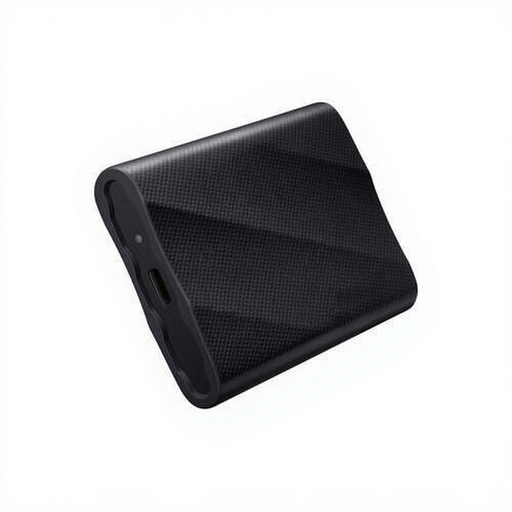 No image available
A portable external 1 TB SSD for files and photos.
The product description lists USB 3.2 Gen 2×2 and maximum speeds of up to 2.000 MB/s.
Windows and macOS compatibility, plus USB-C to USB-C and USB-C to USB-A cables, are mentioned in the product description.
Start by measuring the selected source folders, then allow for expected growth and older versions. For a full Time Machine backup of a Mac, Apple recommends a storage device with at least twice the Mac’s storage capacity. This advice doesn’t automatically apply to a single photo folder.
Don’t assume you can. Apple says that setting up a drive for Time Machine may require you to erase it, and recommends using that backup drive only for Time Machine. So first save existing photos to a separate copy, and check whether your setup requires separate drives or volumes.
Check the date of the last backup and periodically restore a selected photo. Apple explains how to restore files with Time Machine, and Microsoft with File History. Copying files to a drive doesn’t, by itself, confirm that the recovery process works.
If people can be recognised in photos, those images may contain personal data. The Dutch Data Protection Authority distinguishes between private use within a limited circle and use by an organisation. An organisation processing personal data must tailor its security measures to the risks and restrict unauthorised access. The measures that are appropriate depend on the photos, how they’re used and who has access.
An external drive isn’t automatically a safe sole copy: a damaged or lost drive can mean losing files too. Keep the original or a separate second copy, and test that you can restore your photos.