
Privacy-conscious journal writer
You use a computer that other people also use, and want to stop them from opening your backup. Check how the drive is encrypted and who can unlock it.


Start by considering how you’ll encrypt your backup and restore it later. Simply storing a journal on an external drive doesn’t make it private on a shared computer, as VeiligInternetten also points out. An HDD may suit you if storage space is your main priority; a portable SSD may be a better fit if you carry the drive around or copy larger files regularly. If you don’t want to rely on the work computer’s encryption software, consider an SSD with its own unlock method. Before buying, check the operating system, USB connection and whether you’re allowed to use the necessary software. Microsoft Support lists Windows Pro, Enterprise or Education for BitLocker Drive Encryption.
You use a computer that other people also use, and want to stop them from opening your backup. Check how the drive is encrypted and who can unlock it.
You work on your journal often and want to be able to retrieve earlier versions. Check that your backup routine is actually running, and test whether you can restore a file.
You want to use the drive with more than one system. Check the file system, and distinguish between sharing files and setting up a drive for Time Machine.
A good fit if: you mainly need space for successive backups and don’t move the drive around much.
Bear in mind: check the file system. Toshiba says the Canvio Basics needs to be reformatted for use with a Mac.
A good fit if: you carry the drive around often or regularly copy larger attachments, and can set up a suitable encryption method.
Bear in mind: actual speeds also depend on the computer and connection. An SSD isn’t automatically a protected backup.
A good fit if: you want to unlock the drive without relying on encryption software on the shared computer.
Bear in mind: keep your passcode safe. Kingston Technology says repeated incorrect entries can trigger cryptographic erasure by default.
First, decide how you’ll protect and restore your journal backup. Then choose a drive to suit your operating system, storage needs and copying habits.
| What to consider | What should you check? | Who is this most important for? |
|---|---|---|
| Privacy | Check how the drive or operating system encrypts data, whether you’re allowed to install software and where you store your recovery details. | I don’t want other people using the shared computer to open my journal; encryption and a reliable way to unlock it come first. Around 33% of consumers put privacy at the top of their list when buying. |
| Restoring a backup | Choose a method that includes your journal folder. Check that the drive is connected when the backup runs, and test restoring a file. | I want to be able to restore a recent copy and stick to a regular routine. Around 27% of consumers make the ability to restore files their top priority. |
| System compatibility | Check the operating system, port and cable, supplied format, and whether you’ll be sharing files or using Time Machine. | I want to use the drive with the computer available without losing existing files when reformatting it. Around 20% of consumers put compatibility first. |
| Storage space | Check the size of your journal, attachments and the versions you want to keep, then compare this with the capacity of the exact model. | I also keep photos, scans or earlier versions, and want to know how much space I’ll need. Around 13% of consumers name storage space as their main concern. |
| Copying and portability | Check the connection and supplied cables. Pay particular attention to quoted maximum speeds if you copy large files. | I connect the drive often or carry it around, and want larger transfers to be practical. Around 7% of consumers put ease of copying first. |
A standard copy on a drive isn’t automatically protected from other people who can access it. VeiligInternetten recommends encryption as an extra layer of protection.
Decide in advance which encryption method works on the computer available and whether you’re allowed to use it there. Otherwise, choose a model with its own unlock method.
Apple Support warns that reformatting can delete existing data.
First check what’s on the drive and save important files elsewhere before setting up a new format.
An external drive needs to be available when the backup runs. An outdated or missing copy could mean you can’t restore your journal file.
Check the date of your last backup and occasionally test whether you can restore a journal file, as Microsoft Support recommends for backup and recovery routines.
The IronKey Vault Privacy 80 is worth considering if unlocking the drive itself matters more to you than its quoted speed.
The T7 Shield is a range of portable SSDs for people who move their drive around often or copy larger files.
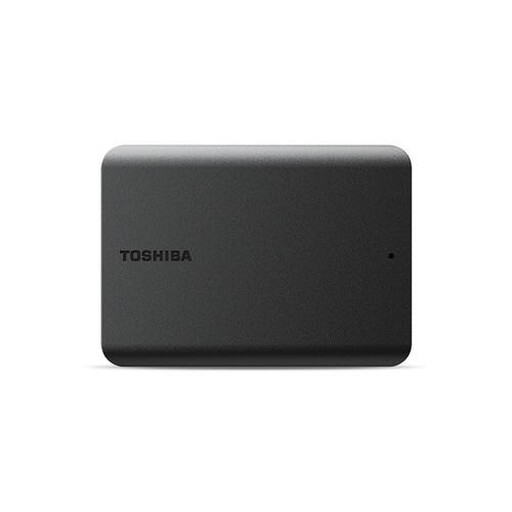
The Canvio Basics is a portable HDD option powered via USB.
The X9 is a compact USB-C SSD for people who manage security separately.
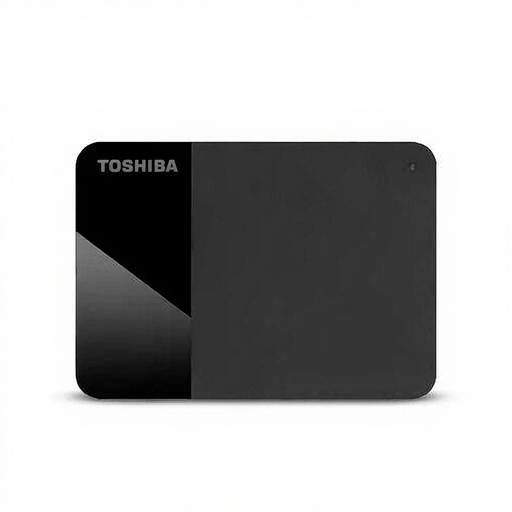
The Expansion Portable is a portable HDD option for file copies and backups.
These portable HDDs and SSDs are options for journal files and attachments. For each model, check how you’ll protect your backup and whether the drive suits your computer and backup routine.
 No image available
A portable HDD for Mac backups. The product description says the drive is ready for Time Machine.
Capacity: 2 TB. The product description lists password protection and hardware encryption; activation is via WD Discovery.
 No image available
A portable HDD for journal files. The product description says it’s ready to use straight out of the box.
Capacity: 2 TB; USB connection and power. According to the product description, password protection and 256-bit AES hardware encryption require WD Discovery to be installed.
 No image available
A compact SSD for journal files and attachments. The product description says it works with Windows and macOS.
Capacity: 1 TB. USB-C connection; quoted read speeds of up to 1.000 MB/s. The product description lists drop protection from heights of up to 2 metres.
 No image available
A portable HDD for journal files and file transfers, ready to use straight out of the box.
Capacity: 1 TB; USB 3.2 Gen 1. According to the product description, the drive needs to be reformatted for use with a Mac.
 No image available
A portable HDD for journal files. The product description says it works with Windows and Mac, and lets you transfer files by dragging and dropping them.
Capacity: 1 TB; 2.5-inch; USB 3.2 Gen 1. A USB cable is included, according to the product description.
No. Use a suitable encryption method and disconnect the drive when you’ve finished. Whether you’re allowed to install software and use USB storage depends on the rules for that particular work computer.
Not on every edition. Microsoft Support lists Windows Pro, Enterprise or Education for manually encrypting drives with BitLocker Drive Encryption. Also check that you have the necessary permissions on the work computer.
Don’t assume so. Apple Support recommends APFS or APFS Encrypted for a new Time Machine drive. A drive formatted differently may need to be erased and reformatted, so save any existing files elsewhere first.
Check that your chosen method includes the journal folder, and occasionally restore a file as a test. For a scheduled backup, the external drive needs to be connected while the backup runs. Store it somewhere safe afterwards.
According to the Dutch Data Protection Authority, the GDPR doesn’t apply when personal data is processed solely for personal or household use. Whether this exemption applies depends on how the data is actually used; it doesn’t mean there’s a blanket exemption for a professional or shared journal.