For a large archive that you rarely access, a portable HDD is worth considering. Choose one with enough capacity, and keep a separate copy that you can restore from. If you regularly move large folders that you’re actively working on, compare SSDs too, and check the connection, file system and capacity of the specific model. If recordings contain personal data, also decide who needs access, what security measures are appropriate and how long you need to keep them.
Who is this buying guide for?
Managing a growing archive of meetings
You store lots of completed recordings and large project folders, and want to plan for more space without mistaking a single drive for a restorable backup. The Digital Trust Center recommends keeping backups in more than one storage location and testing them regularly.
Working with large, active project folders
You regularly open or move large files and want to weigh up whether an external SSD suits your computer’s capacity and connection. Speeds quoted for models such as the Samsung T7 Shield and Crucial X9 Pro are manufacturer specifications, not a guarantee of the speed you’ll get on your computer.
Responsible for confidential recordings
You decide who can access recordings containing personal data, what security measures suit the risks and how long you need to keep them. The Dutch Data Protection Authority stresses that security should be tailored to the circumstances.
What should you look for when buying?
When your archive of meeting recordings and project folders is growing, your choice comes down to space, recoverability, confidentiality, transfer times and connectivity.
| What to consider |
What to look for when buying |
Who this matters to |
| Space for a growing archive |
Compare your current files and expected growth with the capacity of the exact model. Allow for the amount of space actually available after formatting. |
I want my existing recordings and new project folders to fit on the drive; around 26% of consumers give archive space their top priority. |
| Being able to restore your archive |
Check where a separate copy is stored and whether you can actually restore your files. The Digital Trust Center recommends using multiple storage locations and testing restores regularly. |
If losing one drive must not mean losing everything for good, a separate copy is essential; around 26% of consumers put recoverability first. |
| Access to confidential recordings |
Decide who can open files and how access or any encryption will be managed. The Dutch Data Protection Authority stresses that security measures should be proportionate to the risks. |
If recordings contain personal data, I want to manage access carefully; around 21% of consumers give confidentiality top priority. |
| Time needed to transfer large files |
Compare the quoted speed of the exact model and check that the drive, cable and computer port are suitable. Manufacturer maximum speeds are not guaranteed real-world speeds. |
If you often move large folders you’re actively working on, transfer speed may matter more; around 16% of consumers put it first. |
| Connection and file system |
Check the USB port, supplied cable and file system of the exact model. Copy any existing data before reformatting. |
I want to use the drive straight away with my computer and workflow; around 11% of consumers give compatibility top priority. |
Common pitfalls
-
Keeping all your recordings on one new drive
A larger or faster drive doesn’t make the files on that one drive independently recoverable.
Before moving your files, decide where the second copy will be stored and test that you can restore a recording. The Digital Trust Center recommends keeping backups in multiple storage locations and testing restores regularly.
-
Assuming a quoted SSD speed is your guaranteed copy speed
Manufacturer figures apply under specific test and connection conditions, and don’t necessarily indicate the speed you’ll get on your computer.
Check the drive, computer port and cable as a complete setup before choosing based on speed. Crucial says the X9 Pro’s maximum speed depends on suitable equipment and specific test conditions.
-
Assuming the drive will work straight away with every Mac or backup task
The supplied file system and backup software requirements can vary. Toshiba says the Canvio Basics model reviewed here is supplied in NTFS and needs reformatting for macOS; Seagate notes that reformatting may be needed for Time Machine.
Check the format and intended use before copying your files. Reformatting can take extra time and erases existing data, so make sure you’ve saved that data somewhere else first.
-
Assuming a rugged design or password means your archive is completely secure
A rugged casing is no substitute for appropriate access security. WD warns that data on a supported drive using WD Security may become inaccessible if you forget the password.
Decide who needs access, manage passwords securely and keep a separate copy that you can restore from.
Brands to compare
Seagate
The Expansion Portable is a range of portable HDDs worth comparing for a local archive containing lots of files.
- For model STKM5000400, the manufacturer lists a capacity of 5 TB and a supplied USB 3.0 Type-A cable.
- Reformatting may be needed to use it with Time Machine. Check that the connection and file system suit your computer and intended use.
Western Digital
My Passport is a range of HDDs worth comparing if portable storage and access management matter to you.
- WD describes password protection via WD Security for supported drives.
- Support varies by model. WD warns that forgetting your password can block access to your data; check software support for the exact model and make sure you have a password management plan.
Toshiba
Canvio Basics is a range of portable HDDs for anyone comparing local storage and USB power.
- Toshiba lists models with capacities of up to 4 TB.
- According to Toshiba, the 4TB model reviewed here is supplied in NTFS and needs reformatting for macOS. Check the format before transferring files.
Samsung
The 4 TB T7 Shield, model MU-PE4T0S/EU, is a portable SSD worth comparing if you regularly move large folders.
- For this range, Samsung quotes read speeds of up to 1.050 MB/s and write speeds of up to 1.000 MB/s via USB 3.2 Gen 2, plus an IP65 rating.
- These are Samsung’s quoted figures, not guaranteed transfer speeds on your computer or a guarantee that lost data can be recovered.
Crucial
The 4 TB X9 Pro, model CT4000X9PROSSD9, is another portable SSD to consider for files you’re actively working on.
- Crucial quotes read and write speeds of up to 1.050 MB/s under its own test conditions and says the drive is supplied in exFAT.
- Achieving the top quoted speed requires a suitable USB 3.2 Gen 2 device and a USB-C cable. Reformatting erases data on the drive.
Joybuy products
This selection includes portable HDDs for local archives and portable SSDs for moving files. Compare the capacity and connection with your own workflow; none of these drives replaces a separate copy that you can restore from.
 No image available
SanDisk Extreme Pro Portable SSD 1TB
A portable SSD for moving files; the product description lists USB-C and compatibility with Windows 10+ and macOS 13+.
1 TB storage capacity. The quoted read speed of up to 2.000 MB/s requires a compatible USB 3.2 Gen 2x2 device; write speeds are lower.
The product description lists an IP65 rating and 256-bit AES hardware encryption. Don’t use the drive as the only copy of important recordings.
View at Joybuy
 No image available
WD Elements Portable 5TB USB-C, Graphite Black
A portable HDD for storing large completed recordings and project folders locally; the product description lists a capacity of 5 TB.
The description lists USB-C and compatibility with Windows and Mac systems. Check the connection and file system for your computer.
Keep important files in a separate location too, and test that you can restore them.
View at Joybuy
 No image available
WD My Passport 6TB, White
A portable HDD for a larger local archive; the product description lists a storage capacity of 6 TB.
The description lists password protection, 256-bit AES hardware encryption and supplied backup software. Check how to manage the password securely.
Security features and backup software are no substitute for a separate copy that you can restore from.
View at Joybuy
 No image available
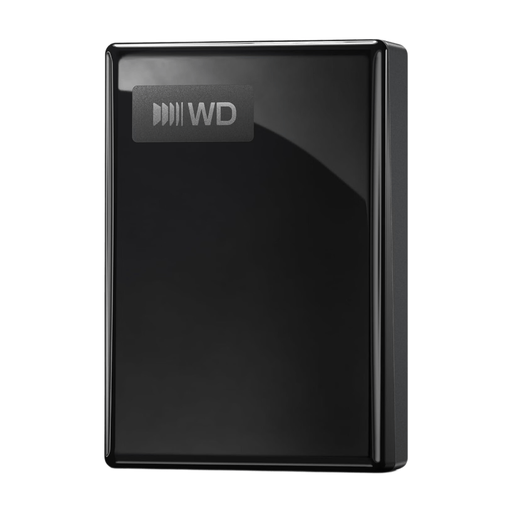
WD My Passport USB-C 5TB, Black
A portable HDD for local storage; the product description lists a capacity of 5 TB.
The description lists USB-C, exFAT, 256-bit AES hardware encryption and use with Windows and Mac computers. Check the connection on your own device.
Keep a separate copy of important recordings too, and test that you can restore them.
View at Joybuy
 No image available
Samsung Portable SSD T7 2TB, Blue
A portable SSD for large files and regular transfers; the title lists a capacity of 2 TB.
The product description lists USB 3.2 Gen 2 and sequential speeds of up to 1.050 MB/s read and 1.000 MB/s write. Actual speeds depend on the equipment you use.
The description lists 256-bit AES hardware encryption and supplied USB-C-to-C and USB-C-to-A cables. Check which connection you need and keep a separate copy.
View at Joybuy
Frequently asked questions
Is one external drive enough for both an archive and a backup?
No, not if it holds your only copy. The Digital Trust Center recommends keeping business data in multiple storage locations and regularly checking that you can restore a backup. Set how often you make copies to suit your workflow.
Do I need to format a new drive for my Mac?
It depends on the exact drive and what you want to use it for. Toshiba says the Canvio Basics model reviewed here is supplied in NTFS for Windows and needs reformatting for macOS; Seagate notes that reformatting may be needed for Time Machine. According to Crucial, the Crucial X9 Pro reviewed here is supplied in exFAT. Reformatting erases data on the drive, so make a copy first.
Will my computer achieve the quoted SSD speed?
Not necessarily. Crucial describes the X9 Pro’s 1.050 MB/s as its maximum sequential speed under its own test conditions, and says the best speed requires a suitable USB 3.2 Gen 2 connection and cable. Check your computer’s port and cable before you buy.
What if I forget the password for a secured WD drive?
WD warns that data on a drive locked with WD Security may then be inaccessible and that the password cannot be recovered. Check that the security software supports the exact drive and your computer, and make sure you have a secure way to manage the password.
How long can I keep meeting recordings containing personal data in the Netherlands?
According to the Dutch Data Protection Authority, the GDPR does not set a single specific retention period: personal data must not be kept for longer than necessary for its purpose. Other laws may set specific periods, so the organisation must determine and justify the relevant period for its circumstances.
Do I always need consent to keep meeting recordings containing personal data?
No. Consent is one of the six possible legal bases under the GDPR. Before processing data, the organisation responsible must decide which legal basis applies to the situation; consent must not be assumed automatically. The Dutch Data Protection Authority also stresses that appropriate security measures depend on the risks.


