
Creator with a large capture archive
You mainly want to move lots of existing videos and screenshots before the move. Start by working out how large your archive is, then see which option offers enough space.


An external HDD is a good fit for a large capture archive that you mainly want to keep, while a portable SSD is a sensible option if you often carry the drive around or regularly transfer clips. The Dutch Consumers' Association says HDDs are more susceptible to impact than SSDs, so handle an HDD carefully during the move. Before buying, check the capacity and connection your device requires, and keep another copy of your captures in a separate, checked location.
You mainly want to move lots of existing videos and screenshots before the move. Start by working out how large your archive is, then see which option offers enough space.
You carry your recordings between the studio and your new workspace, so size and protection against knocks matter. A sturdy casing is no substitute for keeping a second copy of your files.
You want to open or transfer large clips regularly after the move. Check that your work computer’s USB port is compatible with the drive and cable, too.
| What to consider | What should you look for? | Who should pay particular attention? |
|---|---|---|
| Space for your archive | Add up your existing captures and planned recordings, then compare the total with the usable capacity of the exact model. | If I want to keep all my existing captures before the move, I start by working out how much space I need. Around 40% of consumers put capacity first. |
| Transport and protection | Check the size and the protection specified for the particular drive model; also keep a second copy elsewhere. | If I’m taking the drive to a new workspace, I don’t want knocks or loss to put my recordings at risk. Around 30% of consumers prioritise safe transport. |
| Transferring clips | Check the USB port, the cable supplied and the stated read and write speeds. Maximum speeds don’t guarantee a particular transfer time. | If I regularly open or move large clips after the move, I check the connection to my computer. Around 20% of consumers prioritise transfer speed. |
| Connection to the source device | Before transferring data or formatting a drive, check the capture instructions and the required file system for your particular PC, PS5 or Xbox. | If I want to transfer captures directly from my own device, I first check which connection and format are compatible. Around 10% of consumers make compatibility with the source device their main consideration. |
A file stored on just one external drive is still at risk if the drive goes missing or stops working.
Copy the files, check that they’re on the drive, and keep another copy somewhere else.
Manufacturers quote maximum speeds, but your computer’s connection and the cable you use also affect the speed you’ll actually get.
Check your computer’s port and cable, and compare them with the drive’s required connection before paying extra for speed.
According to Xbox, storage formatted for Xbox games won’t work for captures. Formatting can also erase existing files.
For direct recording, Xbox specifies a USB 3.0 storage device with NTFS. Check the instructions for your use and move any existing data before reformatting a drive.
The Expansion Portable range is an option for keeping a large archive on a portable HDD. Seagate lists, among other options, a 5 TB model powered via USB.
The T7 Shield 2TB is a portable SSD to consider if you regularly take the drive with you or transfer files.
According to Kingston, the XS1000 range includes portable SSD models in 1 TB and 2 TB capacities for transferring files.
These portable SSDs and external HDD are options for storing and transporting game captures. Choose a capacity and connection to suit your archive and source device.
 No image available
A 1 TB portable SSD for taking captures with you. Check that it has enough capacity for your archive.
The description lists drop protection up to 2 metres and a rubber attachment loop.
 No image available
A portable SSD for storing and transferring clips. To reach the stated maximum speed, you’ll need a compatible connection.
The description lists 1 TB, USB 3.2 Gen 2x2, read speeds of up to 2.000 MB/s, IP65 and drop protection up to 3 metres. The stated read speed requires a compatible USB 3.2 Gen 2x2 host; write speeds are lower.
 No image available
A 1 TB portable SSD for storage and file transfers. Check that it has enough space for your captures.
The description lists USB 3.2 Gen 2, a USB-C connection and read speeds of up to 1.000 MB/s. The casing is described as drop-resistant up to 2 metres.
 No image available
The 2 TB model offers space for captures and other files. Check that your computer’s USB connection is compatible.
The description lists USB 3.2 Gen 2, USB-C to USB-C and USB-C to USB-A cables supplied, and sequential read and write speeds of up to 1.050/1.000 MB/s. According to the description, a device with USB 3.2 Gen 2 is required for optimum performance.
 No image available
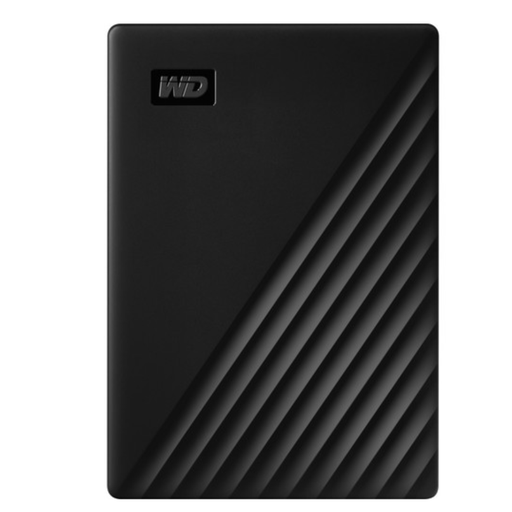
A 5 TB portable HDD for storing a large capture archive. Handle the drive carefully when transporting it and keep a second copy elsewhere.
The description lists USB 3.2 Gen 1, USB power and 256-bit AES hardware encryption.
Copy the capture folders to the external drive and check that the files are there before deleting the originals. When moving files to a new Windows PC, Microsoft also recommends safely removing the storage device.
No. According to Xbox, storage formatted for Xbox games won’t work for captures. For direct recording, Xbox specifies a USB 3.0 storage device with NTFS. Move any existing files before formatting a drive.
Yes. PlayStation explains how to copy captures from the Media Gallery to a connected USB drive. These instructions cover copying existing recordings, not recording new gameplay to an external drive.
For a personal purchase, the seller must resolve issues with a faulty product under the applicable terms; there is no fixed statutory warranty period in the Netherlands. For online consumer purchases, a cooling-off period of up to 14 days after delivery generally applies, subject to statutory exceptions. These consumer rules do not automatically apply to purchases made on behalf of a studio or business.
If an organisation processes personal data, the Dutch Data Protection Authority says it must choose appropriate security measures based on the risks. A studio move alone does not mean that every capture contains personal data or that a particular drive model is legally required.