What should you consider when choosing?
First, work out how large the archive is and whether the drive will mostly stay in one place or regularly travel with you to the client. Then check that your backup, connection, file system and any access security will work on both computers.
| What to consider |
What to look for |
Who is this important for? |
| Restorable backup |
Keep a separate copy and open files from that backup before handing them over. |
If I want to be able to restore the scans after delivery, I don’t want to rely on the only drive I’m handing over. Around 33% of consumers put recoverability first. |
| Accessible transfer |
Check the ports and file system on both computers, and test a representative scan folder. |
When I transfer files to a client, I want the recipient to be able to open them on their computer. Around 27% of consumers prioritise a smooth, accessible transfer. |
| Access and privacy |
Check the security features of the exact model and agree who will have access. |
When processing identifiable people’s data for business, I want to manage access carefully. Around 20% of consumers prioritise appropriate access security. |
| Capacity and storage setup |
Check the size of the scans and allow for agreed additions and space for a separate copy. |
If my main aim is to keep an archive, I want enough space without paying for more speed than I need. Around 20% of consumers prioritise capacity and the overall storage setup. |
Joybuy products
This selection includes portable SSDs for regular copying and transfers, and portable HDDs for storing scan archives.
 No image available
SanDisk Extreme Pro Portable SSD 1TB
A portable SSD option for transferring scans, with access security also worth considering.
The product information lists 1 TB, USB 3.2 Gen 2x2 and 256-bit AES hardware encryption. The stated read speed of up to 2.000 MB/s requires a compatible USB 3.2 Gen 2x2 host; write speeds are lower.
View at Joybuy
 No image available
WD Elements Portable 5TB USB-C
A portable HDD option if you’re mainly looking for space for a scan archive.
The product name lists 5 TB and USB-C. The product information says it works with Windows and Mac computers; check the connection on your devices and whether the drive can read and write on them.
View at Joybuy
 No image available
WD My Passport 6TB
A portable HDD option for a larger archive if password protection is part of your decision.
The product name lists 6 TB. The product information mentions 256-bit AES hardware encryption and password protection; you’ll need to activate the security feature using the supplied software.
View at Joybuy
 No image available
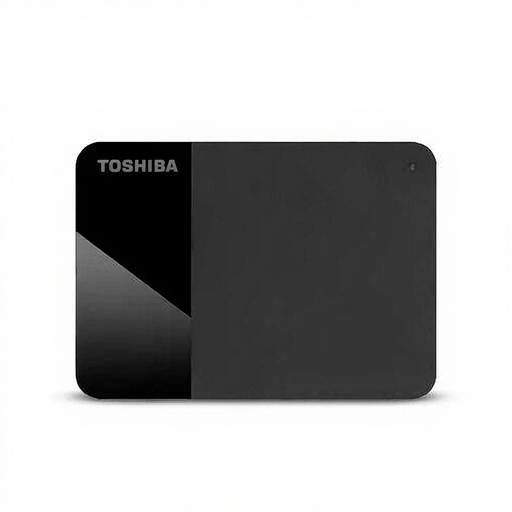
Toshiba Canvio Ready external hard drive
A portable HDD option to consider if your scan archive mainly needs storage space.
The product information lists USB 3.2 Gen 1 and an included USB cable. Check that the connection is suitable for the computers you’ll use for the transfer.
View at Joybuy
 No image available
Samsung Portable SSD T7 2TB blue
A portable SSD option for regularly copying or physically transferring scan folders.
The product name lists 2 TB. The product information mentions USB 3.2 Gen 2, sequential read speeds of up to 1.050 MB/s and AES 256-bit encryption. USB-C-to-C and USB-C-to-A cables are also listed.
View at Joybuy
Frequently asked questions
How can I check that the scans have been backed up before handing them over to the client?
Open a few files from the copy you’ve made to check that they’re readable. The National Cyber Security Centre also advises checking backups with a restore test. Keep a separate copy for recovery rather than relying solely on the drive you’re handing over.
Can I use the same external drive with Windows and a Mac?
That depends on the file system and connections. Apple says that exFAT is compatible with Windows, and that a Mac may be able to read NTFS but not write to it. Make sure existing files are safe before reformatting the drive.
Can I also use the drive with family scans for Time Machine?
Set up the drive for that purpose, and don’t use it as a transfer drive at the same time without checking first. Apple recommends APFS or encrypted APFS for a Time Machine backup drive; setting up a drive with a different format may require erasing and reformatting it.
What should I do to protect privacy when transferring files to a client?
If people are identifiable in the scans, the images are personal data. For business processing, the Dutch Data Protection Authority requires organisations to put in place appropriate security measures tailored to the risks. Whether a data processing agreement is needed depends on the actual relationship between the client and contractor; this doesn’t mean you always have to buy a specific type of encrypted drive.
What can I do if a drive I’ve bought fails too soon?
For a consumer purchase, the seller is responsible for the statutory guarantee. ACM ConsuWijzer explains that in the Netherlands this doesn’t have a fixed two-year duration; what you can expect depends, among other things, on the product and normal use. A guarantee doesn’t replace a backup of your scans.


