
Keeper of family scans
You want to be able to retrieve irreplaceable originals if a device or working file is lost. So, treat the external drive as part of a plan that includes separate copies and recovery, as VeiligInternetten explains.


A portable HDD is a good fit if you mainly want to store scans, originals and project folders. An external SSD makes more sense if you regularly move large files or work directly from the drive. Keep a separate copy of your files: an external drive holding your only copies is not a backup. Before you buy, check the capacity you need, the connection and whether the file system is compatible with your computer and backup method.
You want to be able to retrieve irreplaceable originals if a device or working file is lost. So, treat the external drive as part of a plan that includes separate copies and recovery, as VeiligInternetten explains.
You keep different edits alongside your scans and want to be able to restore an earlier version if needed. Microsoft Support and Apple Support explain how to restore files using configured backup features and the files or folders included in them.
You regularly transfer project files or work from a portable drive. In that case, the connection and transfer speed are important factors to consider.
A good fit if: you mainly want to store originals, exports and successive project folders, and don’t work directly from the drive all the time.
Bear in mind: Toshiba says Canvio Basics comes with NTFS and needs to be reformatted for macOS.
A good fit if: you regularly transfer, carry or edit large scans or project files directly from the drive.
Bear in mind: stated maximum speeds don’t guarantee the same speed on your computer; check the port and cable too.
First decide how you’ll store and restore your originals. Then choose the capacity, connection and storage type to suit your files and how you use them.
| Factor to consider | What to look for | Who should pay particular attention? |
|---|---|---|
| Separate copies and recovery | Decide where your originals will stay and where the backup will be kept; check how to restore a file. | I want to be able to retrieve my scans if my computer or working file is lost; around 28% of consumers put confidence in recovery first. |
| Earlier project versions | Check whether your backup method includes the project folder, and test restoring an earlier version. | I want to be able to go back to an earlier version after editing; around 28% of consumers put version recovery first. |
| Room for your archive to grow | Factor in your current folders, planned versions and future scans before choosing a capacity. | I want to keep originals and successive project folders together; around 22% of consumers start by considering the space their archive needs. |
| Speed while you work | Compare the connections on the drive, cable and computer; decide whether you’ll mainly archive files or work from the drive regularly. | I regularly move large files or work from the drive; around 11% of consumers put working speed first. |
| Computer and backup compatibility | Check the operating system, port, cable and any formatting requirements before saving your existing files. | I want to make sure the drive works with my computer and backup method; around 11% of consumers start by checking compatibility. |
If that drive is the only place where your scans are stored, you won’t have a separate backup to fall back on.
Check the copied files, keep a separate copy and try restoring a file.
Version recovery depends on your backup method and the folders it includes.
Include the project folder in your backup and test whether you can restore an earlier version.
Toshiba says Canvio Basics needs to be reformatted for macOS. Apple warns that setting up a drive for Time Machine may require erasing it.
Check the file system and copy any existing contents elsewhere before formatting.
Reformatting takes preparation and can erase files already on the drive.
Canvio Basics is a range of portable HDDs for storing items including photos. Toshiba lists 1 TB, 2 TB and 4 TB variants in the EMEA range reviewed.
Expansion Portable is a range of portable HDDs for storing items including photos and large files. Seagate also lists a 2 TB variant.
The Portable SSD T7 is a range of external SSDs for anyone who regularly transfers or carries project files. The grey 2 TB variant reviewed for the Netherlands is MU-PC2T0T/WW.
These product options are portable HDDs and external SSDs for storing or regularly transferring family scans and project files.
 No image available
Worth considering if you’re looking for a portable drive for Mac files and Time Machine backups.
Capacity: 2 TB. The product name mentions Time Machine Ready and password protection. Apple recommends using a Time Machine drive only for Time Machine backups.
 No image available
A portable HDD to consider if you want to keep scans and multiple project folders on one drive; make sure you also keep a separate copy.
Capacity: 4 TB. The product name mentions password protection and automatic backup software.
 No image available
A good match if you’re looking for a portable drive for a growing photo archive and can check the file system requirements in advance.
Capacity: 4 TB. The product name mentions a 2.5-inch drive and USB Type-A and Micro-USB B connections. The product information says it is formatted for Windows and needs to be reformatted for macOS.
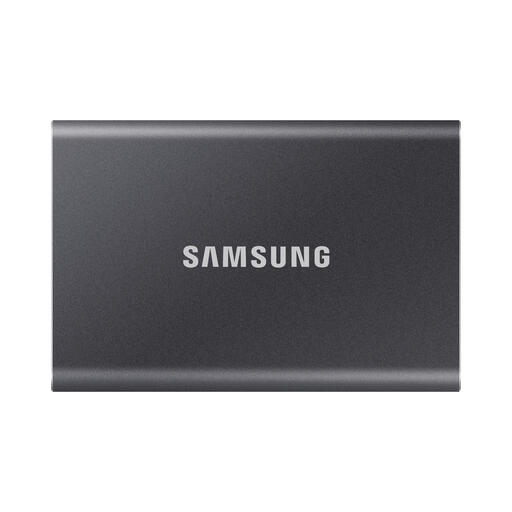 No image available
An SSD to consider if you regularly move or carry project files; check that the connections are compatible with your computer.
Capacity: 2 TB. The product name mentions USB Type-C and USB 3.2 Gen 2. For the grey 2 TB T7 variant reviewed (MU-PC2T0T/WW), Samsung Netherlands lists sequential maximum speeds of 1.050 MB/s read and 1.000 MB/s write; actual speed depends on the computer and connection used.
 No image available
Worth considering if you’re looking for an external SSD to store and transfer scan and project files.
Capacity: 2 TB. The product name mentions USB Type-C and USB 3.2 Gen 2x2.
Not if it holds your only copies. Keep a separate copy of the originals and check that you can restore them; an external drive can be one part of your backup plan.
Store the unedited scans separately and set up version recovery. Microsoft Support explains how to restore files using File History for folders included in the backup; Apple Support explains how to restore files using Time Machine. In both cases, check that your project folder is included.
Check the drive and its setup first. Apple Support says that when you set up an external drive as a Time Machine destination, your Mac may ask you to erase it. Toshiba says Canvio Basics needs to be reformatted for macOS.
Contact the seller. According to the Dutch government, a manufacturer’s or seller’s guarantee is in addition to your statutory rights; what you can reasonably expect from a product depends on the circumstances. A guarantee on the drive is no substitute for backing up your photos.
According to the Dutch Data Protection Authority, an exception applies to personal or household use if you keep the photos private or share them with only a very limited circle. Sharing more widely, for example on a public page, is different from simply storing them on a private drive.