What should you look for when choosing?
First, work out which files and versions you want to keep. Then compare the connection, power requirements and backup setup.
| What to consider |
What to look for |
Who is this important for? |
| Enough capacity |
Add up your files and the versions you want to keep. For Time Machine, Apple recommends at least twice the storage capacity of your Mac; this advice applies to Mac backups. |
If I keep lots of photos and videos, I also want room for future copies. Around 36% of consumers prioritise enough capacity for family files. |
| Backups you can restore |
Set up the backup feature, check which folders are included and try restoring a file. |
If I delete or change something, I want to be able to restore an earlier copy, not just own a drive. Around 29% of consumers prioritise recent copies and the ability to restore files. |
| A setup that works for you |
Check the operating system, USB connection and file format. You may need to reformat the drive, which can erase any data on it. |
I want to know in advance whether the drive will work with my computer and backup feature. Around 21% of consumers put a straightforward setup first. |
| Portability and speed |
Compare the size, connection and capacity. Advertised maximum transfer speeds don’t guarantee a particular backup time. |
If I often put the drive away or transfer large files, portability and speed matter, as long as the capacity is right. Around 14% of consumers prioritise portability and speed. |
Joybuy product picks
These Joybuy picks are external HDDs and SSDs for local backups of family files, including portable drives and desktop storage.
 No image available
My Passport 4 TB portable hard drive
A portable HDD for anyone looking for 4 TB and automatic backup software.
Product information lists USB-C, password protection and 256-bit AES hardware encryption.
View at Joybuy
 No image available
Toshiba Canvio Basics 4 TB
A portable, USB-powered HDD for anyone who wants to put their drive away after use.
4 TB; USB Type-A / Micro-USB B; USB 2.0/3.2 Gen 1 (3.1 Gen 1). Product information says the Windows format needs to be changed for macOS.
View at Joybuy
 No image available
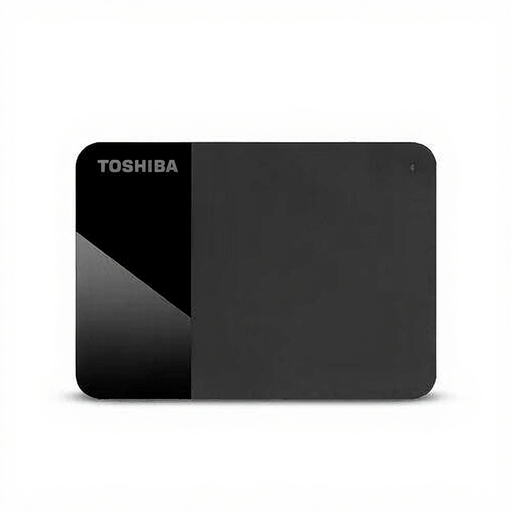
Toshiba Canvio Ready 4 TB
A portable HDD for anyone looking for 4 TB of storage in a USB-powered drive.
4 TB; 2.5-inch design; Micro-USB B; USB 2.0/3.2 Gen 1 (3.1 Gen 1).
View at Joybuy
 No image available
Samsung MU-PE2T0R 2 TB USB Type-C, blue
A compact external SSD for anyone who moves their drive regularly and finds 2 TB sufficient.
USB 3.2 Gen 2; product information lists maximum read and write speeds of 1.050 and 1.000 MB/s. These are advertised maximums, not guaranteed backup times. Product information also lists a rubber casing and drop resistance of up to 3 metres.
View at Joybuy
 No image available
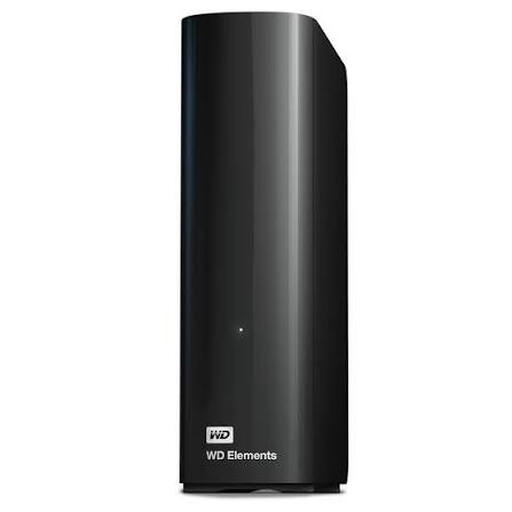
WD Elements Desktop Storage 8 TB
Desktop storage for a fixed workspace, if 8 TB is right for your files and backups.
8 TB; USB 3.0 and compatible with USB 2.0. Product information lists plug-and-play use with Windows 10 or later.
View at Joybuy
Frequently asked questions
What capacity should I choose for Time Machine?
For a Mac, Apple recommends a backup drive with at least twice the Mac’s storage capacity. This advice applies to Time Machine; it is not a general minimum for Windows or for all family files.
Does Windows automatically back up my files as soon as I connect a drive?
No. Set up File History and select the external drive. Microsoft Support explains how to back up libraries and add other folders; check which family files are actually included.
What if I put my backup drive away after use?
For a scheduled Windows backup to an external drive, the drive needs to be connected when the backup takes place. After reconnecting it, check the most recent copy and try restoring a file.
Should I encrypt my family backup?
Encryption can provide an extra layer of protection, as Veilig Internetten explains. You can enable encryption for Time Machine; Apple notes that you’ll need the password to restore files later, so keep it somewhere safe.
Does the GDPR apply to a private backup of family files?
The European Data Protection Board describes the exception in Article 2(2)(c) of the GDPR for processing carried out by a natural person solely in the course of personal or household activities. Don’t assume this exception applies to files you process for professional or commercial use.


