
Families with a growing photo and video archive
You want both your existing collection and future back-ups to fit on the drive. Capacity and the choice between a fixed or portable set-up are important considerations.


First, choose a drive with enough space for the files you want to keep and the back-ups you’ll make in future. Then decide whether a portable HDD, a desktop HDD kept in one place or a portable SSD best suits how you’ll use it. Check the connection and operating system, and test that you can restore files. An external drive that stays connected is not, on its own, protection against ransomware.
You want both your existing collection and future back-ups to fit on the drive. Capacity and the choice between a fixed or portable set-up are important considerations.
You want to be able to restore automatic back-ups and previous versions of files, and are considering keeping a copy that isn’t permanently connected to the same computer.
You want to transfer large files quickly, so you’ll want to consider the size, connection and how to carry it safely.
Work through your options in this order: decide how much space you need, check that the drive works with your computer and back-up software, then choose between a fixed or portable set-up.
| What to consider | What to look for when buying | Who is this important to? |
|---|---|---|
| Room to grow | Compare the capacity with the files you want to back up and how much you expect your collection to grow. For Time Machine, Apple recommends a drive with at least twice the Mac’s storage capacity. This isn’t a general requirement for Windows. | I want my current photos and videos, as well as future back-ups, to fit on one drive. Around 36% of consumers put capacity first. |
| Being able to restore files | Check which folders and versions your back-up method saves, and try restoring a file. Microsoft Support explains File History for Windows; Apple Support explains Time Machine for Mac. | I don’t just want to copy files; I also want to check that I can get them back later. Around 29% of consumers put recoverability first. |
| Computer and software | Check the operating system, available USB connection, cable and file format. Reformatting a drive for Time Machine can erase its existing contents. | I want the drive to work with my computer and chosen back-up method without losing any existing files. Around 21% of consumers put compatibility first. |
| Taking it with you and transferring files | Consider how often you’ll take the drive with you and whether your computer supports its connection. Manufacturer transfer-speed figures don’t guarantee how quickly your back-up will run. | I take the drive with me or often move large files, and want it to suit the way I use it. Around 14% of consumers put portability and transfer speeds first. |
If you only move files to the external drive, it’s no longer a back-up copy of those files. Safe Internetting describes a back-up as a copy of files; Microsoft Support provides settings for back-ups and previous versions.
Keep the files somewhere else too, and test that you can restore a file.
Time Machine may ask you to erase and reformat the drive. This could cause you to lose any files already stored on it.
First copy the existing contents somewhere else, then check the copy before setting up the drive.
The Seagate Expansion Desktop STKP8000400 model reviewed comes with an 18 W power adapter, so you’ll also need a mains socket near the computer.
Choose a desktop model for a fixed back-up location, and check the power supply and cables for the exact version.
For a fixed set-up, make sure you have room for the drive and a mains socket for the adapter.
The Canvio Basics is a range of portable HDDs, including a 4TB version, designed for USB-powered storage.
The Expansion Desktop STKP8000400 is an 8 TB desktop HDD for a fixed back-up location.
The T7 Shield MU-PE4T0S/EU is a 4 TB portable SSD for anyone who takes their drive with them or moves large files.
This selection includes portable HDDs and desktop storage for a growing family collection, with options for use in one fixed location or in different places.
 No image available
A portable hard drive for a growing collection and scheduled back-ups with the included software.
6 TB storage; the product description lists USB 3.0 and 256-bit AES hardware encryption.
 No image available
A portable option for scheduled back-ups when 4 TB suits the size and growth of your collection.
4 TB storage; the product description lists USB 3.0, USB 2.0 compatibility and 256-bit AES hardware encryption. The included software can schedule back-ups.
 No image available
A portable HDD for a family computer when 4 TB is enough for your collection and planned back-ups.
The product description lists USB 3.2 Gen 1 and USB 2.0 compatibility. The drive is formatted for Windows; it needs to be reformatted for macOS.
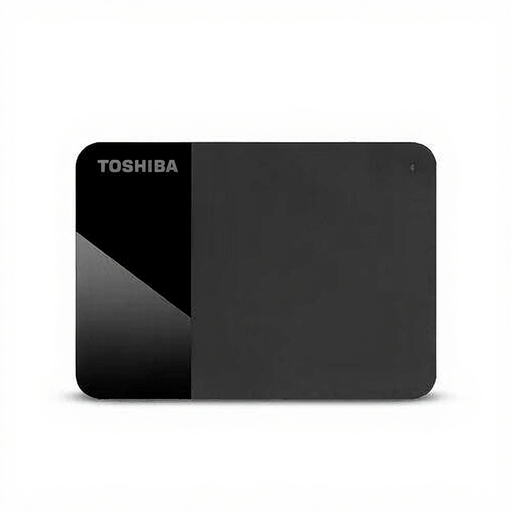 No image available
A portable drive for back-ups in different locations, if USB power suits your computer set-up.
4 TB storage; the product description lists USB 2.0/3.2 Gen 1 and USB power, with no separate power supply needed.
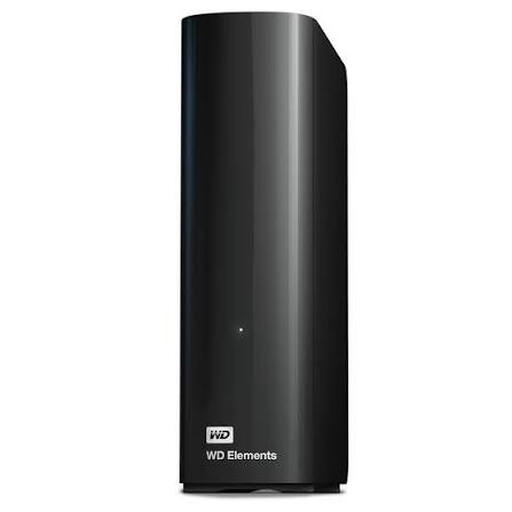 No image available
Desktop storage for a fixed location when 8 TB suits the size and expected growth of your collection.
8 TB storage; the product description lists USB 3.0 and USB 2.0 compatibility.
On Windows, File History can back up personal files and previous versions to an external drive; check that it includes the folders you want. On a Mac, Time Machine can automatically back up to an external drive. After setting it up, test that you can restore a file.
Not necessarily. Apple Support says that Time Machine won’t save back-ups to a drive with a Windows file system, and recommends APFS or APFS Encrypted. Reformatting can erase existing data on the drive, so copy it somewhere else first.
No. The Dutch Data Protection Authority warns that ransomware can also affect files on connected hard drives. Keeping a separate copy and checking that you can restore files reduces your reliance on that one connected drive.
Apple recommends a drive with at least twice the Mac’s storage capacity for Time Machine. This is Apple’s guidance for Time Machine, not a general capacity requirement for Windows. Also consider the folders and previous versions you want to keep.
According to the ACM Consumer Guide, you have a legal guarantee as well as any manufacturer's warranty. If a product doesn’t meet what you could reasonably expect during normal use, the seller must offer a solution. The manufacturer's warranty alone therefore doesn’t determine how long your legal rights last. A replacement drive also doesn’t replace a separate copy of your files.