What should you look for when buying?
Start with the storage capacity you need and your operating system. Then consider how you’ll protect the back-up in a shared workspace and when you’ll disconnect the drive.
Portable HDD
Choose this option: if you want to put the drive away after backing up or move it between computers.
Bear in mind: the file format and connection. The Toshiba Canvio Basics we reviewed is powered via USB and formatted as NTFS for Windows, but needs reformatting for macOS.
Desktop HDD
Choose this option: if the drive will stay in one place and you’re looking for a model with plenty of storage.
Bear in mind: the Seagate Expansion desktop drive we reviewed needs a power adapter as well as a USB connection. Also plan to keep a copy disconnected from your computer.
Portable SSD
Choose this option: if you regularly take the drive with you or copy large amounts of data.
Bear in mind: stated maximum speeds don’t guarantee the same performance on every computer. Check the USB port and keep a separate copy too.
| What to consider |
What should you check? |
Who is this important for? |
| Storage and version history |
Take stock of your files and the back-up history you want to keep. For Time Machine, Apple Support recommends using a device with at least twice the storage capacity of your Mac; this isn’t a general minimum requirement for every computer. |
If I want to keep photos, videos and documents and retrieve older versions too, having enough space is my top priority. Storage is the main consideration for around 33% of consumers making this choice. |
| Privacy and disconnection |
Check who can access the back-up, store the encryption password safely and decide when you’ll disconnect the drive after use. |
In a shared workspace, I want to prevent others from accessing my back-up and avoid a connected copy being affected at the same time as the computer. Around 27% of consumers put protection and recoverability first. |
| Operating system and connection |
Check the file format, computer port and supplied cable. Make a copy of any existing files on the drive elsewhere before reformatting it. |
If I use a Windows PC or Mac, I want to know in advance whether the drive I choose will work as a back-up destination. System compatibility is the top priority for around 20% of consumers. |
| Moving and copying |
A portable drive is handy for putting away; a desktop model is designed to stay in one place. Compare stated SSD speeds with your computer’s USB connection and the way you use it. |
If I want to put the drive away or take it with me often, I’ll consider its size and power requirements. For large copying jobs, I’ll also check the connection. Around 20% of consumers prioritise portability and copying speed. |
Joybuy products for back-ups
These products include portable HDDs and SSDs for storing away or moving between devices, plus a desktop HDD for a fixed workspace.
 No image available
My Passport 4TB Black with password protection and Auto Backup Software
Suitable if you want to put a portable drive away after backing up a family collection.
The product name lists 4 TB, password protection and Auto Backup Software.
Joybuy
 No image available
WD My Passport USB-C 4TB Black
Suitable if you want to move or put away a portable drive and value password protection.
The product name lists USB-C and 4 TB.
Joybuy
 No image available
Samsung Portable SSD T7 2TB USB Type-C 3.2 Gen 2 (3.1 Gen 2), Blue
Suitable if you’re looking for a portable SSD to move between computers.
The product name lists 2 TB and USB Type-C 3.2 Gen 2 (3.1 Gen 2).
Joybuy
 No image available
Samsung Portable SSD T9 4 TB Black (MU-PG4T0B)
Suitable if you’re looking for a portable drive for a larger collection that you can move between devices.
The product name lists 4 TB and model MU-PG4T0B.
Joybuy
 No image available
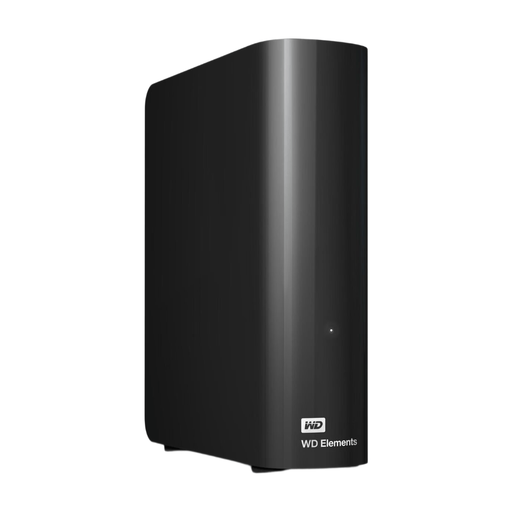
WD Elements Desktop 6TB USB 3.0 Hard Drive
Suitable for a fixed workspace where you need a desktop HDD with plenty of storage for an archive.
The product name lists 6 TB and USB 3.0. According to the product description, this model doesn’t have password protection or encryption, so you’ll need to manage access separately in a shared workspace. It also needs a power adapter.
Joybuy
Frequently asked questions
How do you set up a back-up for multiple users in Windows?
File History lets you back up Windows libraries, including default folders such as Documents and Pictures, to an external drive or network location. Microsoft Support recommends checking that the user folders you want to keep are included in the back-up settings. Also test that you can restore a file.
Can the same drive store Time Machine back-ups without any preparation?
Not if the volume you want to use for Time Machine is still formatted with a Windows file system. Apple Support recommends APFS or APFS Encrypted and warns that reformatting erases existing data. First decide on the format and, if necessary, copy the current contents of the drive elsewhere.
How can you keep a back-up drive safe in a shared workspace?
Check that the back-up is complete, regularly test that you can restore your files, then safely disconnect any USB drive you’re using as a separate copy. The Consumentenbond warns that ransomware can also affect connected external drives.
Do you need an extended warranty or data recovery service in the Netherlands?
You don’t need to buy an extended warranty to have statutory consumer rights. ACM ConsuWijzer explains that the retailer is responsible for providing an appropriate solution if a product doesn’t do what you could reasonably expect under normal use. Any manufacturer’s warranty or data recovery service will have its own terms and doesn’t guarantee that your files can be recovered.
Does the GDPR apply to a family back-up on a shared computer?
The Dutch Data Protection Authority says the GDPR doesn’t apply to processing personal data solely for personal or household use. If the workspace is also used by an organisation or for other non-household processing, that exception doesn’t automatically apply to that data; assess that use separately.


