Choose a portable HDD if you want to disconnect and put the drive away after a backup, a desktop HDD if it can stay in one place, or a portable SSD if portability and file transfers matter most. Match the capacity and format to your computer and backup function; for Time Machine, Apple recommends a drive with at least twice the storage capacity of your Mac. An external drive alone isn’t a complete backup routine: test that you can restore your files, and keep important copies separately if possible.
Who is this guide for?
Families who want to be able to restore files
For anyone who wants to keep photos and documents locally and check that they can be restored. The National Cyber Security Centre advises testing backups; keeping a separate copy helps prevent one incident from affecting all copies in the same place.
Families with a growing photo and video archive
For anyone who wants to match capacity to their existing files and future backups. For Time Machine, Apple recommends a backup drive with at least twice the storage capacity of your Mac.
Families who want to use the drive with Windows and Mac
For anyone who wants to match the connection, file system and backup software to their computer. Apple and Toshiba explain what to consider when formatting a drive; reformatting can erase existing files.
What should you look for when buying?
Start by deciding what you want to be able to restore and how much storage space it will need. Then choose a drive type and check that its connection and file system are suitable for your computer and backup function.
| What to consider |
What should you check? |
Who is this important for? |
| A restorable copy without the cloud |
Check how to start backups, where to keep a separate copy and whether you can restore a file. |
I want to be able to restore family files locally and keep a copy separately. Consumers who prioritise recoverability and keeping a separate copy account for around 36%. |
| Space for files and previous versions |
Take stock of your files and how much backup history you want to keep. For Time Machine on a Mac, Apple recommends at least twice the Mac’s storage capacity. |
As my photo and video archive grows, I want enough room for both files and backups. Consumers who put capacity for a growing archive first account for around 29%. |
| Compatibility with your computer |
Check the operating system, available USB port and the drive’s file system. Back up files elsewhere before reformatting. |
I want to use the drive with my local backup function without any surprises. Consumers who prioritise a compatible connection and setup account for around 21%. |
| Transferring files and portability |
Compare capacity and connection; treat stated SSD speeds as manufacturer specifications, not guaranteed backup speeds. |
If you regularly take the drive with you or move large files, portability may matter. Consumers who prioritise speed and portability account for around 14%. |
Common pitfalls
-
Assuming one external drive is a complete backup strategy
A connected backup drive can also be affected by ransomware. A copy kept in the same location may also be at risk if an incident affects that location.
Set up your local backup function, test that you can restore your files and consider keeping a second copy separately.
Keeping a separate copy may require a second storage device.
-
Filling a Windows-formatted drive before using it with Time Machine
The format may not be suitable for Time Machine; when you set it up, your Mac may ask to erase the drive.
Check the file system beforehand and back up any files already on the drive before reformatting it.
-
Taking a maximum SSD speed as a guaranteed backup speed
The stated speed for the Crucial X9 reviewed is a maximum from a Crucial test. Actual speed also depends on the connection and computer you use.
Check capacity, port and backup routine first; then treat the speed claim only as the manufacturer’s specification for that version.
Brands to consider
These examples highlight differences between the product ranges reviewed; a brand mention alone doesn’t indicate whether a specific version is available.
Toshiba
Canvio Basics is a range of portable HDDs for local storage without a separate power adapter.
- Toshiba lists versions of up to 4 TB, preformatted as NTFS for Windows.
- For Mac use, Toshiba says the drive needs reformatting; check what this means for files already stored on it.
Seagate
Expansion Portable and Expansion Desktop are options reviewed for a portable drive and a fixed setup, respectively.
- The Portable data sheet reviewed specifies USB power.
- The Expansion Desktop manual specifies a separate power adapter. Check the exact version.
Samsung
The Portable SSD T7 Shield is a portable SSD option reviewed.
- For the 2 TB black version, MU-PE2T0S/EU, Samsung lists sequential speeds of up to 1.050 MB/s read and 1.000 MB/s write, plus an IP65 rating.
- These are Samsung’s specifications for that version, not an independent test or a guarantee that a backup will be preserved.
Crucial
The X9 product page reviewed relates to the portable SSD version CT2000X9SSD9.
- Crucial lists support for Windows File History and Apple Time Machine, depending on formatting and your computer’s capabilities.
- The read speed of up to 1.050 MB/s is a maximum measured by Crucial under the test conditions specified on the product page.
Joybuy products for local backups
This selection includes portable HDDs and SSDs that you can put away after use, as well as desktop HDDs for a permanent setup.
 No image available
SanDisk Portable SSD 1TB
A portable SSD option for a local copy you can take with you.
The product description lists 1 TB of storage and read speeds of up to 800 MB/s.
The description states that it can withstand drops of up to 2 metres.
View at Joybuy
 No image available
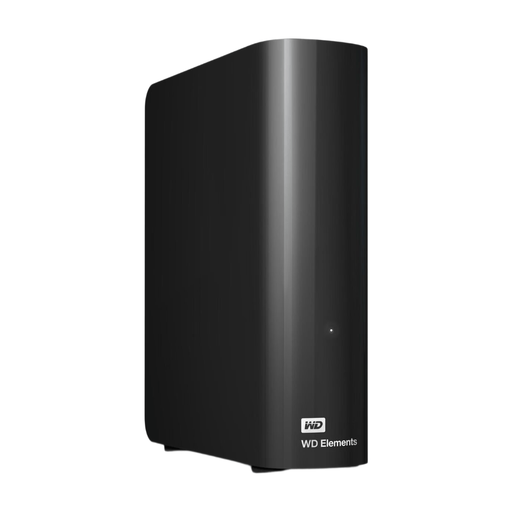
WD Elements Desktop 6TB
A desktop HDD for anyone who can keep the drive connected in one place.
The description lists 6 TB, USB 3.0 and an included power adapter.
According to the description, the drive is preformatted as NTFS; reformatting may be necessary for Mac use.
View at Joybuy
 No image available
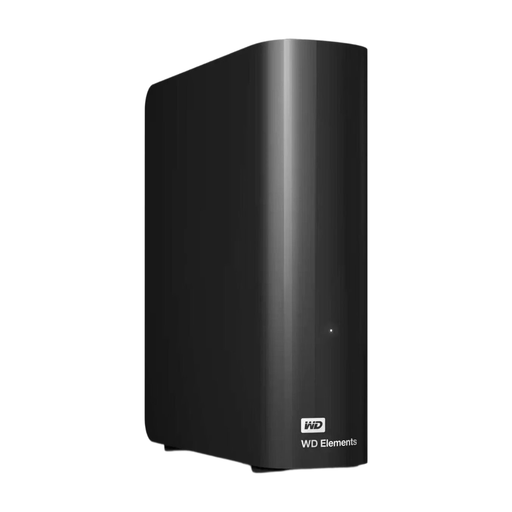
WD Elements Desktop 16TB
A desktop HDD for a permanent setup, with room for a large local archive.
The description lists 16 TB, USB 3.0, an included cable and a power adapter.
According to the description, the drive is preformatted as NTFS; reformatting may be necessary for Mac use.
View at Joybuy
 No image available
WD My Passport 4TB Black
A portable HDD for anyone who wants to put away a local copy once the backup is complete.
The product description lists 4 TB, USB 3.0, USB power and 256-bit AES hardware encryption.
The description mentions software that lets you schedule backups.
View at Joybuy
 No image available
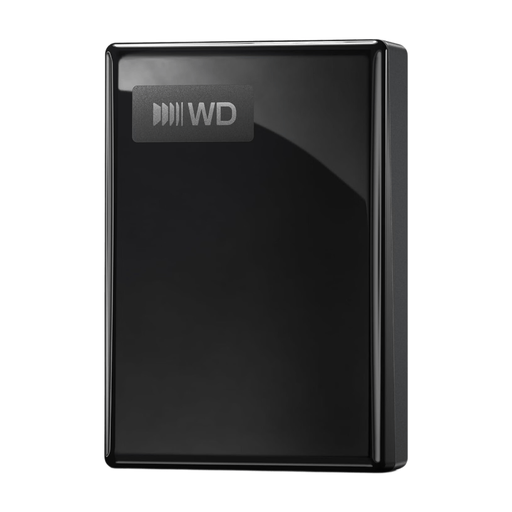
WD My Passport USB-C 1TB Black
A portable external HDD for anyone who wants to take a local storage copy with them.
The product name lists 1 TB and USB-C; check that the connection is suitable for your family computer.
The product description lists a weight of 122 g.
View at Joybuy
Frequently asked questions
Which Windows feature can you use for a local file backup?
File History lets you save personal files and previous versions to an external drive. Microsoft says that libraries are included by default; check which folders are included and add other folders to a library if needed. This doesn’t automatically give you a full system image.
How do you set up an external drive for Time Machine?
Connect a suitable drive and select it in Time Machine as your backup drive. Apple recommends a drive with at least twice the storage capacity of your Mac and lists APFS or APFS Encrypted as suitable formats. Your Mac may ask to erase the drive during setup, so back up any existing files elsewhere first.
How can you check that a backup works?
Check that the backup is reported as successful, then try restoring and opening a file. The National Cyber Security Centre describes this recovery check in its guidance for organisations; you can check a family backup in the same way to make sure you can retrieve your files.
Is there always a statutory guarantee of exactly two years in the Netherlands?
No. According to the Dutch Government, there is no fixed statutory guarantee period in the Netherlands; what you can expect from a product depends, among other things, on the product and the sales information. If a product is faulty, contact the seller. A manufacturer’s guarantee is separate.


